.png?width=280&height=39&name=Projectworks-Logo-Black-280px%20(1).png)
How does it work?
The feature allows you to upload a CSV file to the system, edit and adjust any expense lines from the CSV to ensure correct data is present, and save the new records as expenses.
You can use either the Projectworks CSV template (available for you to download on the upload page) or use an extract a list of bills to pay from Xero and remove lines that you don’t want to upload to Projectworks. The system will also provide a list of default values required for the expense creation.
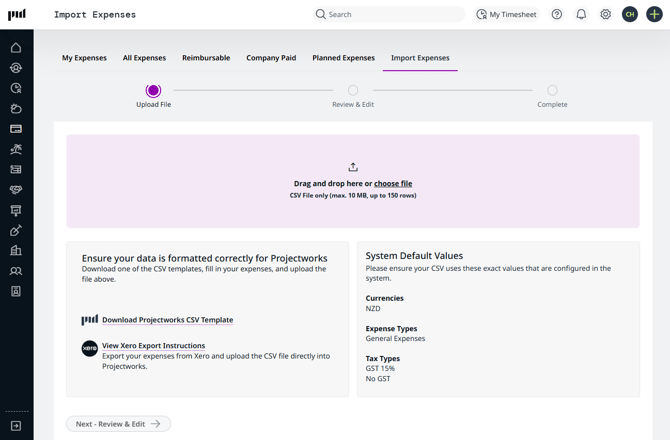
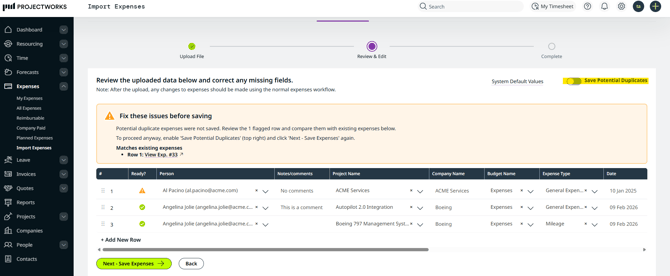
Once you’ve uploaded the file, the system will highlight any expense where there are data issues (e.g. missing project information or expense type, or currency or tax type not enabled in the system).
Each expense must be associated with a Projectworks Person, Project and Budget as well as have an Expense Type, Tax Type and Currency that are valid in the system along with the expense particulars like date, amount & billability.
The system will advise if there is invalid data in the fields.
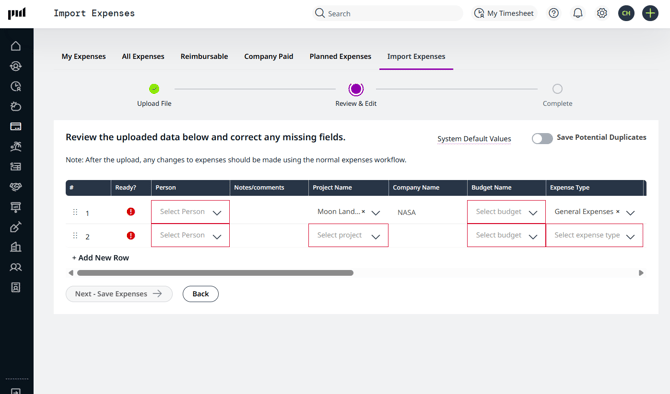
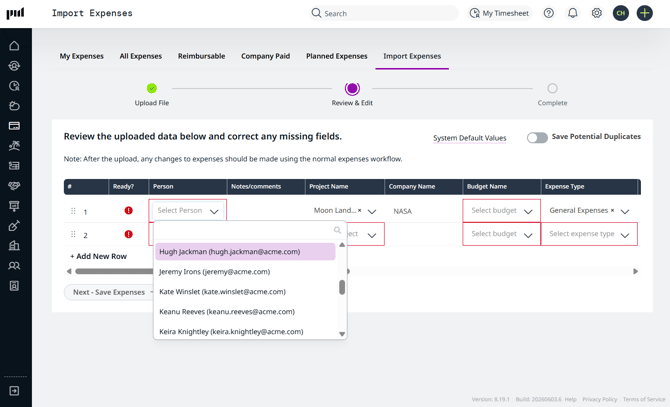
You can update the expense data directly on the screen - or delete expenses from the import where more complex setup is needed to import the expense, like adding a new currency or setting up a new tax type.
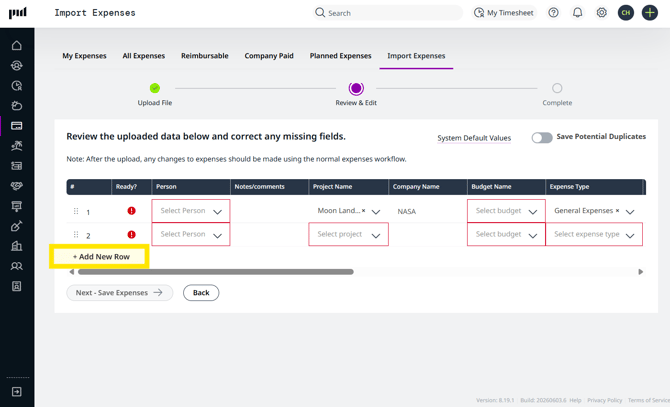
You can also add additional expense lines in this step.
Once all the expenses have the necessary data, you can save the import. The system will check if there are any potential duplicates, where the expenses match on date, amount & currency. You can either exclude these expenses from the import, or you can opt to create them regardless - take care with this!
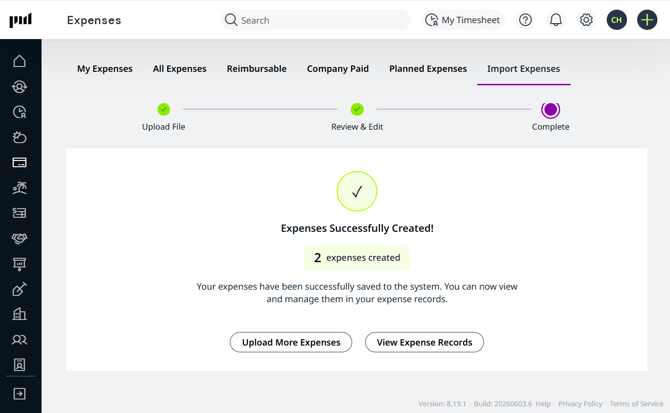
Finally, the system will confirm how many expenses were created as part of the upload.
How do I access the CSV Expense Import?
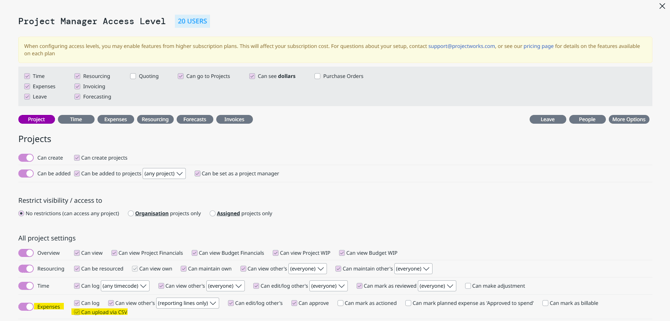
Add the access level permission to your desired user access level/s via Settings → Access Levels → Expenses.
Users must have the following permissions to upload expenses via CSV:
-
Can view other’s = everyone
-
Can edit/log other's = everyone
-
Can approve = everyone
-
Can mark as billable = true
-
Can upload via CSV = true
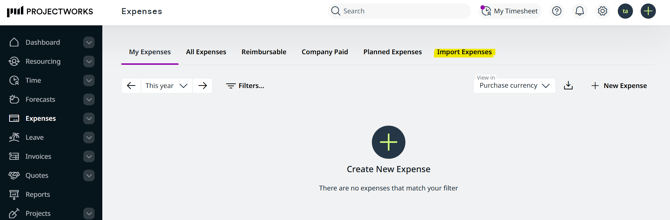
This brings up a new tab on the Expenses section and you are ready to go!
Expense Import History
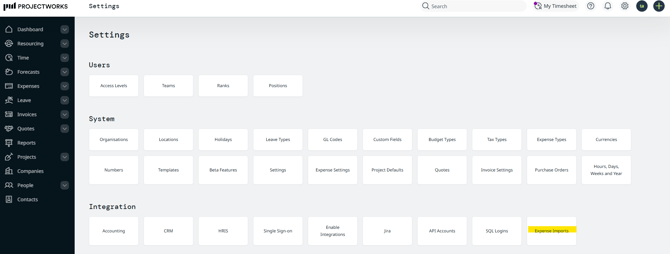
You can view all expense imports that have been initiated (regardless if they were completed) in the Settings → Integration → Expense Imports section.
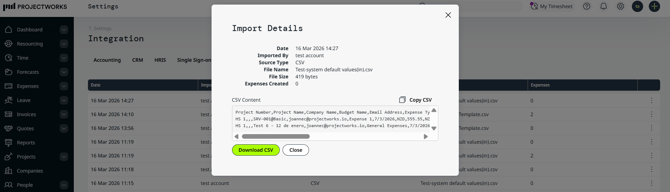
In this page you’ll see a list of imports sorted by date, who initiated the import, file name and how many expenses were created. You can also get a copy of exact file used in the import by clicking on the three dot menu and selecting ‘Import Details’. This will open a pop up that shows the actual CSV content that you can download or copy to paste into a CSV file.
This will contain only the expense lines that were in the original file - if any lines were added in the process they will not be included.
We save all files used in the upload process for audit purposes, even if the process is cancelled and no expenses are created.
Things to Note
Files Supported
The upload supports the Projectworks CSV template as well as bills extract from Xero or Quickbooks Online up to 150 rows.
Fields
-
The expense is amount is the tax exclusive amount.
-
The import will set the qty as 1
-
If the Expense Type setting sets a markup/markdown that will be applied to the billable amount once the expense is created and is marked as billable. Other Expense Type defaults are not applied at this point.
Attachments
The upload doesn’t support attachments, therefore any attachment rules are not enforced. However, once you open an expense created via import, the attachment rules apply.