.png?width=280&height=39&name=Projectworks-Logo-Black-280px%20(1).png)
This is a beta feature. Follow this link to request more information
Bid Faster and Win More Work with AI-Powered Proposals →
What is a deal budget?
The pricing for a deal is made up of one or more deal budgets.
A deal budget is made up of:
- Time lines
The work you're pricing - can have timecodes under it. - Timecodes
The breakdown of a time line. They become the project's timecodes when you create the project. - Expense lines
Costs such as travel or subcontractors. - Groups and subgroups
Headings that organise your lines, for example by phase. Groups can go two levels deep: a group, and subgroups inside it.
Each time line uses one of two fee types:
- Top-down
You enter the fee amount directly on the line itself. - Bottom-up
The line's fee is the sum of its timecodes' fees.
Example
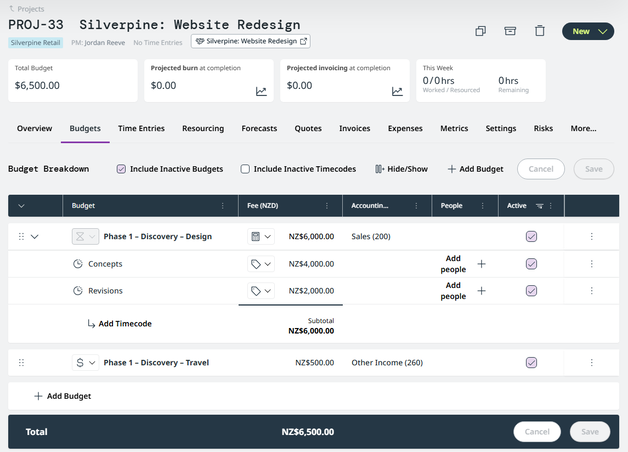
A group called Phase 1 holds a bottom-up time line
-
Design
with two timecodes
-
-
Concepts ($4,000) and
-
Revisions ($2,000)
-
and an expense line
-
-
Travel ($500).
-
The Design line totals $6,000 and the Phase 1 group totals $6,500.
Deal budgets can be linked to:
- Proposal → deal: If you’ve created a proposal with pricing before you’ve created your deal, you can create the deal and pull through the pricing from that proposal to create your deal budget.
- Deal → proposal: Use as a Pricing Source for a proposal Link a deal budget to a proposal’s pricing tables. Select Sync Now in the proposal to pick up changes from the deal. Link a deal budget to a proposal so its pricing tables reflect the deal’s figures and stay in step with the deal.
- Deal → projects: Bring one or more deal budgets into a new or existing project. For example when you win the work you create a project from your deal budget, so the project starts with the budget you sold.
How to build a deal budget
- Click Proposals on the left-hand navigation bar, then click the Deals tab.
- Click into the deal.
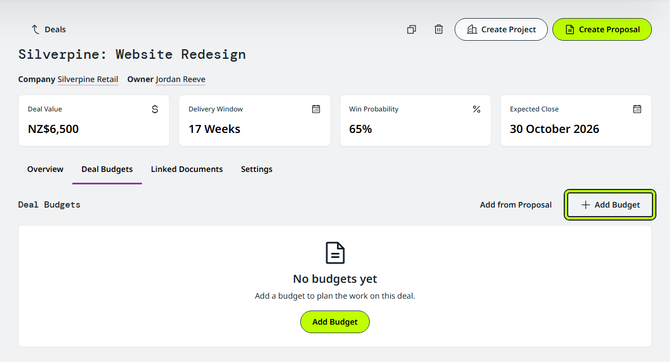
- Click the Deal Budgets tab.
- Click Add Budget.
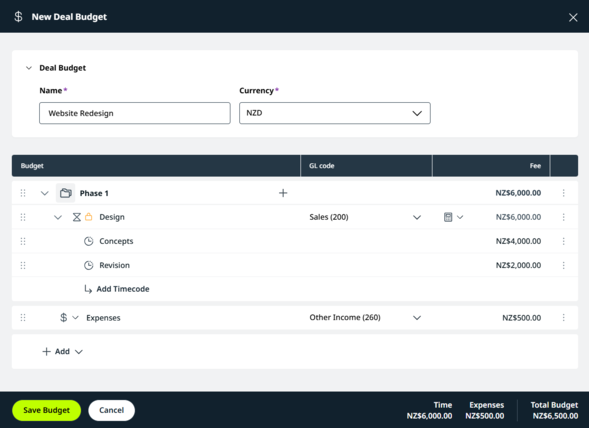
- Enter a Name for the budget and choose its Currency.
- Click + Add to create the first line of your budget.
- Choose if this line will be
- Time
- Expense
- a Group
See How to organise lines into groups →
- Choose a GL code
- Set a Fee
For Time lines you’ll have the option to choose a Fee Type;- Top Down (enter an amount) or
- Bottom Up (Build the fee by adding Timecodes, the sum of their fees becomes the budget).
See How to add timecodes to a time line →
- To add more, click Add at the bottom of the table and repeat as needed.
- Click Save Budget.
How to organise lines into groups
- Open the deal budget where you want to create a group.
- Click + Add
- Choose Group
- Enter a group name.
- Open the group's actions menu at the end of its row, you can choose to add a Time, Expense or Subgroup.
- To add lines to the group you can
- Click and drag existing lines into the group
- Click the + in the group’s row to create lines.
- To change the order, drag a row by its move handle, or use Move up and Move down in its actions menu. You can also drag a line into a different group.
- The group's actions menu also has Duplicate group and Remove group. A line's actions menu has Duplicate line and Remove line.
- Group totals roll up automatically. The Time and Expenses subtotals and the Deal budget total at the bottom add up everything in the budget.
When you create a project, the groups are flattened into the project budget names. Groups are not available in projects.
How to add timecodes to a time line
- On the time line, click Add Timecode, or choose Add Timecode from the line's actions menu.
- Enter the timecode's name and, for a bottom-up line, its fee.
How to move your deal budget into a project
- Click into the deal.
- Click Create Project in the top-right corner.
- Choose
- New Project
To create a new project - check the project details auto-filled from the deal and make any adjustments as needed. - Existing Project
To add to an existing project - you’ll choose a project from the drop down.
- New Project
- Under Project Scope, tick the deal budgets you want to bring into the project. Expand a budget to see its groups and lines, with each line's type, GL code and amount, and the total.
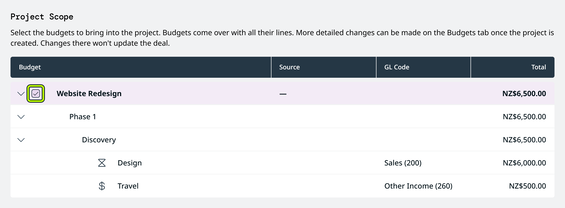
- Click Create Project (or Add to Project if it’s an existing project).
Things to note
The budgets in Project Scope come over as they are. You can make more detailed changes on the project's Budgets tab once it's created. Changes there won't update the deal.
When the project is created:
- Each line becomes a project budget
It's named by its group path, in the form Group – Subgroup – Line. If the full name is too long, the group part is shortened, never the line name. - Amounts, line types and fee types come from the saved deal budget
They can't be changed while you create the project. - Bottom-up lines
Become bottom-up project budgets, and their timecodes come across with their fees. - Top-down lines
Become top-down project budgets. Their timecodes come across with blank fees. - Lines with no GL code
Use your default GL code for that type (time or expense). - A different currency
If the deal budget's currency is different from the project's, a note shows that the amounts are converted at today's rate, and timecode fees are converted too. If there's no exchange rate between the two currencies, you can't select that budget.