.png?width=280&height=39&name=Projectworks-Logo-Black-280px%20(1).png)
- Enabling Outlook or Google calendar to your environment
- Connecting your calendar
- Disconnecting your calendar
- Troubleshooting
Anyone who has a
-
Microsoft work or school Outlook calendar; or
- Google Workspace calendar;
Your Projectworks environment will need to have the Outlook or Google Calendar Integration enabled to allow people to connect.
Projectworks administrators can enable the Calendar Integration from the settings section of Projectworks.
Enabling Outlook or Google calendar to your environment
It is a simple process to enable the Calendar Integration to allow people to connect to their calendar.
Projectworks administrators: Activate the Calendar Integration from the within the settings section of Projectworks (Settings > Integrations > Enable Integrations).
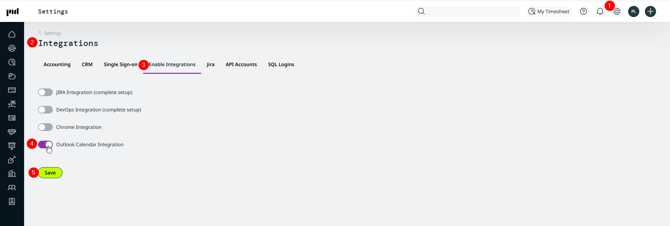
If your organisation only uses one of these calendars (Microsoft or Google), you should only enable that calendar integration. Once enabled, the option to connect will be displayed to all your Users in their timesheet settings, so could be confusing if you have enabled a calendar integration that they don’t have access to.
Connecting to your calendar
Each person who wants to view their calendar events in Projectworks will need to connect their calendar.
Connect your calendar from within your personal Projectworks settings:
-
Click on your initials in the top right hand corner;
-
Select “Settings”;
-
Select the “Timesheet” tab;
-
Click on “Connect Outlook Calendar” or “Connect Google Calendar”;
-
Follow the prompts to connect your calendar.
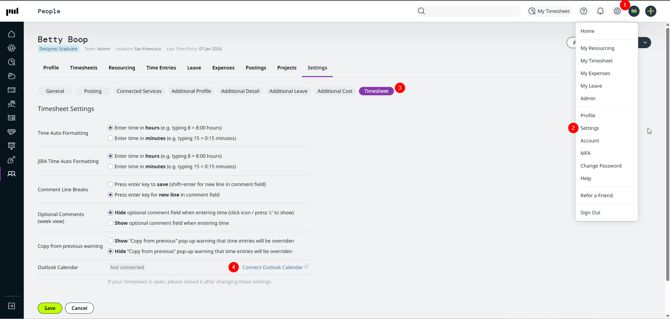
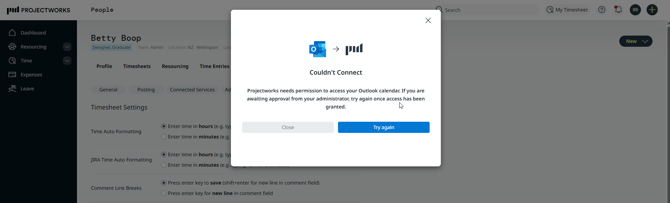
If you can’t connect, your Microsoft or Google administrator may need to allow Projectworks access to your organisation’s Microsoft or Google account.
On occasion your connection may expire, in which case you will be prompted to reconnect to your calendar.
-
Click on the link to reconnect you calendar;
-
Follow the prompts to connect your calendar.
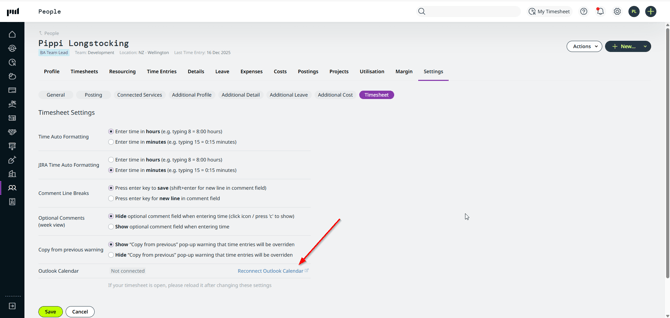
If the Microsoft Teams integration has been disabled by your administrator, you may also need to reconnect to your Outlook calendar, even if you only recently connected to Outlook
Disconnect your calendar
If you don’t always want your calendar events to display in your Timesheet, you can simply switch the calendar toggle “off” on your Timesheet. The toggle allows you to show and hide your calendar events to suit your needs. 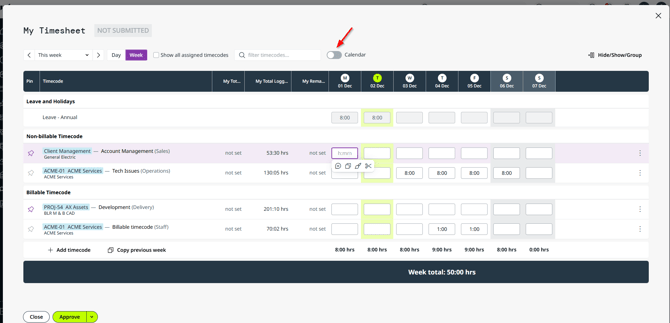
If you don’t want Projectworks to have access to your Outlook or Google calendar at all you can disconnect it.
Disconnect your calendar from within your personal Projectworks settings:
-
Click on your initials in the top right hand corner;
-
Select “Settings”;
-
Select the “Timesheet” tab;
-
Click on the link to disconnect your calendar.
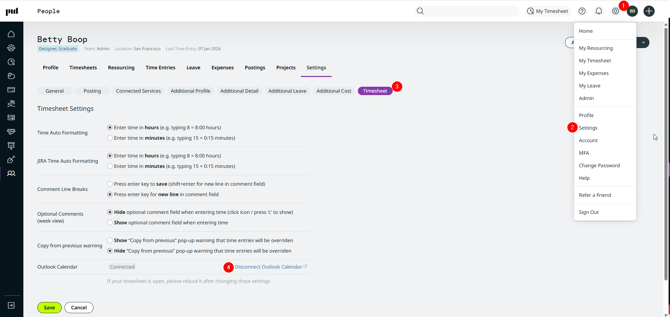
If the Outlook or Google calendar integration is disabled by a Projectworks administrator, you will be automatically disconnected from your Outlook or Google calendar.
Troubleshooting
I can't see the Calendar setting in my Timesheet settings
If a calendar hasn’t been enabled for your environment, you will not have the option to connect to that calendar.
If you think you should be able to connect to your calendar, contact your Projectworks administrator.
I can’t connect to my Calendar
If Projectworks does not have access to your organisation’s Microsoft or Google account, you will need to request access. Your Microsoft or Google administrator will need to allow access before you can connect.
I can’t enable Outlook Calendar integration to our environment
Microsoft Outlook calendar integration may not be included as part of your current pricing plan - check out our plans or email our support team at [email protected].