.png?width=280&height=39&name=Projectworks-Logo-Black-280px%20(1).png)
This is a beta feature. Follow this link to request more information
Bid Faster and Win More Work with AI-Powered Proposals →
- Before you get started
- How to create a deal
- How to edit a deal
- How to build a proposal from a deal
- How to create a project from a deal
- How to read the Deal Summary
Before you get started
-
To access this feature you must have these settings enable for your access level.
More Options > Proposals.Edit
More Options > Proposals.View
How to create a deal
- Click Proposals on the left-hand navigation bar.
- Click Create Deal (from the Get Started actions on the Dashboard tab, or the Top right corner)
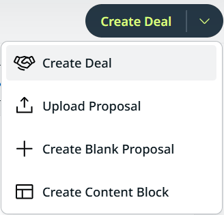
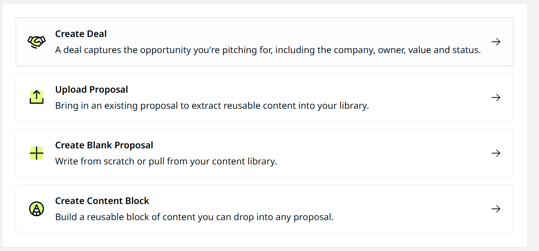
- Fill in the required details
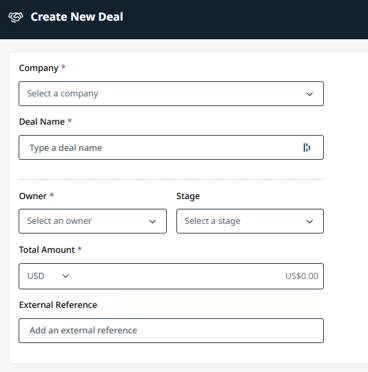
- Company
The client you're pitching to.
If it’s an existing company, select it from the drop-down. If it’s a new company, click Create New Company and enter a Company Name, Account Manager and default project settings for currency and sales tax. - Deal Name
A name to identify the opportunity. - Owner
The person in your organisation responsible for the deal.This defaults to you. You can change it now or at any time later. - Stage
Where the deal sits in your pipeline (for example, Lead).
See Set up your deal pipeline → - Total Amount (required) - the value of the deal. Pick the currency from the dropdown and enter the amount.
-
External Reference
Optional field for you to record an ID or link from another system if needed (e.g., a CRM opportunity number). You can add more references later, on the deal's Settings tab.
- Company
- Click Create Deal to save when you're done.
- The deal now appears on your deals tab and contributes to the Deal Summary on the Dashboard.
How to edit a deal
- Click into Proposals from the left-hand navigation bar.
- Click into the deals tab to view a list of all your deals
- Click into a deal
The header shows a quick summary - deal name, value, stage, company and owner - with actions on the right.
- Click the Settings tab, or click Edit on the Deal Details card.
- Make any required edits.
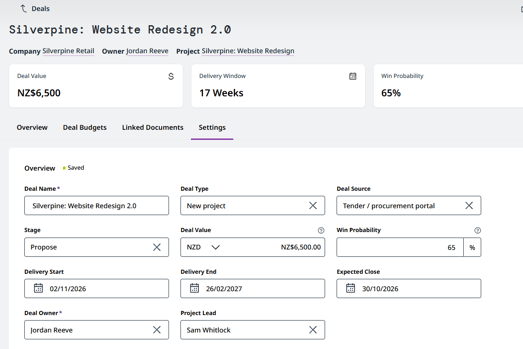
Use the Archive Deal toggle in your deal to exclude it from the active pipeline totals.
The Deal Overview Tab
The Overview tab is a summary of the deal
It shows
Deal Details
The Deal Details card contains the below sections displaying what you've set on the Settings tab:
-
Deal
Information about this deal including the Deal Owner, Project Lead and Deal Team.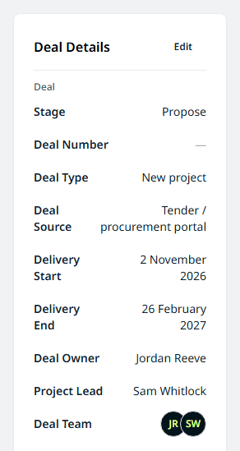
-
Company
Details about the company (client) of the deal, such as the company's Website (opens in a new tab), Industry, Vertical, Country / Region and Lifecycle Stage.-20261016-015628.png?width=207&height=196&name=p1-03-NEW-overview-deal-details-card%20-%20Copy%20(2)-20261016-015628.png)
-
Primary Contact
The deal's main contact: their Name, Title, Email, Phone and Role. Use the copy button to copy their email or phone number. Only the Primary contact shows here.-20261016-015700.png?width=292&height=243&name=p1-03-NEW-overview-deal-details-card%20-%20Copy%20(2)-20261016-015700.png)
- Tracking
The Date Created and every external reference, each shown with its label.
-20261016-015726.png?width=292&height=175&name=p1-03-NEW-overview-deal-details-card%20-%20Copy%20(2)-20261016-015726.png)
- Description
The deal's description, shown in full.
-20261016-015756.png?width=292&height=204&name=p1-03-NEW-overview-deal-details-card%20-%20Copy%20(2)-20261016-015756.png)
Budget Summary
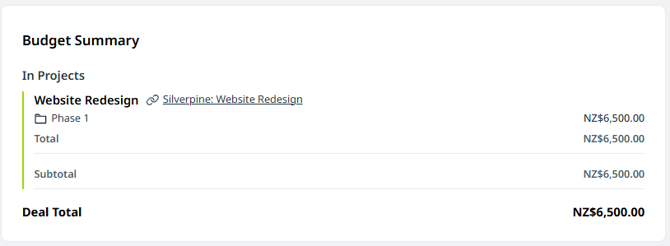
The Budget Summary lists every budget on the deal and its top-level lines, grouped by whether it’s been pushed to a project yet.
You can learn more about deal budgets and how to build them here →
- In Projects
Budgets already pushed to a project. Each one links to the project or projects it went to. - Not Yet in Projects
Budgets still open on the deal. If a budget was created from a proposal’s pricing, it links to that proposal. - Subtotal and Deal Total
Each group has a subtotal, and Deal Total adds both groups together. - Other currencies
Budgets in another currency are converted to the deal’s currency.- Budgets not yet in a project use today’s exchange rate.
- Budgets already in a project use the rate from the day they were pushed.
- Hover the info icon next to a budget’s Total to see the rate used.
- If there’s no exchange rate, the total shows a dash (—).
To open a budget, select its name.
Recent Activity
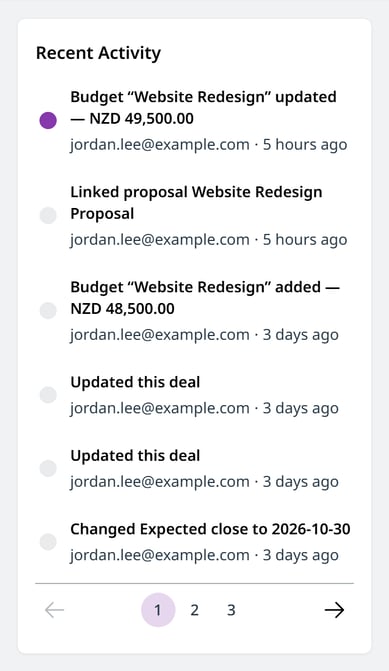
Recent Activity on the deal’s Overview tab is a timeline of changes to the deal, newest first. Each entry shows what changed, who changed it and how long ago.
It includes:
- Deal changes
For example, the deal was created or its stage, value, owner or dates changed. - Budgets
Budgets added, updated or deleted, with the new amount. - Proposals
Proposals linked to or unlinked from the deal. - Projects
Projects created from the deal, and budgets added to or unlinked from a project.
The list shows 6 entries at a time. To see older activity, use the page numbers or Next.
The Settings Tab
The Settings tab holds every detail of the deal, in sections.
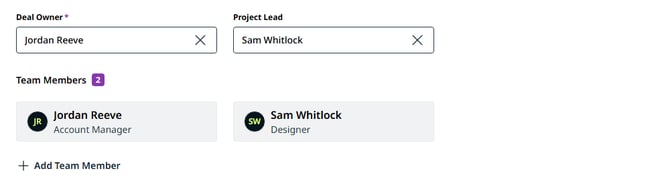
Deal team (in the Overview section)
- Deal Owner
Required. Every deal has one owner. To change it, select a different person. - Project Lead
Optional. The person leading the work, who can be the same as the Deal Owner or someone else. You can clear it. - Team Members
Click Add Team Member to add everyone else working on the deal. Each person can be added once, and the Deal Owner or Project Lead can also be a team member. Delete a row to remove that person.
Being on a deal team doesn't give anyone extra access, and it doesn't book them in Resourcing.
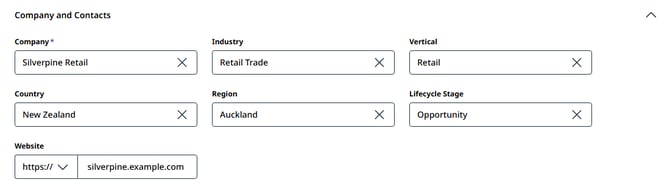
Company and Contacts
- Company
The client the deal is for. - Industry, Vertical and Lifecycle Stage
What kind of client this is, and how far along your relationship is (for example, a first-time prospect or an existing customer). - Country and Region
Where the client is. Country defaults to your organisation's country. Country and Region are set separately, and you can set one without the other. - Website
The client's website. If you leave off https://, it's added for the link.
All of these, apart from Company, are optional. You can add, rename or remove the options for Industry, Vertical, Region and Lifecycle Stage from the field. An option that's in use can't be deleted.
Deal Contacts
To store information for individuals on your client’s side involved in the deal.
You can add new deal contacts via the steps below:
- Click Add Contact.
- Search for one of the company's existing contacts, or create a new one. You'll see a warning if a new contact's name or email is close to an existing contact's.
- Add the contact's details and their Role on this deal (for example, Decision maker).
- Contact details
Name, Title, Email, Phone and Other details belong to the contact. Changing them here changes them everywhere that contact is used. - Role
Free text, and for this deal only. The same person can have a different role on another deal. - Primary
The deal's main contact, shown on the Overview tab. A deal has one Primary contact. The first contact you add becomes Primary, and marking another contact as Primary replaces it. - Remove from deal
Takes the contact off this deal only. It doesn't delete the contact. If you remove the Primary contact, the earliest-added remaining contact becomes Primary.
Contacts you create on a deal are sales contacts, not billing contacts, so they don't appear on quotes or invoices. Choosing one as the Billing Contact when you create a project from the deal makes them a billing contact.

Tracking
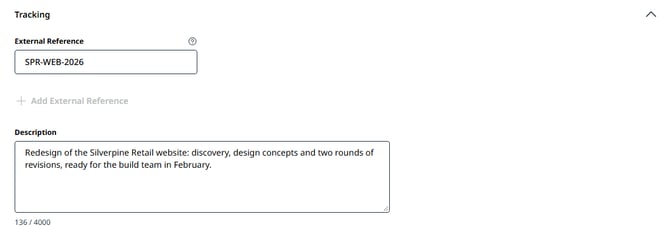
- External Reference
Store any external reference against the deal, for example a client PO, tender ID or job code. Click Add External Reference to add more. Each one has a label, which starts as "External Reference" and can be renamed to anything. Renaming a label only changes that reference on this deal. - Description
Plain-text descriptions of what the deal is about. Line breaks are kept. You can add as many as you need.
Each external reference label can have its own column on the deals tab. Add the columns from Hide/Show. You can filter any External Reference column, and click a cell to edit it.
How to build a proposal from a deal
You can write a proposal on its own, but building it from a deal is the recommended path: the proposal is automatically linked to the deal, and that link carries through to the project you create later.
- Click into the deal you want to build a proposal for.
- Click “Create Proposal” - either the button in the top-right corner, or the one in the Linked Documents section at the foot of the page.

- The new proposal opens in the editor and is linked back to this deal.
- Build your proposal.
See How to Build a Proposal → - You can see all proposals related this deal in the Linked Documents section of the deal.
How to create a project from a deal
When a deal is won, create a project without re-entering the details.
- Click into the deal where you want to build a project.
- Click "Create Project" in the top-right corner.
- The Create Project screen will open, with most fields prepopulated from the deal.
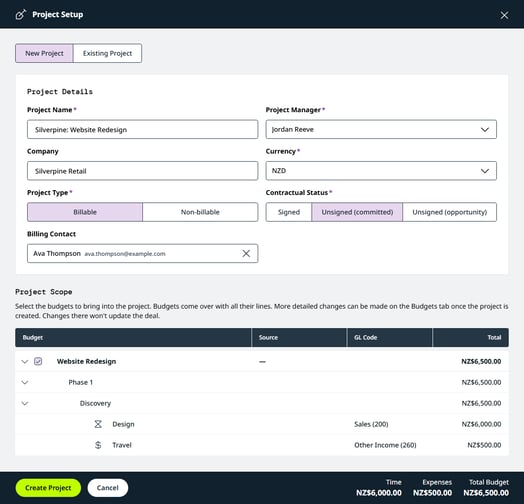
- Review and make sure all fields are filled in, making any edits as needed.
- Project Name
The deal name becomes the Project name. - Company
The client for the project, this defaults to the company you created the deal for.
If the Project will be for a different company that’s not already in your Projectworks system, you will first need to setup that company so it’s available to select from the drop-down. See Maintaining companies → - Project Manager
This defaults to the deal owner - you can change it now if someone else will be running the project. - Project Type
Choose Billable or Non-billable. - Contractual Status
Signed, Unsigned (committed), or Unsigned (opportunity). Contractual Status is required for every project in Projectworks. It's pre-filled from the Default Project Status set against the deal's pipeline stage (see Set up your deal pipeline → ), but you can change it here to reflect how firm the work actually is. - Billing Contact
Optional. Choose one of the deal's contacts to be the project's default billing contact. If they aren't a billing contact yet, the system makes them one, and asks for an email address if they don't have one. Leave it blank to set the billing contact later
- Project Scope
If the deal has deal budgets, this previews the project budgets exactly as they'll be created: each budget with its timecodes, fee type, GL code and amount, plus the total. You can only change budget names and GL codes here. Amounts, line types and fee modes come from the deal budget.
-
- Groups in the deal budget are flattened. Each line becomes its own project budget, named by its group path (for example, Design – Website – Homepage). Long group paths are shortened, but the line name is always kept.
- Bottom-up lines come across bottom-up, with their timecode fees. Top-down lines come across top-down, with blank timecode fees.
- A line with no GL code uses your default GL code for its type.
- If the deal budget is in a different currency, it's converted to the project's currency and a note tells you.
-
- Project Name
5. Click Create Project and you will be taken to your new project.
The budget will have been carried across, and you’ll see a link to your deal in your new project.
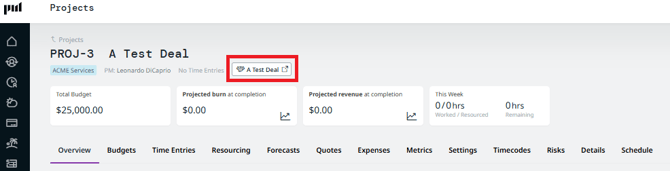
Once the project is created, the deal keeps a link to it. Open the deal again and you'll see the project shown in the header - click it to jump straight to the project.
How to read the Deal Summary
The Deal Summary on the Dashboard tab totals the value of your deals by stage. Use the currency selector at the top-right of the summary to choose the display currency.

The four cards give the total value of your deals by stage.
-
Open
Every deal in a non-closed pipeline stage - the active pipeline. -
Won
Deals in the Closed Won stage. -
Lost
Deals in the Closed Lost stage. -
Archived
Deals you've archived. Archived deals are excluded from the active pipeline totals.
Keeping each deal's stage up to date keeps these figures accurate. The stages themselves are set under Settings ▸ Proposals ▸ Deal Pipeline Stages. See Set up your deal pipeline →