.png?width=280&height=39&name=Projectworks-Logo-Black-280px%20(1).png)
- The proposal editor
- How to open Document Settings
- How to set the page size and orientation
- How to set margins and page styling
- How to add headers and footers
- How to change the font
- How to adjust line spacing
- How to insert a page break
- How to insert a footnote
- How to zoom in and out
- Things to Note
The proposal editor
Proposals are written in a rich-text editor with a formatting toolbar across the top.
Toolbar The toolbar covers the usual controls: undo/redo, font and size, headings, lists, bold, italic, strikethrough, code, underline, highlight, links, superscript/subscript, and alignment.
- Add button: inserts tables and columns.
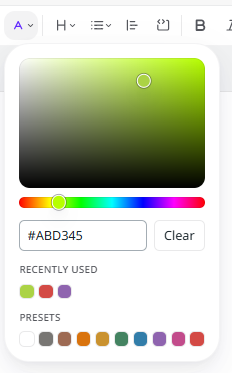
- Colour control: sets font, highlight, and background colours, including table cell colours.
Top bar
- Proposal title
Click to rename. - Save status indicator
Shows the document's current save state. - Save button.
- Share
Publish the proposal as a secure web link, or export it as a Word document.
See How to share and export a proposal →
How to open Document Settings
- Click Document Settings on the right-hand side of the editor.
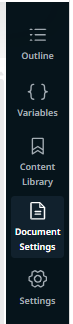
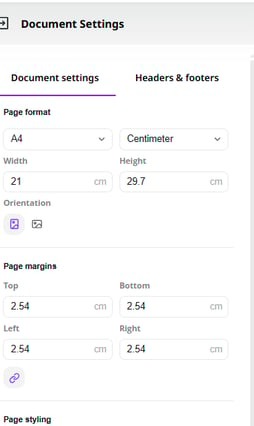
The panel has two tabs: Document settings for page setup, and Headers & footers.
How to set the page size and orientation
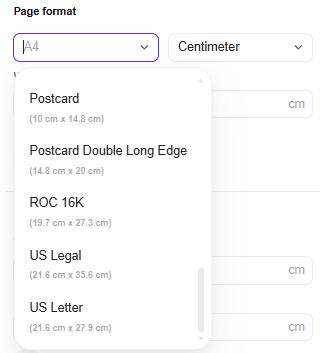
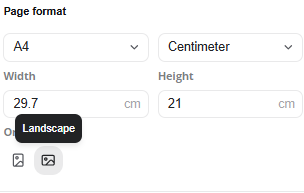
- Under Page format, choose a preset size such as A4, US Letter, or US Legal, or set a custom Width and Height.
- Change the unit (for example, Centimeter) from the dropdown beside the format.
- Use Orientation to switch between Portrait and Landscape. Switching to Landscape swaps the width and height for you.
How to set margins and page styling
- Under Page margins, set the Top, Bottom, Left, and Right margins.
- Use the link icon below the margins to change all four together.
- Under Page styling, set the Page gap (the space shown between pages) and the page Background color.
How to add headers and footers
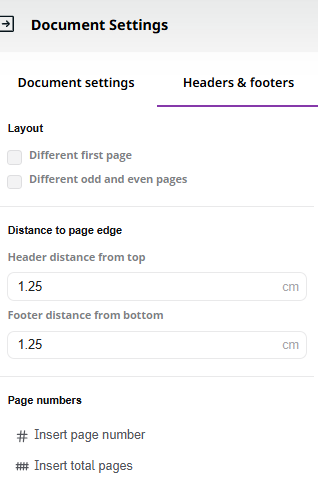
- Open the Headers & footers tab.
- Use the Header / Footer switch at the bottom of the panel to choose which one you're editing.

- Turn on Different first page or Different odd and even pages under Layout, if needed.
- Set the Header distance from top and Footer distance from bottom under Distance to page edge.
- Add Insert page number and Insert total pages under Page numbers.
How to lay out header or footer content with a table
To place content on the left, centre, and right of a header or footer, insert a table. A 3×1 table (three columns, one row) works well. Tables inside headers and footers have no border automatically, so your layout stays invisible on the page.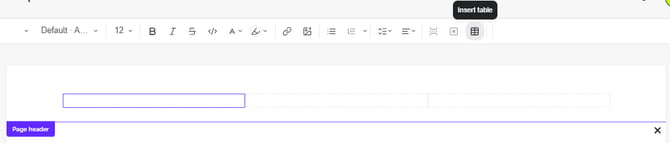
How to change the font
- Use the Font family control in the toolbar.
- Start typing to search, pick from the list, or leave it on Default font to use the document default. Most fonts are available.
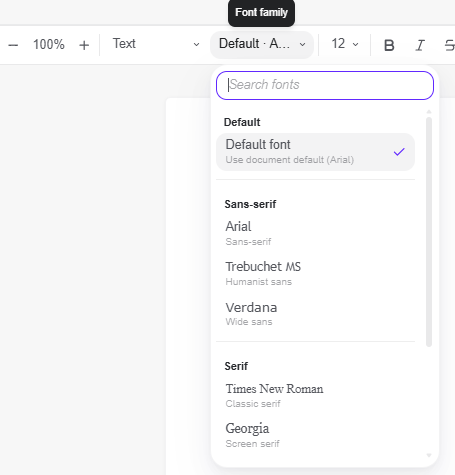
Copying and pasting from a .docx brings across most fonts.
How to adjust line spacing
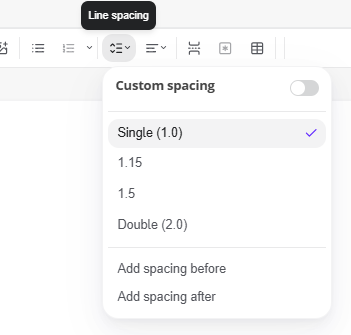
- Use the Line spacing control in the toolbar to choose Single, 1.15, 1.5, or Double.
- Turn on Custom spacing to set your own, or use Add spacing before / Add spacing after to control the gap around paragraphs.
How to insert a page break
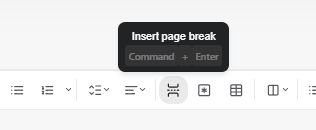
To push the content after your cursor onto a new page, use Insert page break in the toolbar (or press Command/Ctrl + Enter). This starts a fresh page at that point, rather than relying on blank lines to fill the rest of the page.
How to insert a footnote
- Place your cursor where you want the reference.
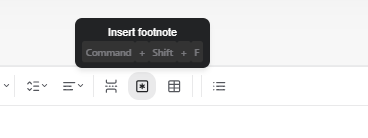
- Use Insert footnote in the toolbar (or press Command/Ctrl + Shift + F).

How to zoom in and out
Use the zoom control at the left of the toolbar (the − / + buttons and the percentage) to change how large the document appears on your screen. This only affects your view. It doesn't change the page size or the exported document.

Things to Note
- The Share button covers both publishing a secure web link and exporting to Word.
- Switching Orientation to Landscape swaps the page width and height automatically.
- Tables used inside headers or footers have no border by default, which is what keeps a multi-column layout invisible on the page.
- Pasting from a .docx preserves most fonts and formatting.
- Footnote numbering is automatic and resets per page.