.png?width=280&height=39&name=Projectworks-Logo-Black-280px%20(1).png)
eInvoicing is now available to New Zealand and Australian organisations as a closed beta feature.
If you are interested in participating in this closed beta, please fill out this form.
- Before you start
- How to send an invoice as an eInvoice
- Viewing the eInvoicing status of an invoice
- Troubleshooting
Sending an invoice as an eInvoice will send the invoice directly to your Customer’s financial system. You will not be able to edit the invoice once it has been sent as an eInvoice, so it is important that the details of your invoice are correct before the Invoice is finance approved and eInvoiced.
Before you start
- Complete the steps to setup eInvoicing for your organisation and for the company you will be invoicing.
See How to set up eInvoicing (beta) → - Ensure you have the access levels required to carry out eInvoice actions on an invoice
- If you have access to create or edit an invoice then you can enable the “eInvoice toggle” on an invoice;
- If you have access to “Finance Approve” an invoice, you have access to eInvoice an Invoice.
How to send an invoice as an eInvoice
- Create the invoice on your project.
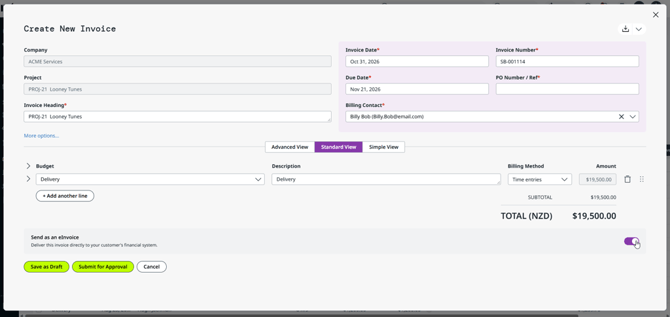
- Toggle on Send as an eInvoice at the bottom of the screen
- If you can’t see this toggle - check that you have completed all steps in
How to set up eInvoicing →
- If you can’t see this toggle - check that you have completed all steps in
- Click Finance Approve
- If the invoice has been “Finance Approved”, select to “eInvoice”
- if the invoice has not been “Finance Approved”, select “Approve (Finance) & eInvoice”.
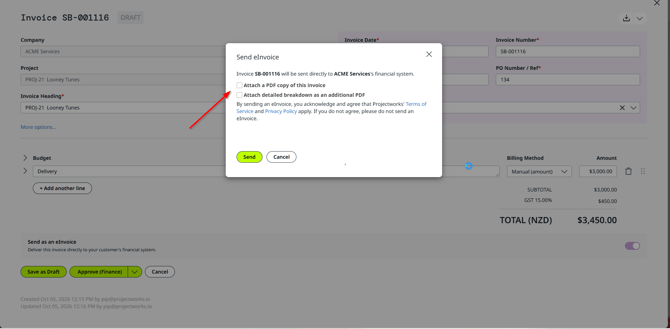
- You can select to attach the Invoice PDF and/or Invoice Breakdown PDF to the eInvoice, which will send these attachments directly to your Customer’s financial system.
- Click Send.
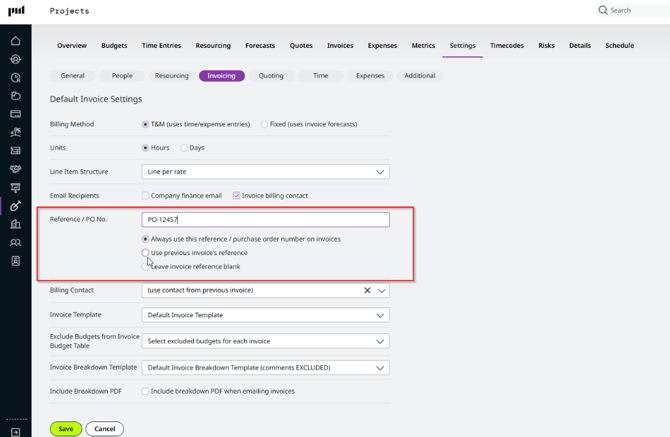
If you are going to be sending the majority of your invoices to the Customer as eInvoices, we recommend that you update your Reference / PO number in your Project’s Invoicing Settings, so that you do not have to enter this reference each time you create an invoice.
Viewing eInvoicing status of an invoice
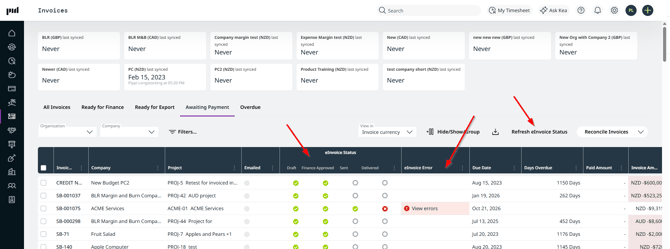
If you have access to one or more Invoice list screens (e.g. the “All Invoices” screen), you will be able to view:
- The “eInvoicing Status” of an Invoice;
- If the Invoice has been marked as being invoiced, an eInvoice Status will be displayed.
- A tick in the “Sent” column indicates that the invoice has been sent as an eInvoice.
- The purple icon in the “Delivered” column indicates that the eInvoice is still making it’s way to the Customer’s financial system.
- Click on the “Refresh eInvoice Status” option at the top of the page to refresh the eInvoicing status.
- A tick in the “Delivered” column indicates that the eInvoice has been delivered to the Customer’s financial system.
- In the event that this column contains a cross, the Invoice has not been delivered due to an error.
- The “Status Detail” of the eInvoice
- In the event that an eInvoice has not been able to be delivered to the Customer (the eInvoice Status” will contain a ❌), you will be able to view the reason why it was unable to be delivered.
- Click on “ ❌ View errors” in the “Status Detail” column to view the error.
- In the event that an eInvoice has not been able to be delivered to the Customer (the eInvoice Status” will contain a ❌), you will be able to view the reason why it was unable to be delivered.
Troubleshooting
Common eInvoicing Errors
If your invoice doesn’t contain all the information required to send as an eInvoice, an error will be displayed on the top of the invoice.
Invoice - A PO number / reference is required.
-
eInvoicing using the PINT A-NZ requires a PO number / reference.
Workaround: Add a PO Number/ Ref to the invoice. If your invoice is already Finance Approved, you will need to select to “Withdraw (set to draft)” before adding a PO Number / Ref.
If you are going to be sending the majority of your invoices to the Customer as an eInvoice, we recommend that you update your Reference / PO number in your Project’s Invoicing Settings, so that you do not have to enter this reference each time you create an invoice.
Invoice - One of the tax types used on this invoice isn't set up for eInvoicing yet. Please contact your administrator.
-
You are using a tax type that has not been set up for the Organisation in the eInvoicing Settings.
Workaround:
- If the invoice is an an alternate currency to what the Organisation’s eInvoicing setting is set to, turn off the eInvoicing toggle and manage invoicing via email.
- Alternatively, contact your Projectworks Administrator to map the tax type that has not yet been set up and try to eInvoice again after the tax type has been set up with a tax category.
You have access to eInvoice some invoices, but not others
The Company must have eInvoicing enabled to eInvoice. Check with your Projectworks Administrator to ensure this has been enabled.
Please note: If the Company is not registered with the Peppol network to receive eInvoices, the Company will not be able to be enabled for eInvoicing.
Common "Status Detail" errors
Payload validation failed. See VALIDATION_RESULT artefact for more details.
- The invoices is raised in a currency that the Organisation eInvoicing setting does not support.
- The invoice has been raised for a negative value.
Projectworks does not currently support:
- Cross currency eInvoicing
- eCredits (invoicing negative value invoices).
Workaround: Turn off the eInvoicing toggle and manage invoicing via email.