.png?width=280&height=39&name=Projectworks-Logo-Black-280px%20(1).png)
eInvoicing is now available to New Zealand and Australian organisations as a closed beta feature.
If you are interested in participating in this closed beta, please fill out this form.
Overview
As the adoption of eInvoicing gathers momentum, Projectworks is introducing the ability for New Zealand and Australian organisations to send eInvoices.
If your clients have been set up to receive eInvoices in Projectworks, you will be able to eInvoice them as opposed to emailing them traditional PDF invoices. Projectworks integrates with an accredited Access Point Provider, using international Peppol standards to ensure the invoice information goes straight to your customer's finance or accounting systems via the eInvoicing network.
If you currently manage New Zealand and Australian eInvoicing via Xero or MYOB, the introduction of eInvoicing in Projectworks means that you can now manage these invoices via Projectworks.
Invoices will still need to be exported from Projectworks to your own accounting system. If your invoices are automatically synced to your accounting system upon finance approval, the invoice will still be exported to your accounting system when you finance approve it (regardless if it is eInvoiced or not).
Setting up eInvoicing
There are a few steps you need to complete before you can send an invoice as an eInvoice.
You'll need to
- Step 1: Enable the eInvoicing Beta Feature
- Step 2: Add Access to set up eInvoicing for your Organisations
- Step 3: Enable and configure eInvoicing for your Organisation
- Step 4: Enable eInvoicing for a Company
Step 1: Enable the eInvoicing Beta Feature
A Projectworks Administrator can turn on the eInvoicing beta feature:
- Click the Settings cog in the top right hand corner
- Click "Beta Features" under the System section
- Toggle on “E Invoicing (beta)”
- Click “Save”.
eInvoicing is a closed beta feature. If you are not part of this closed beta group, the eInvoicing option will not be available to you.
If you are interested in participating in this closed beta, please fill out this form.
Step 2: Add Access to set up eInvoicing for your Organisations
People in your organisation who will be managing the setup process of eInvoicing will need the correct permissions in their Access Level.
- Click the Settings cog in the top right hand corner
- Click "Access Levels" under the User section
- Select the “Access Level Name” that you want to give this access to
(for example, System Admin) - Go to “More Options”
- Select “Finance.EInvoicing.Edit”
- Select “Save & Close”.
Step 3: Enable and configure eInvoicing for your Organisation
Users with access granted in Step 2: Add Access to Set up eInvoicing for your Organisations → will be able to follow the below steps to:
- enable eInvoicing, and
- configure settings to map their New Zealand and/or Australian organisations.
How to enable eInvoicing
- Click the Settings cog in the top right hand corner
- Click "eInvoicing" under the Finance section
- Click “Enable eInvoicing”.
Once eInvoicing has been enabled, you proceed to configure eInvoicing settings for your organisation.
How to configure eInvoicing settings
- Click the Settings cog in the top right hand corner
- Click "eInvoicing" under the Finance section
- Click the Organisation Name or “Edit Setting” three dot menu option
- Add the Organisation’s eInvoicing setting details, including
- eInvoicing address details;
- Your Organisation’s address may have already been added to your Organisation Settings, however eInvoicing requires the address to be in a specific format, so that the invoice can be eInvoiced via the Peppol network. The address in your Organisation Settings and your Organisation eInvoicing Settings are not shared.
- Unique Business Identifier (e.g. NZBN or ABN)
- eInvoice Tax Categories
- Your tax number is required for eInvoicing. The Organistion's tax number is shared across both the eInvoice Settings and Organisation Settings, so if you change this in one setting it will update in the other setting too.
- Any tax types that have been set up for the Country’s currency will need to be mapped to an eInvoicing tax category.
- If no tax type has been set up for the Country, you will still be able to set up your Organisation.
Step 4: Enable eInvoicing for a Company
The final step is to enable eInvoicing as an option for one of your Companies (clients).
If eInvoicing is enabled for your Organisation, you will be able to “Enable eInvoicing” for New Zealand or Australian Companies which have that Organisation as their Primary Organisation.
How to enable eInvoicing for a Company
Users with access to Client.Detail.Edit can enable eInvoicing for a Company by following the below steps.
- Go to the Settings for the Company and select the “Invoicing” tab
- An “Enable eInvoicing” checkbox will be displayed
- The Company’s address details are required in a specific format for eInvoicing, so if the Company's address is not saved in this format, this checkbox will be disabled.
- Tick the checkbox
- Required eInvoicing details will be displayed
- The tax number will be inherited from the Company’s “General” settings - if you update this in either place, it will be updated.
- Add the Unique Business Identifier (NZBN or ABN)
- Click “Save”.
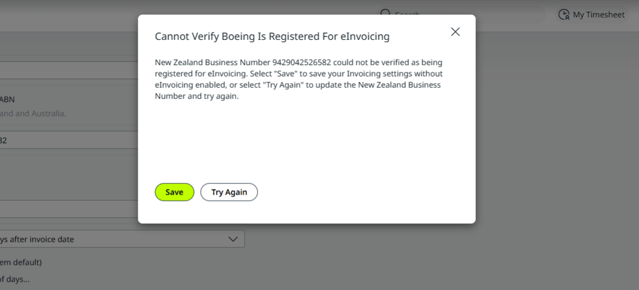
To allow a User to send an invoice as an eInvoice, the Company must have eInvoicing enabled. If the Company is not registered to receive eInvoices via the Peppol network, eInvoicing cannot be enabled, and you will encounter an error if you try and enable eInvoicing for them.
Troubleshooting
Projectworks doesn’t currently support eInvoicing for my Organisation’s country
In practice an invoice is generated as structured XML (Extensible Markup Language) as opposed to a PDF. The XML is structured to meet the PINT A-NZ format, which supports sending New Zealand and Australian eInvoices via the Peppol network.
Projectworks will look to extend the XML formats to support other countries via the Peppol network in the future.
Why can’t I see the option to enable eInvoicing for Company?
If the Organisation for the Company has not been enabled and verified for eInvoicing, you will not be able to enable eInvoicing for the Company. No other Company associated for that Organisation will be able to enable eInvoicing either.