.png?width=280&height=39&name=Projectworks-Logo-Black-280px%20(1).png)
To configure numbering settings, you must have the below enabled for your access level
-
Admin.System.Numbers.View
- What is numbering?
- How to set up a numbering sequence for Deals, Proposals, and Content Blocks
- How to change an individual record's number
What is numbering?
Numbering assigns a unique reference code for each of your new Deals, Proposals and Content Blocks. It is set up by configuring a numbering sequence with your preferred format, so that numbers are automatically assigned as you create new Deals, Proposals and Content Blocks.
.png?width=615&height=102&name=image-20260723-233302%20(1).png)
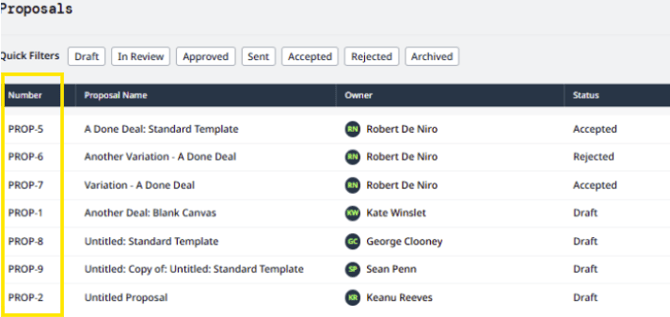
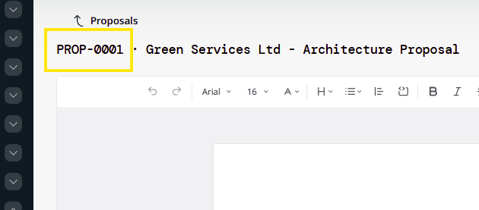
Once numbering is on, each record's code is shown wherever that record appears. Including list rows, detail views, and editor headers.
For example, the Proposals list has a Number column showing each proposal's code, and the proposal editor shows the code in its header.
How to set up a numbering sequence for Deals, Proposals, and Content Blocks
The numbering settings for each record type are separate and independent of each other, so enabling or adjusting the settings for one does not impact others.
- Click the Settings cog in the top-right hand corner.
- Click Numbers under the System category.
You'll see a row of sub-tabs for each record type: Deals, Proposals, and Content Blocks (alongside the existing Invoices, Projects, Quotes and others).
- Open the tab for the record type you want to set up (e.g. Proposals).
- Toggle on Enable Numbering.
- Fill in the fields to set your format for the numbering sequence
- Set your Prefix
The text at the start of every code. (e.g. PROP- ). - Set the Next Number
The number to give the next record created. This increases by 1 for each new record created.
(e.g., PROP-001, PROP-002 etc.) - Set the Min. number of digits
If you want to ensure that each code has the same amount of digits, this adds 0’s at the beginning of the number if needed. Leave blank if not required.
(e.g., Instead of PROP-1 , if your Min. number of digits is 4, it would be PROP-0001).
- Set your Prefix
- Check the Example preview to confirm the code looks right.
- Click Save.
- This will now apply to records of that type created from now on.
Any existing records with or without numbers will not be changed, although they can be adjusted on an individual level at anytime if needed.
See How to change an individual record's number →
Once you enable numbering for a record type, it's locked on and can't be switched off again (you'll see a lock on the toggle). You can still change the prefix, next number, and digit padding at any time, those changes apply to records created from then on.
How to change an individual record's number
You can set or change the code on a single record without affecting the sequence for everything else. Where you do this depends on the record type.
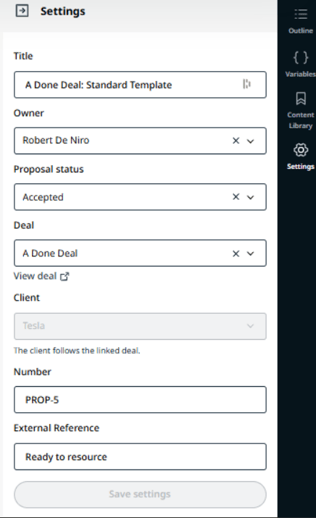
How to change the number on a Proposal
- Open the proposal.
- Click Settings on the right-hand side.
- Edit the Number field.
- Click Save settings.
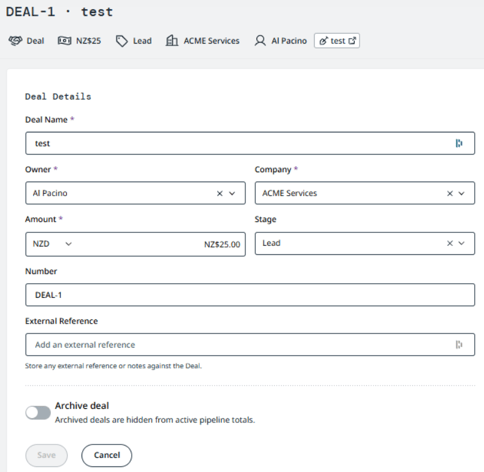
How to change the number on a Deal
- Open the deal.
- In Deal Details, edit the Number field.
- Click Save.
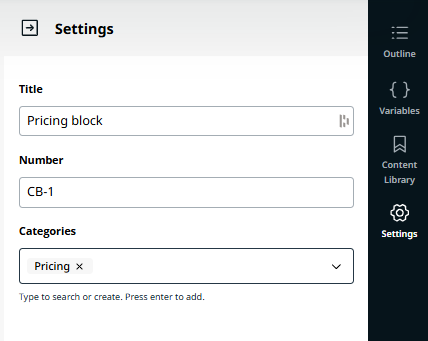
How to change the number on a Content Block
- Open the content block.
- Click Settings on the right-hand side.
- Edit the Number field.
- Click Save.