.png?width=280&height=39&name=Projectworks-Logo-Black-280px%20(1).png)
This is a closed beta feature. Follow this link to request more information
Bid Faster and Win More Work with AI-Powered Proposals →
Before you get started
- Changing your pipeline affects every deal in your organisation, so it's worth agreeing the stages with your team before you edit them.
- To configure deal pipeline settings, you must have these enabled for your access level.
More Options > Admin.Proposals.DealPipelineStages.View
More Options > Proposals.Edit
More Options > Proposals.View
What is a Deal Pipeline?
Your Deal Pipeline is the steps that your deals move through, and how likely each is to close. Use these to track which stage your deal is at, as well as the confidence percentages associated with each.
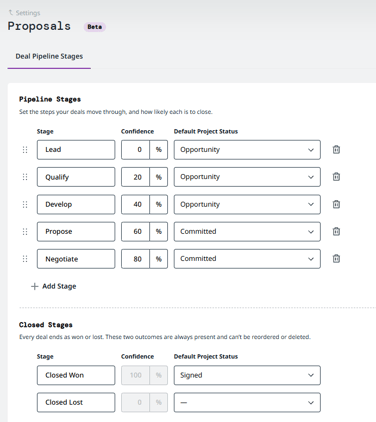
Your Deal Pipeline defaults
Pipeline Stages
Your Deal Pipeline has this set of deal stages by default:
- Lead
- Qualify
- Develop
- Propose
- Negotiate
You can rename, reorder, add, remove, or adjust any of these to reflect your own sales process. See How to customize your Deal Pipeline stages →
Closed stages
Your Deal Pipeline has this set of closed stages.
- Closed Won
- Closed Lost
Unlike Pipeline Stages, these can't be reordered or deleted. You can rename these stages and adjust their Default Project Status mappings if needed, but you cannot create additional closed stages or change their confidence percentages.
How to customize your Deal Pipeline stages
- Click on the Settings Cog in the top right hand corner
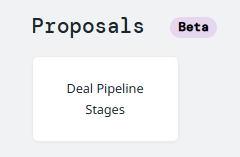
- Click on Proposals > Deal Pipeline Stages
- Edit the settings of the pipeline stages as needed.
- Stage
Rename a stage by editing the text in the Stage field. - Confidence
How likely a deal is to close when at this stage, expressed as a percentage. - Default Project Status
The contractual status that projects created by converting a deal in this stage will have by default.- Unsigned (Opportunity)
Early-stage, still being pursued. - Unsigned (Committed)
Advanced, likely to proceed. - Signed
Won.
- Unsigned (Opportunity)
- Stage
- Reorder stages as needed by dragging the handle (⠿) on the left.
- Delete a stage using the bin icon on the right of its row.
If any deals are currently sitting in that stage, you'll be asked where to move them first. - Changes will auto-save as you go, check the Save Indicator on the right.
How this connects to the Deal Summary
The Deal Summary cards on the Proposals Dashboard total your deals by outcome:
- Open
The combined value of every deal in a non-closed pipeline stage. - Won
Deals in the Closed Won stage. - Lost
Deals in the Closed Lost stage. - Archived
Deals you've archived (hidden from the active pipeline totals).
So the stages you define here are exactly what feed those totals, keeping your pipeline well-defined keeps the dashboard figures meaningful.
For day-to-day use of deals, see How to create and manage deals →