.png?width=280&height=39&name=Projectworks-Logo-Black-280px%20(1).png)
This is a beta feature. Follow this link to request more information
Bid Faster and Win More Work with AI-Powered Proposals →
- How to share or export your proposal
- How to generate a share link
- How to revoke access to a share link
- What your client sees
How to share or export your proposal
Once you’ve finished crafting your proposal - it’s time to send it to your client.
- Open the proposal in the editor
- Click the Share dropdown (next to Save)
- You’ll see two options for sharing.
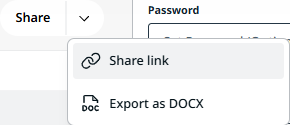
- Share link
Publish the proposal as a secure web page your client can open in a browser.
Continue to How to generate a share link → - Export as DOCX
Download the proposal as a Word document. The download will start automatically when you click this.
When exporting a proposal as DOCX, it is not a perfect 1:1. Therefore some formatting and layout may shift when converted to Word. We recommend you review the file before sending. For the most faithful version to send a client, use the web share link.
How to generate a share link
Selecting Share link opens the Share Proposal panel, where you set up the link before generating it.
- Fill out the two fields as needed (both are optional).
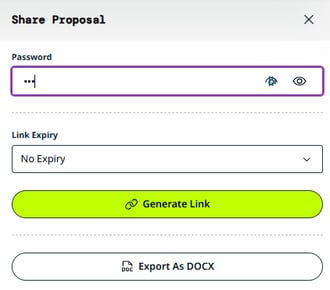
- Password
Set a password that you’ll require your client to enter before they can view the proposal. The password is only shown once, at the time you create the link. If you lose it, enter a new password and regenerate the link to update it. - Link Expiry
Set a Link Expiry to control how long the link remains live.
The options are No Expiry, 7 Days, 14 Days, and 30 Days. The panel shows the exact expiry date for each choice.
- Password
- Click Generate Link.
- The link is now Active, you’ll see the status appear as badges in the panel.
- You’ll see the Share Link field appear with the URL, you can
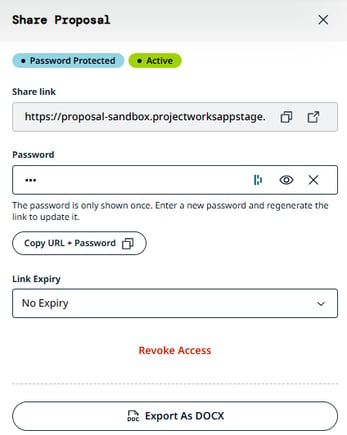
- Copy Link
So you can share it with your client. - Copy URL + Password
Copies the URL and password together, ready to paste into a message to your client. This is a one-time action, available only when the link is first created (since the password is only shown once). - Open link
Opens the shared proposal in a new tab for a one-click preview of what your client will see.
- Copy Link
The secure share link is a long, randomly generated token URL. Only people you send it to can access the proposal.
How to revoke access to a share link
You can revoke access to a shared link at anytime by following the steps below.
- Open the proposal in the proposal editor.
- Click the Share button to open the Share Proposal panel
- Click “Revoke Access”
- You'll be asked to confirm, as revoking can't be undone.
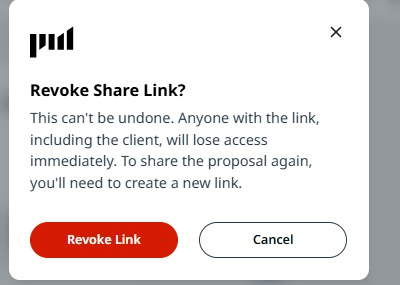
- Once you click Revoke Link, everyone with the link loses access immediately, and the shared page expires. Anyone who opens that link afterwards will see a "Link not found" page.
To share the proposal again after revoking, generate a new link.
See How to generate a share link →
How to change the password of a shared link
If you need to change the password for a shared link:
- Open the proposal in the proposal editor.
- Click the Share button to open the Share Proposal panel
- Type in a new password in the Password field
- Click Regenerate Link.
What your client sees
Your client doesn't need a Projectworks account to view a shared proposal.
If you set a password, they're first taken to the customer portal sign-in page to enter it. This portal is how your clients' customers securely access a proposal you've shared:
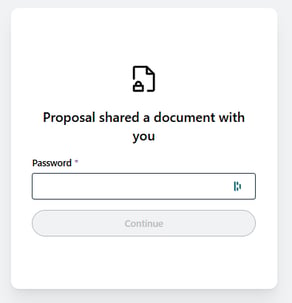
Once past the password (or straight away, if the link isn't protected), they see the web-accessible proposal page; a clean, read-only view with a navigable Contents panel and a Password Protected indicator in the header.
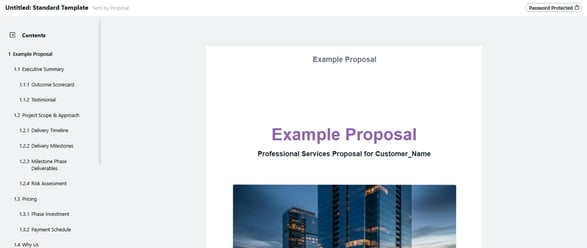
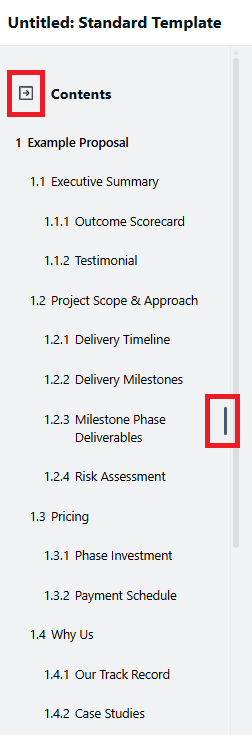
The Contents side nav can be collapsed using the arrow icon at the top of the panel to give the editor more room, and resized by dragging its edge.