.png?width=280&height=39&name=Projectworks-Logo-Black-280px%20(1).png)
- How it works
- Before we start
- How Bluerock maps to Projectworks
- What to check during validation
- If something does not look right
How it works
Bluerock / WorkflowMax is the most scripted of our migration pathways. Our data team extracts your data directly from Bluerock using an integration tool and loads it into Projectworks. You do not need to export or prepare any files yourself.
Before we start
Your Customer Success Manager (CSM) will send you a decisions form before we run the load. The key things to confirm are:
-
How far back do you want to bring your data?
There is no limit, but some businesses choose a start date to keep things simple. -
Which custom fields do you want to bring across?
By default we migrate the Description, State, and Type fields. Any additional custom fields need to be requested upfront so we can include them in the load.
How Bluerock maps to Projectworks
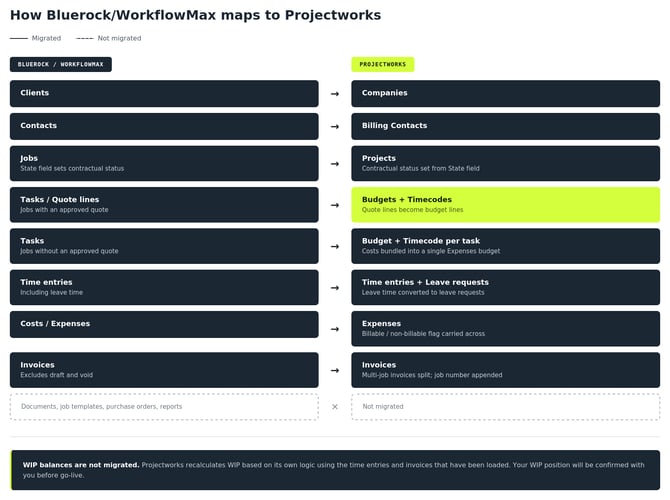
Here is how your Bluerock data translates into Projectworks:
Clients become Companies. Contacts become Billing Contacts. Jobs become Projects, with the contractual status set from the State field in Bluerock. Time entries for leave are converted to leave requests.
For jobs with an approved quote, the project in Projectworks is structured from the most recent approved quote. Quote lines become budget lines and timecodes are set from the task name. For jobs without an approved quote, each task becomes a budget line and timecode, with costs bundled into a single Expenses budget line.
Invoices are migrated with payment status set. Draft and void invoices are not migrated. Where an invoice in Bluerock covers multiple jobs, it will be split into multiple invoices in Projectworks with the job number appended to the invoice number. Where a Xero unique reference exists it will be populated.
The following are not migrated: WIP balances (Projectworks recalculates these based on its own logic), documents, job templates, purchase orders, and reports.
What to check during validation
Once your data has been loaded, here is what to focus on for a Bluerock migration.
-
Check your project structure.
Confirm that jobs have translated correctly into projects and that the contractual status looks right. For any jobs that had approved quotes, check that the budget lines match the quote lines. -
Check billable rates on a sample of time entries across different people and timecodes.
Confirm the rates look correct and that billable amounts make sense. - Confirm your WIP position.
Confirm all invoiced time has been correctly linked to invoices, and all uninvoiced time is still showing as in WIP.
-
Check total time entry hours per task and project against your Bluerock records Check a sample of projects.
-
Check expenses are reflected correctly
Including whether the billable and non-billable flags have carried across as expected. -
Check your invoices.
Confirm that invoice amounts and dates look right on a sample, and check the payment status is set correctly. If any invoices covered multiple jobs in Bluerock, check that the split into multiple invoices in Projectworks makes sense. -
Check account managers and project managers
Check these are correctly assigned on projects. -
Check any custom fields
Check that any you requested are appearing on the right records. -
Check leave requests
Confirm they have come across correctly for a sample of staff.
If something does not look right
Raise it with your CSM. Our data team can make bulk corrections during validation, so most things can be fixed without you having to touch anything manually.
For general validation guidance that applies to all migration types, see How to validate your migrated data.