.png?width=280&height=39&name=Projectworks-Logo-Black-280px%20(1).png)
- How it works
- The most important thing to understand before you start
- Before you fill in the template
- Filling in the template
- What to check during validation
- If something does not look right
How it works
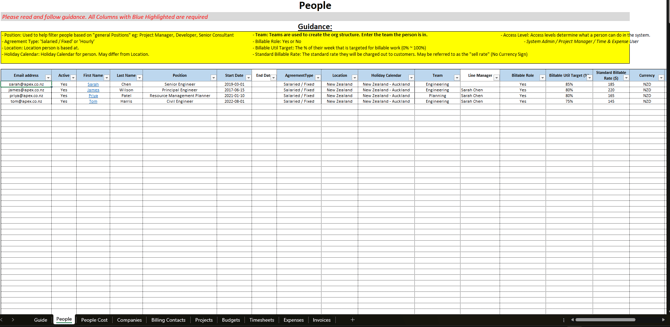
For spreadsheet migrations, your CSM (Customer Success Manager) will provide you with the Projectworks data import template. This is a structured spreadsheet with tabs for each data type: people, companies, projects, budgets, timecodes, timesheets, invoices, expenses, and more. You fill it in with your data and submit it to us. Your CSM will walk you through the template and can answer questions along the way.
For straightforward datasets, your CSM handles the upload directly. For more complex spreadsheet migrations, a CSE (Customer Success Engineer) will be involved to support the data check and validation.
The most important thing to understand before you start
Projectworks structures data in a specific hierarchy: Companies contain Projects, Projects contain Budgets, and Budgets contain Timecodes.
If you are used to working from spreadsheets, this structure might be new to you. Taking the time to understand it before you fill in the template will save you time and rework during the setup process
Budgets - In Projectworks, a budget is not just a number. It is the container that drives invoicing, tracks costs, and links time entries and expenses together. Every invoice is raised against a budget, and every time entry and expense needs to sit under one.
If your projects currently have phases or milestones, those will usually translate well to budgets. If your projects do not have anything that maps cleanly to budgets - a simple approach is to set up one or two budgets per project, typically one for time and one for expenses.
Read our article on how Projectworks structures your data before you start, and have a look at the guide on setting up project pricing for more detail on how budgets work: Setting up Budgets (project pricing)
Before you fill in the template
Your CSM will send you a decisions form that covers the key choices to make before we load anything. A few things to confirm upfront:
-
How far back do you want to bring your data?
There is no limit, but some businesses choose a start date to keep things manageable. -
How do you want to handle work in progress?
Time entries and expenses that were not invoiced before your go-live date need to be accounted for. We will agree on a cut-off date with you before the load runs. -
Do you have any pre-billed invoices?
If you invoice clients before the work is done, we need to know upfront so those are handled correctly. -
Do you have custom fields?
These would be any fields that aren't captured in the standard fields in the template. If so, let us know the field names and what type they are (open text, dropdown, or multi-select).
Filling in the template
Each tab in the template has guidelines at the top explaining what goes in each column and what entries are acceptable. Read these before filling anything in.
The most important thing to get right is consistency. The template is a relational database, which means every tab needs to connect to the others. Specifically:
-
Every company on the Projects tab must appear on the Companies tab.
-
Every project on the Budgets tab must appear on the Projects tab.
-
Every budget referenced on the Timesheets or Expenses tabs must appear on the Budgets tab.
-
Names, spelling, and capitalisation must match exactly across every tab where they appear. A time entry that references "Smith Engineering" will not link correctly if the Companies tab has it as "smith engineering." These mismatches are the most common cause of errors in spreadsheet migrations and can usually be caught with a careful review before you submit.
What to check during validation
Once your data has been loaded, focus on the following.
-
Check your project and budget structure.
Does each project have the right budgets underneath it? Do the budget names and types match what you set up? This is the most common area where adjustments are needed. -
Check a sample of time entries across different projects and staff.
Confirm they are sitting under the right budgets and that hours and rates look correct. -
Check your WIP position on a few active projects.
Uninvoiced time should be showing up correctly, and the cut-off date we agreed on should be reflected. -
Check a sample of invoices against your records.
Confirm amounts and dates match. -
Check any custom fields.
Confirm they are appearing on the right records.
If something does not look right
Raise it with your CSM. Our data team can make bulk corrections during validation, so most things can be fixed without you having to touch anything manually.
For general validation guidance that applies to all migration types, see How to validate your migrated data.