.png?width=280&height=39&name=Projectworks-Logo-Black-280px%20(1).png)
Read on to learn about
- What is multi-factor authentication?
- Setting up MFA for your Projectworks
- Adding your Projectworks account to your authenticator app
- Logging in with MFA enabled
- Disabling MFA
- How administrators can see which users have MFA enabled
- Troubleshooting/FAQ
To meet Xero partner security requirements, users who can export or manage Xero information in Projectworks need to set up multi factor authentication for their Projectworks login.
What is Multi-Factor Authentication?
The main difference to standard login is that when enabled, MFA adds a second layer to the general username and password prompts at sign-in. MFA adds an additional authentication layer which heavily reduces the risk of your credentials being compromised.
The premise is MFA relies on two forms of authentication:
- Something you alone should know, like your user ID/password
- Something you always have on you which generates a secure code e.g., smartphone
Enabling MFA security is an easy process that can be completed by scanning a QR code from your mobile device using an authenticator app.
Unless someone else has your smartphone, they won’t be able generate the current 6-digit code. The Authenticator app reproduces a new 6-digit number every 30 seconds, so even if someone else knew your code previously, they're unable to access your Projectworks account data.
Setting up MFA for your Projectworks account
It is a quick and easy process to set up MFA for your Projectworks account.
You will need to have either the Microsoft or Google Authenticator apps installed to complete the set up process.
Download and install your preferred app the Apple Store or Google Play.
1. Login to Projectworks using your login and password.
2. Click your initials at the top right of the screen and select MFA to access the Multi-factor Authentication page.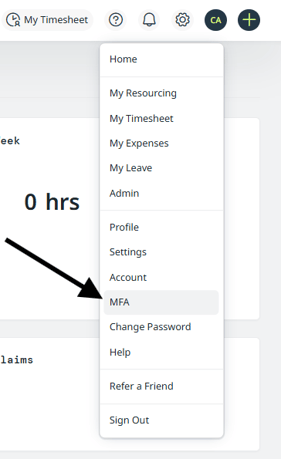
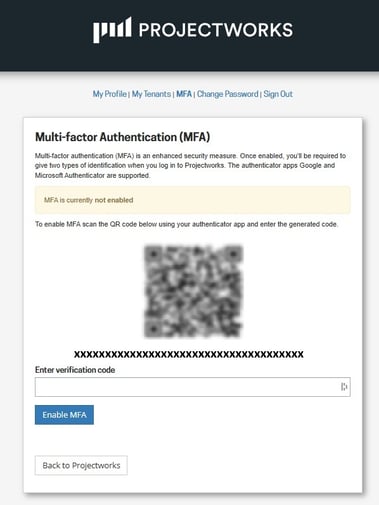
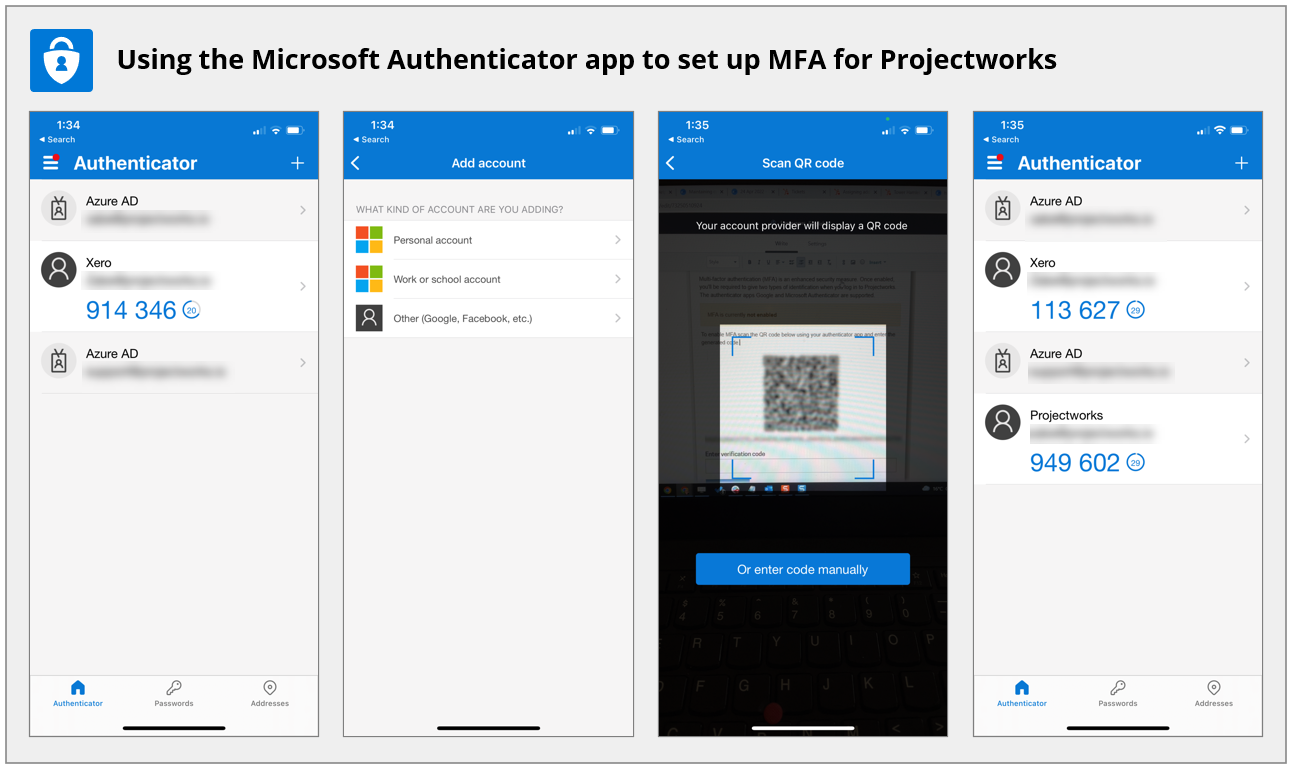
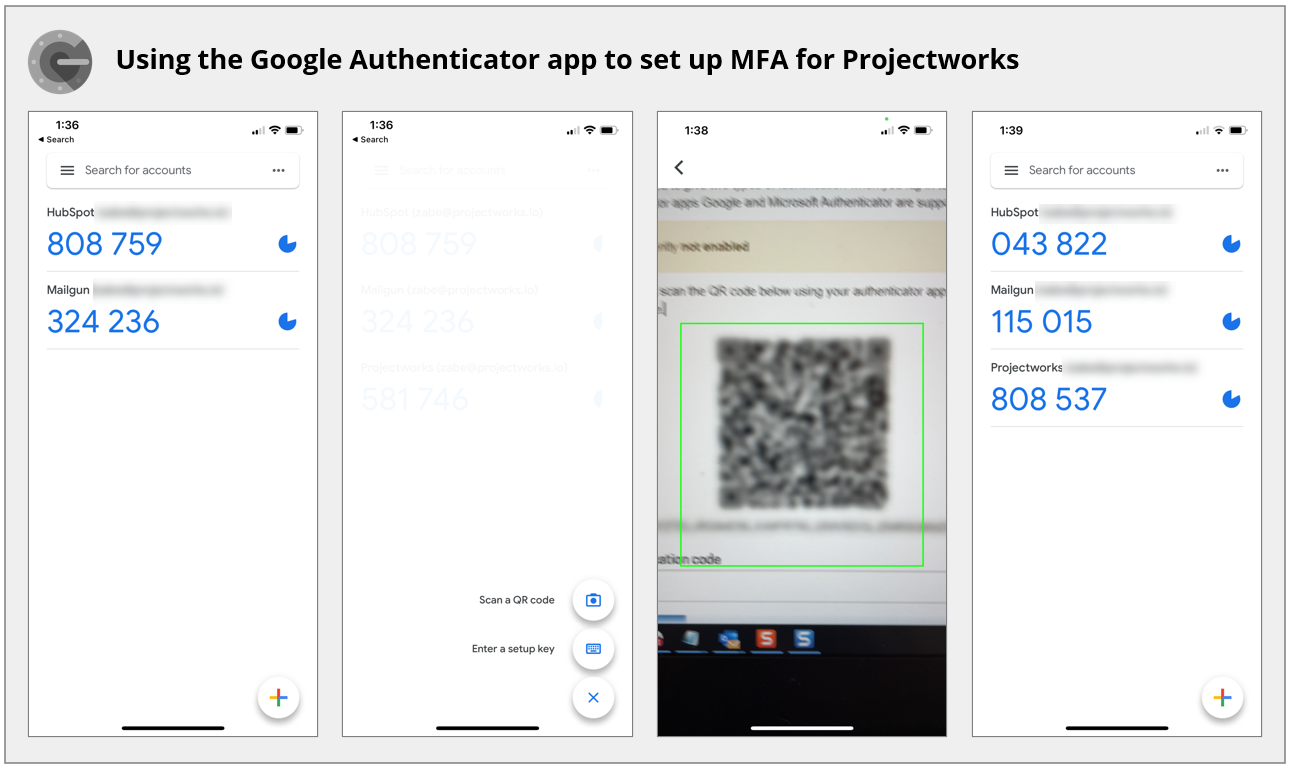
3. Using your mobile device, open the Microsoft Authenticator or Google Authenticator app and follow the process for adding a new account. See below for screenshots
4. Your MFA account for your Projectworks account will be created and you will have a one-time password generated, with passwords being refreshed every 30 seconds.
5. Enter the one-time password into the Enter verification code field on the Multi-factor Authentication (MFA) screen in Projectworks.
6. If the one-time password is valid you will have successfully have set up MFA, and you'll see this message that MFA is enabled in your Multi-factor Authentication page.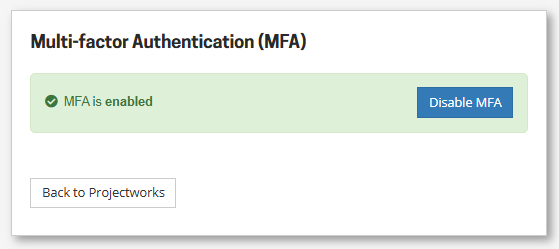
7. Now you will need to authenticate each time you login to Projectworks in the future. That means you will enter your username and password into to Projectworks login screen, then you will be asked to Enter Verification Code from your authenticator app. 
OTP (One Time Password) codes generated for Multi-Factor authentication expire in 30 seconds. If the OTP code expires before you use it a new code is automatically generated by your mobile authenticator app.
How to add Projectworks to your Authenticator app
Simply follow the prompts to set up your Projectworks account.
Microsoft Authenticator
Google Authenticator
Logging in to Projectworks with MFA enabled
Once you have enabled MFA, accessing Projectworks will require the code generated from your authenticator app to validate your credentials.
When logging in you will be prompted to enter a verification code (which can now be generated from your Microsoft authentication app on your mobile device app).
Note: Make sure you enter the code within the 30 seconds of the code being generated, or a new code will need to be regenerated and entered in Projectworks.
Disabling MFA
If you no longer wish to use MFA you are able to disable the process. To disable MFA for your Projectworks account:
- Login to Projectworks.
- Click your initials at the top right of the screen and select MFA to access the Multi-factor Authentication page.
- Click Disable MFA
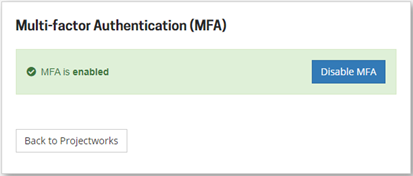
Your account will no longer require you to enter a code from your Authenticator app to login to Projectworks.
Multi-factor authentication provides an enhanced level of security to your credentials and the information you are able to access.
Administrators - see which users have MFA enabled
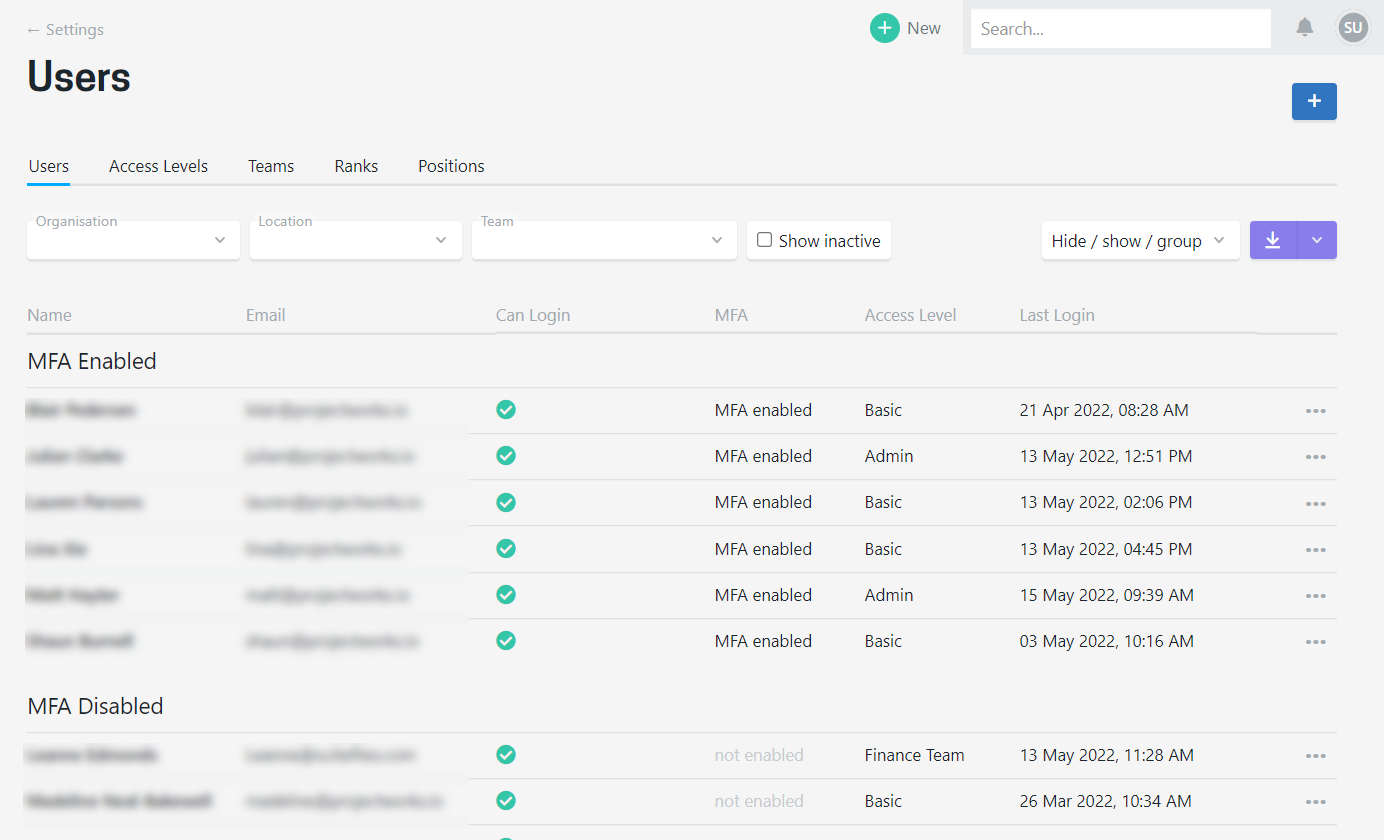
It is up to each user to enable MFA for their account. The users screen in the Admin section allows you to see which users have enabled MFA.
Use the hide / show / group option to turn on the MFA enabled column and group by MFA Enabled to easily see which users have or haven't enabled it.
Troubleshooting/FAQ
Which MFA platforms does Projectworks support?
Authenticator apps such as Microsoft and Google, as well as others that support time-based One-Time Passwords via the app. We don't currently offer other methods of MFA such as email or SMS.
My one-time password is not working?
Ensure that you input your code before it is refreshed (e.g. 30 seconds). If issues persist, refer to support material for your authenticator app.
What if I lose my device that produces my one-time password?
Contact your organization's IT administrator.