.png?width=280&height=39&name=Projectworks-Logo-Black-280px%20(1).png)
This is a one-way beta feature. If you enable a one-way beta feature, you cannot revert back to the previous single-line expense experience.
The first phase of beta allows only users with access to all project can approve expenses. Project Managers will be able to only see the lines against their projects.
- What are Multi-Line Expenses?
- How to enable Multi-Line Expenses
- How to create a Multi-Line Expense
- FAQ
What are Multi-Line Expenses?
Previously, Expense Claims could only contain one line item for one budget within a project.
For example, one expense claim contains a single line item:
-
$50 Taxi - Develop Boosters budget in Moon Landing Project
You can learn more about entering expense claims here →
With Multi-Line Expenses, a single expense claim can have multiple line items against different budgets and projects.
For example, one expense claim could contain all the following items:
- $50 Taxi - Develop Boosters budget in Moon Landing Project
- $100 Travel - Client Meetings budget in Mars Landing project
- $200 software subscription - Materials budget in Software Upgrade project
How to enable Multi-Line Expenses
This is a one-way beta feature. If you enable a one-way beta feature, you cannot revert back to the previous single-line expense experience.
Please consider carefully before opting-in to this one-way beta.
- Click the Settings cog in the top right hand corner.
- Click "Beta Features" under the System section.
- Toggle on “Multi-Line Expenses”
- Click “Save”.
How to create a Multi-Line expense
- On any page, select [+ New].
- Choose Expense.
- Enter the Expense Details
- Whether the expense is already paid for or planned
- Currency
- Whether the amounts are tax inclusive or tax exclusive
- Whether the expense lines are paid by the employee submitting the claim, or company paid.
Once these selections are made, you can create expense lines.
- Create Expense Lines
The first line is created automatically for you, fill in the details.- Project
Select a project from the drop-down. - Budget
Select a budget from the drop-down. - Expense Type
Learn more about expense types → - Quantity
- Unit Price
- Sales Tax
- Billable
Check this box if this line item is to be invoiced to the client of this project. - Purchase Date
- Comment
- Project
- Click “Add Expense” to create another line, and fill in the Expense Line details.
- Repeat until you have created all required lines.
- Click “Submit”.
The claim can contain line items across multiple projects and budgets, but the line items must share the same Expense Details - meaning the same currency, tax status (inclusive or exclusive) as well as whether the expenses are planned or already paid, and reimbursable or company paid.
FAQ
How are multi-line expenses exported?
An expense claim with multiple lines will be exported as a multiline bill to pay in cases where it is either reimbursable or a planned company paid expense.
Is the approvals process multi-line expenses different from single-line expenses?
For the first phase of the Beta, only people who can see all project are able to approve the expenses and access the attachments. Project Managers can see the lines relating to their projects, but not approve or view attachments.
For example, if the claim has expenses for Project A and Project B, and you don’t have access to Project B, you can only see Project A related lines, but if you have access to see all projects, you can see all the lines, attachments and approve the claim.
Support for partial approvals and attachment management will come in future phases.
Who can use multi-line expenses?
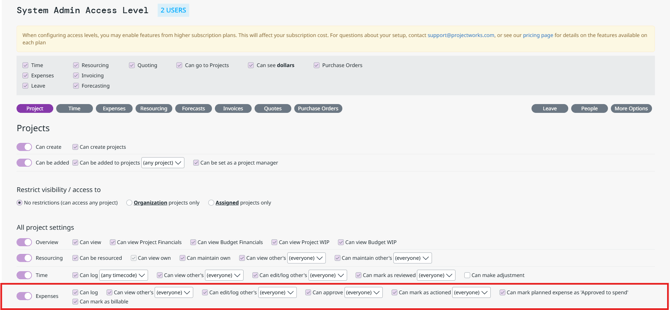
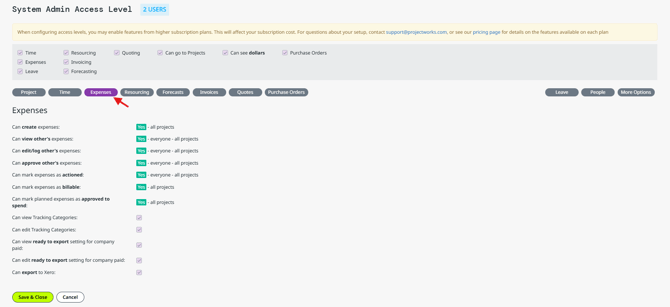
The feature can be accessed by anyone who has the appropriate expense related access level assigned to them.
This can be found in the Project - Expenses and Expenses access level section.