.png?width=280&height=39&name=Projectworks-Logo-Black-280px%20(1).png)
This is a beta feature. Follow this link to request more information
Bid Faster and Win More Work with AI-Powered Proposals →
- What is Proposals?
- Finding your way around
- How do Deals, Proposals and Projects fit together?
- Glossary
What is Proposals?
Proposals brings your pre-project sales pipeline into Projectworks. You can track the deals you're pitching for, write and send the proposals that support them, build a reusable content library. When you win the work, turn a deal into a project without re-keying anything.
Finding your way around
Get started by clicking “Proposals” on the left-hand navigation bar. 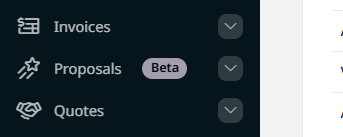
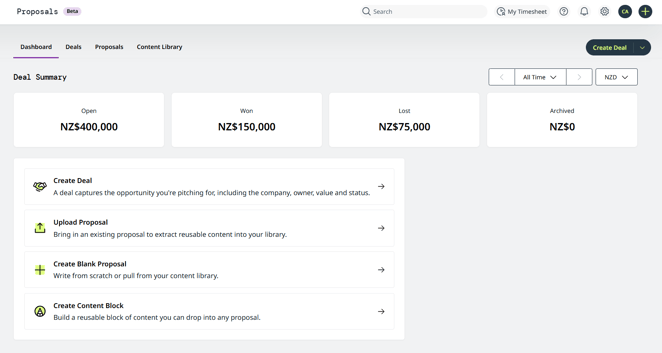
- Dashboard
- The Deal Summary tiles shows the total value of deals by outcome (Open, Won, Lost, Archived) in your chosen currency.
- The Get Started actions below give quick access to creating deals, proposals, and content blocks.
- Deals
Every deal, with its name, company, stage, owner, and amount. Create and manage deals here, and open a deal to build a proposal or convert it to a project. - Proposals
All your proposal documents. Start blank, from a template, or upload an existing file, then write in the editor. - Content Library
All your reusable content blocks (such as an executive summary, testimonial, or logo) that can be tagged, searched, and dropped into any proposal.
The Create button in the top-right corner is visible from all of these tabs. Click for quick actions like Create Deal, Upload Proposal, Create Blank Proposal, and Create Content Block.
Can't see the Proposals tab? To use Proposals features, ensure your Access Level has the following settings switched on.
-
Admin.Proposals.DealPipelineStages.View
-
Proposals.Edit
-
Proposals.View
These are found under Settings → Access Levels → More Options.
How do Deals, Proposals and Projects fit together?
A Deal captures the opportunity you're pitching for, the company, the owner, the value, and its stage. It can also hold the deal team, the client's contacts, and one or more deal budgets.
From a deal you can build a Proposal and a Project.
Recommended workflow:
Deal → Proposal → Project
1. Create a Deal
2. Create a Proposal from the Deal
3. Create a Project from the Deal when needed (e.g. When the Proposal is won).
We recommend starting from a deal and building outwards: a proposal created from a deal stays linked to it, and the project you create afterwards carries the same thread. This way, everything about an opportunity stays connected from first pitch to delivery.
It’s possible to create deals and proposals independently if needed, you have the option to link them to each later later if needed.
For more information, see the below help articles:
- How to create and manage deals →
Creating deals, the deal pipeline, building proposals from a deal, and creating projects from a deal. -
How to build a deal budget →
Groups, time and expense lines, timecodes, top-down and bottom-up fees, and what comes across to the project - How to set up your deal pipeline →
The admin settings for stages, confidence, and default project status. - How to build a proposal →
The editor, variables, content blocks, pricing, and AI editing. - How to share and export a proposal →
Secure web links, passwords, expiry, and DOCX export.
Glossary
Here are some key terms you will see while using proposals.
Deal
A record of an opportunity you're pitching for. A deal captures the company, deal name, owner, pipeline stage, and total amount. Deals are managed on the Deals tab and drive the Deal Summary figures on the Dashboard.
Proposal
The document you create to win a deal, written in the proposal editor and managed on the Proposals tab. A proposal can be started blank, from a template, or uploaded from an existing file.
Project
Delivery work in Projectworks. A won deal can be converted into a project, carrying across its company, budget, and contractual status.
Deal Summary
The set of cards on the Proposals Dashboard showing the total value of deals by outcome — Open, Won, Lost, and Archived — in your selected currency.
Open / Won / Lost / Archived
The Deal Summary outcomes. Open totals every deal in a non-closed pipeline stage; Won totals deals in the Closed Won stage; Lost totals deals in the Closed Lost stage; Archived totals archived deals, which are excluded from the active pipeline.
Pipeline stage
The step a deal sits at in your sales process (for example Lead, Qualify, Develop, Propose, Negotiate). Stages are configured by an admin under Settings ▸ Proposals, each with a confidence and a default project status. Every deal ends at one of the two fixed closed stages, Closed Won or Closed Lost.
Confidence
A percentage against each pipeline stage indicating how likely a deal at that stage is to close.
Default Project Status
The project status a pipeline stage maps to (Opportunity, Committed, or Signed). It pre-fills the required Contractual Status when a deal is converted into a project, and can be changed at that point.
Contractual Status
A required field on every project, reflecting how firm the work is: Signed, Unsigned (committed), or Unsigned (opportunity).
Owner
The person responsible for a deal or a proposal. On a deal this is the Deal Owner. It's required, and is filled in with the person who creates the deal. You can change it at any time.
Deal Team
The people working on a deal: the Deal Owner, the Project Lead and any team members. The Owner and Project Lead show on the deal's Overview; the full team is managed on the deal's Settings tab.
Project Lead
The person leading delivery of the deal. Optional, one per deal, and can be the same person as the Deal Owner or someone different.
Team member
Anyone else contributing to a deal, added under Team Members on the deal's Settings tab with Add Team Member.
Total Amount
The monetary value of a deal, entered with a currency (e.g. NZD, USD).
External Reference
A reference number a deal is known by, such as a client PO, a tender number or an ID from another system. A deal can have as many external references as you need, each with its own label. The label starts as "External Reference" and you can rename it, for example to Client PO or Tender ID. Add them in the deal's Settings tab, under Tracking, with Add External Reference. In the Deals table, each label can have its own column, which you can filter and edit inline.
Description
Plain-text notes on what a deal is about, added on the deal's Settings tab under Tracking and shown on the deal's Overview. Descriptions aren't shown in the Deals table
Company details
Information about the deal's client: Industry, Vertical, Country, Region, Lifecycle Stage and Website. They're set on the deal's Settings tab under Company and Contacts, and show in the Company block on the deal's Overview. Country starts as your organisation's default country.
Billing contact
A client contact with the Billing role. Only billing contacts appear on quotes, invoices and project billing. A billing contact needs an email address. Every contact that existed before this release is a billing contact.
CRM contact
A client contact with the CRM role, which can be linked to deals. A contact can be a billing contact, a CRM contact, both or neither; the roles are ticked on the client contact form. Linking a contact to a deal, or creating one from a deal, makes it a CRM contact. On each deal a contact has its own role, and one contact is the Primary contact, shown on the deal's Overview. When you create a project from a deal, you can choose one of the deal's contacts as the project's billing contact.
Linked Documents
Proposals attached to a deal, shown on the deal page.
Deal budget
The pricing for a deal, built on the deal's Deal Budgets tab. It holds time and expense lines, groups and subgroups (two levels), and timecodes under time lines. When you create a project from the deal, each line becomes a project budget named by its group path, and its timecodes become project timecodes.
Top-down / Bottom-up
The two fee types for a time line in a deal budget. Top-down: you enter the fee on the line. Bottom-up: the line's fee is the sum of its timecodes' fees. Switching between them keeps the line's total
Template
A pre-built proposal structure to start from instead of a blank page. The Standard Template (provided by Projectworks) includes Executive Summary, Project Scope & Approach, Pricing, Why Us, Our Team, Terms & Conditions, and Next Steps.
Proposal editor
The rich-text editor where proposals are written, with a formatting toolbar, side panels (Outline, Variables, Content Library, Settings), and Save/Share controls.
Outline
The editor side panel showing a proposal's table of contents, generated automatically from its headings and navigable by clicking a heading.
Variable
A smart placeholder (e.g. Customer_Name, Project_Start_Date) that pulls in real information automatically, so proposal content stays accurate without manual updates. Set once and it updates everywhere it appears.
Client Scope
A tab in the Variables panel where you describe the client and project so Projectworks can recommend variable values and suggest new variables automatically.
Review (variables)
The Variables tab where you check, edit, accept, or discard the values Projectworks pulled from your client scope before applying them to the proposal.
Content block
A reusable piece of proposal content saved to the Content Library — for example a testimonial or logo — that can be tagged, searched, and dropped into any proposal.
Smart block
A dynamic content block. The Pricing block is currently the only smart block: it calculates a pricing table and, on project creation, auto-fills the project budget total.
Pricing block
The smart block for building a pricing table, with budget lines, budget type, accounting code, fee, and a calculated total.
Connected / Disconnected
Where a pricing table in a proposal gets its figures. Connected: linked to a deal budget, so its lines and amounts are read-only in the proposal. Changes to the deal budget only reach the proposal when you sync it. Disconnected: the pricing belongs to the proposal only, so you can edit it there, and your edits never change a deal budget.
Content Library
Your collection of reusable content blocks, available as a tab in the Proposals area and as a panel inside the editor (with Smart Blocks and Saved tabs).
Ask AI
Built-in AI editing in the proposal editor for adjusting tone, fixing spelling and grammar, changing length, simplifying, translating, and more.
Proposal status
Where a proposal sits in its lifecycle. Defaults are Draft, In Review, Approved, Sent, Accepted, Rejected, and Archived.
Share link
A secure, token-based web link that publishes a proposal as a read-only page, optionally password-protected and with an optional expiry.
Customer portal
The password sign-in page a client uses to open a password-protected shared proposal; no Projectworks account is required.
Export as DOCX
Downloading a proposal as a Word document. Convenient, but not a perfect 1:1 of the editor; the web share is the closer match.
Revoke access
Immediately and permanently disabling a share link. The page expires and old links show "Link not found"; you must generate a new link to share again.