.png?width=280&height=39&name=Projectworks-Logo-Black-280px%20(1).png)
- Overview
- New in This Release
- How to Enable the Resourcing Redesign Beta
- Bulk Actions
- Columns
- Exporting to CSV
- Capacity Colours on Person Rows
- Other Improvements in the Redesign
- Helpful Tips
Overview
We've redesigned the Resourcing experience in Projectworks to make it simpler, faster, and more intuitive.
During the beta period, you can opt in and enable the beta whenever you're ready to try the new experience, and you can always disable the beta and opt out if you want to switch back.
Once the redesign becomes the standard Resourcing experience for everyone, this toggle will no longer be available. We'll give you advance notice before that happens.
New in This Release
The October 19 release includes:
- Capacity colours on person rows: In Resourcing by Person, you can see each person's capacity for every period without expanding their row. See Capacity Colours on Person Rows below.
- New legend: The legend now sits above the table. You can hide individual colours and markers, and turn Colorblind Assist patterns on or off.
- Clearer pencilled hours: Pencilled hours show with a dashed border, and Time Off uses a calendar icon.
- Delete Resourcing in bulk: Remove all current and future resourcing for a project or budget in one step.
- Update Future Hours from the row menu: Open the Update Resourcing window straight from a person or placeholder row.
- Order By for Budget Level Resourced projects: Choose whether budgets or people appear first under each project.
- Comments and change history: Adding a comment no longer changes a cell's hours. Shift, Pencil-In, Confirm and Match Timecode Allocations now appear in the change history.
How to Enable the Resourcing Redesign Beta
Go to ⚙️ Settings > Beta Features
Toggle on “Resourcing Redesign (beta)”
Important: Enabling this setting applies to your entire account.
Any user in your organization who accesses Project > Resourcing, Resourcing by Project, Resourcing by Person, My Resourcing, or Person Resourcing will see the redesigned experience.
Bulk Actions
Use the menu at the top-right of the Resourcing table, or on a project or budget row, to update multiple resourcing entries at once.
-
Shift moves resourcing forward or backward by days, weeks, or months for an entire project, a single budget, or one person or placeholder.
-
"Pencil-In All Hours" and "Confirm All Hours" change the status of all hours on a project or budget in one step. They're in the menu on a project or budget row, and in the menu at the top-right of the table.
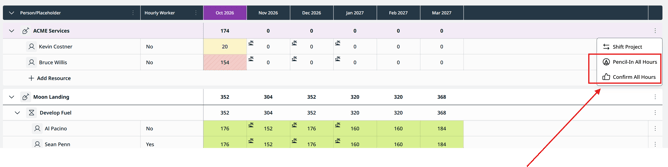
- Current and future hours only. Hours in locked past periods don't change. Which periods are locked depends on the view (Daily, Weekly or Monthly), as for editing a single cell.
- Placeholders aren't changed. Placeholder resourcing is always pencilled in.
- Nothing to change. If there's nothing to update, you'll see "No Confirmed Hours to Pencil In" or "No Pencilled Hours to Confirm".
You need permission to bulk edit resourcing to see these options.
-
"Delete Resourcing" removes all current and future resourcing for a project or budget in one step. It's the last option in the menu on a project or budget row, and in the menu at the top-right of the table.
- Open the menu on the project or budget row and click "Delete Resourcing".
- Check the project or budget name in the "Delete Project Resourcing" or "Delete Budget Resourcing" window.
- Click the red "Delete Project Resourcing" or "Delete Budget Resourcing" button.
What gets deleted:
- From the current period onwards. Bookings from the start of the current day, week or month are removed, depending on the project's resourcing mode. Earlier periods are not changed.
- Everyone on the project or budget. This includes people and placeholders hidden by your current filters, and their comments.
- It can't be undone. Undo is cleared after the delete.
If there's nothing to delete, you'll see "No Future Resourcing to Delete". Like the other bulk actions, you need permission to bulk edit resourcing to see this option.
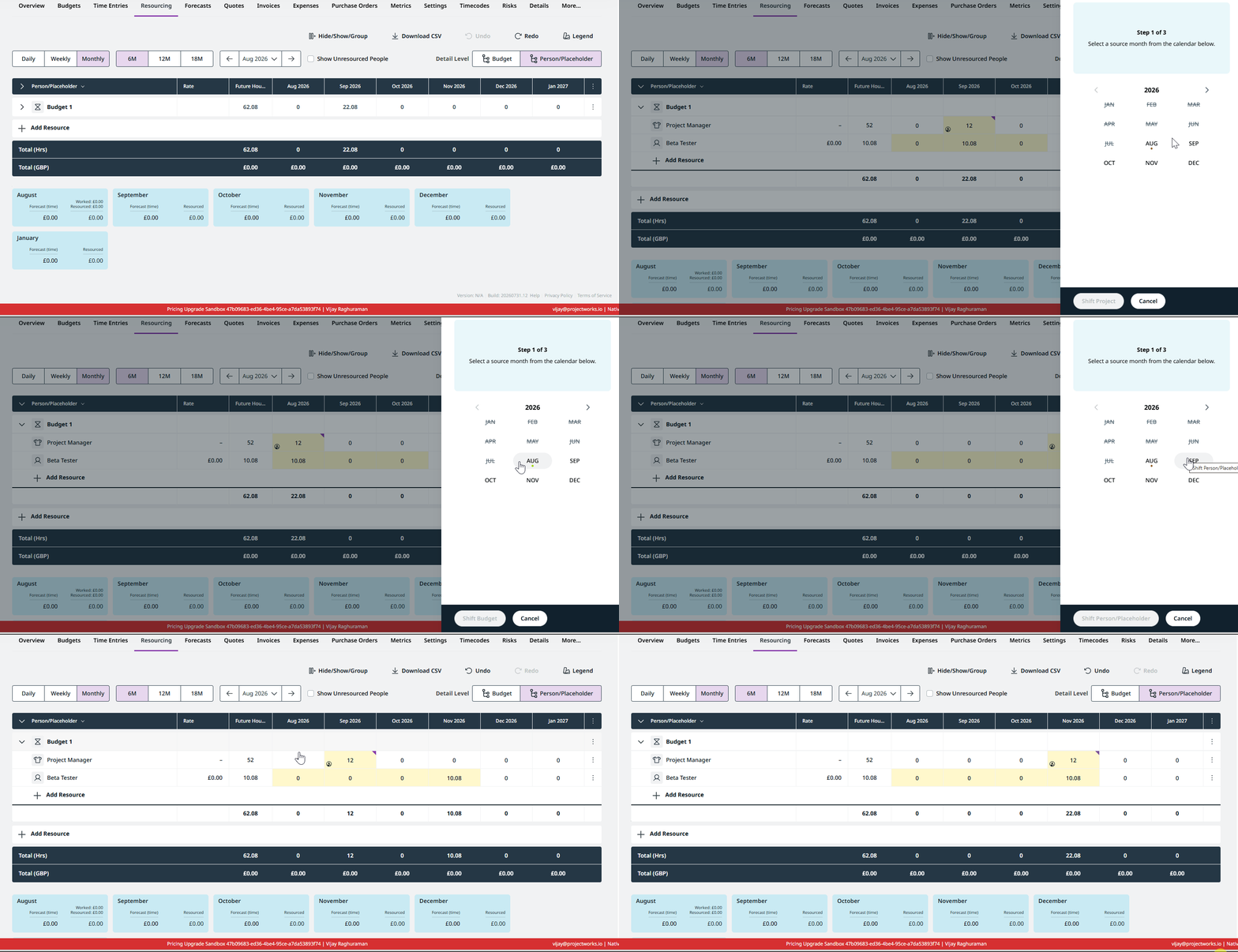
How to shift an entire Project
- Open the Project’s resourcing plan.
- Click the ⋮ menu at the top-right of the Resourcing table.
- Select Shift Project.
- Choose how far you want to shift the resourcing, and whether to move it forward or backward.
- Click Shift Project to confirm.
How to shift an individual Budget
This is available for Projects resourced at the Budget level.
- Open the Project’s resourcing plan.
- Click the ⋮ menu at the far right of the Budget row.
- Select Shift Budget.
- Choose how far you want to shift the resourcing, and whether to move it forward or backward.
- Click Shift Budget to confirm.
How to shift a Person or Placeholder for a Project/Budget
- Open the Project’s resourcing plan.
- Click the ⋮ menu at the far right of the Person or Placeholder row.
- Select Shift Person/Placeholder.
- Choose how far you want to shift the resourcing, and whether to move it forward or backward.
- Click Shift Person/Placeholder to confirm.
Columns
The Resourcing pages include these columns next to each person's resourcing. Use Hide/Show to choose which ones you see.
|
Column |
What it shows |
|---|---|
|
Total Allocated Hours |
Hours allocated to the person on the project or budget |
|
Worked Hours |
Hours the person has logged in timesheets on the project or budget |
|
Remaining Allocated Hours |
Total Allocated Hours minus Worked Hours. Can be negative |
|
Total Resourced Hours |
All hours resourced to the person on the project or budget, past and future. Updates as you edit |
|
Hourly Worker |
Yes or No for each person. Replaces the previous "paid hourly" badge |
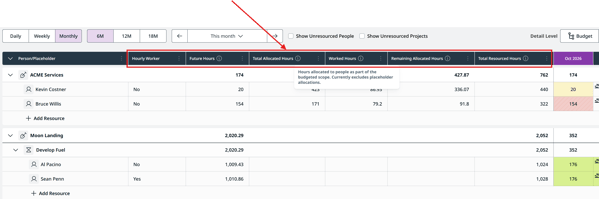
- Sorting and totals: You can sort by any of these columns. The four hour columns are totalled for each project, budget, group and the whole table.
- Placeholders: Total Allocated and Remaining Allocated Hours are blank for placeholder rows, and placeholder hours are left out of those totals.
- Permissions: Hourly Worker only shows if you can see cost rates.
Exporting to CSV
CSV exports from the Resourcing pages match what you see on screen.
- Filters apply. Exports from Resourcing by Person, My Resourcing and Person Resourcing follow your filters, including Team, and the "Show unresourced projects" setting. In Resourcing by Project, if your filters match no projects, the export is empty.
- Columns included: The four hour columns and Hourly Worker are included.
- Budget columns: For Budget Level Resourced projects, exports also include Budget Amount, Budget Burn, Remaining Budget, Projected Burn and Projected Remaining.
- Permissions: The budget columns and Billable Rate are only included if you can see financial information.
Capacity Colours on Person Rows
In Resourcing by Person, each person's row shows their total hours for every period, colour-coded by how much of their capacity is booked. You can see who is free or overbooked without expanding anyone.
|
Colour |
Meaning |
|---|---|
|
No colour |
Free: no hours resourced in the period |
|
Partially Booked |
Some capacity is resourced |
|
Fully Booked |
Resourced hours match capacity |
|
Over Capacity |
Resourced hours are more than capacity |
|
Unavailable |
No capacity in the period, for example a full week of leave. Any hours booked in that period show as Over Capacity instead. |
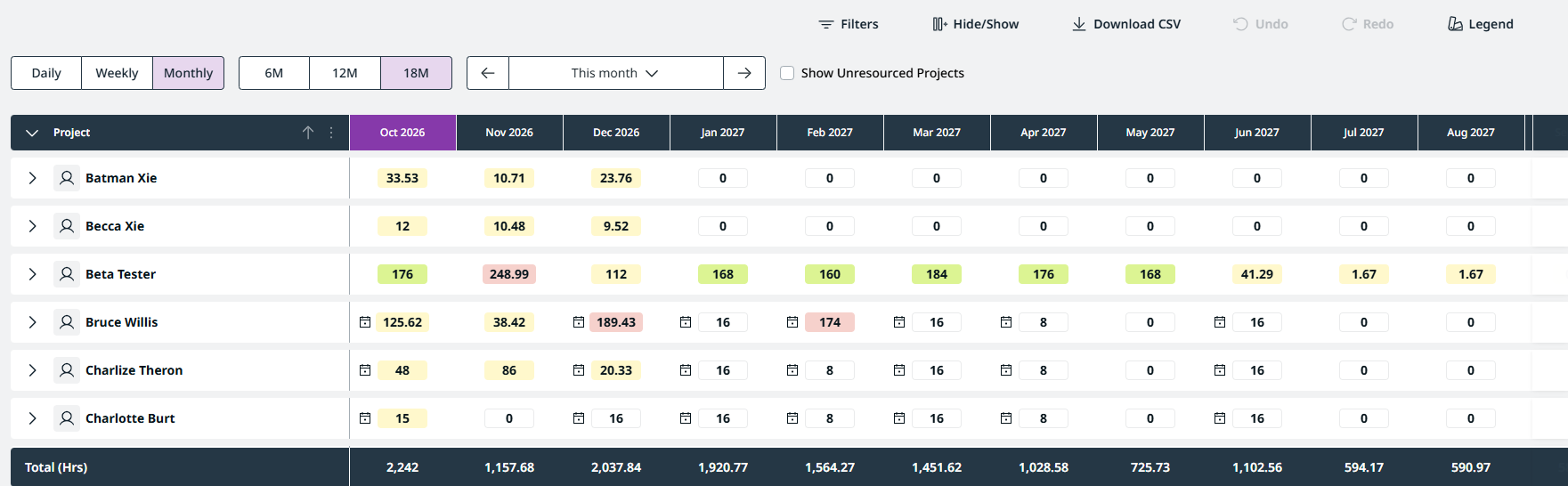
How the colour is worked out:
- All projects count. The colour uses the person's resourcing across every project, even if your filters hide some of them. The hours shown on the row are the filtered total.
- Leave and holidays reduce capacity. A person with 40 hours of capacity and 8 hours of leave is Fully Booked at 32 hours. A calendar icon shows on the row when they have time off in that period.
- Updates as you edit. When a person's row is expanded, the colour changes as you edit their hours.
Person rows in Resourcing by Project and on a project's Resourcing tab are colour-coded the same way. Placeholder rows have no capacity, so they aren't coloured. My Resourcing has no person row, so it doesn't show this colour.
Other Improvements in the Redesign
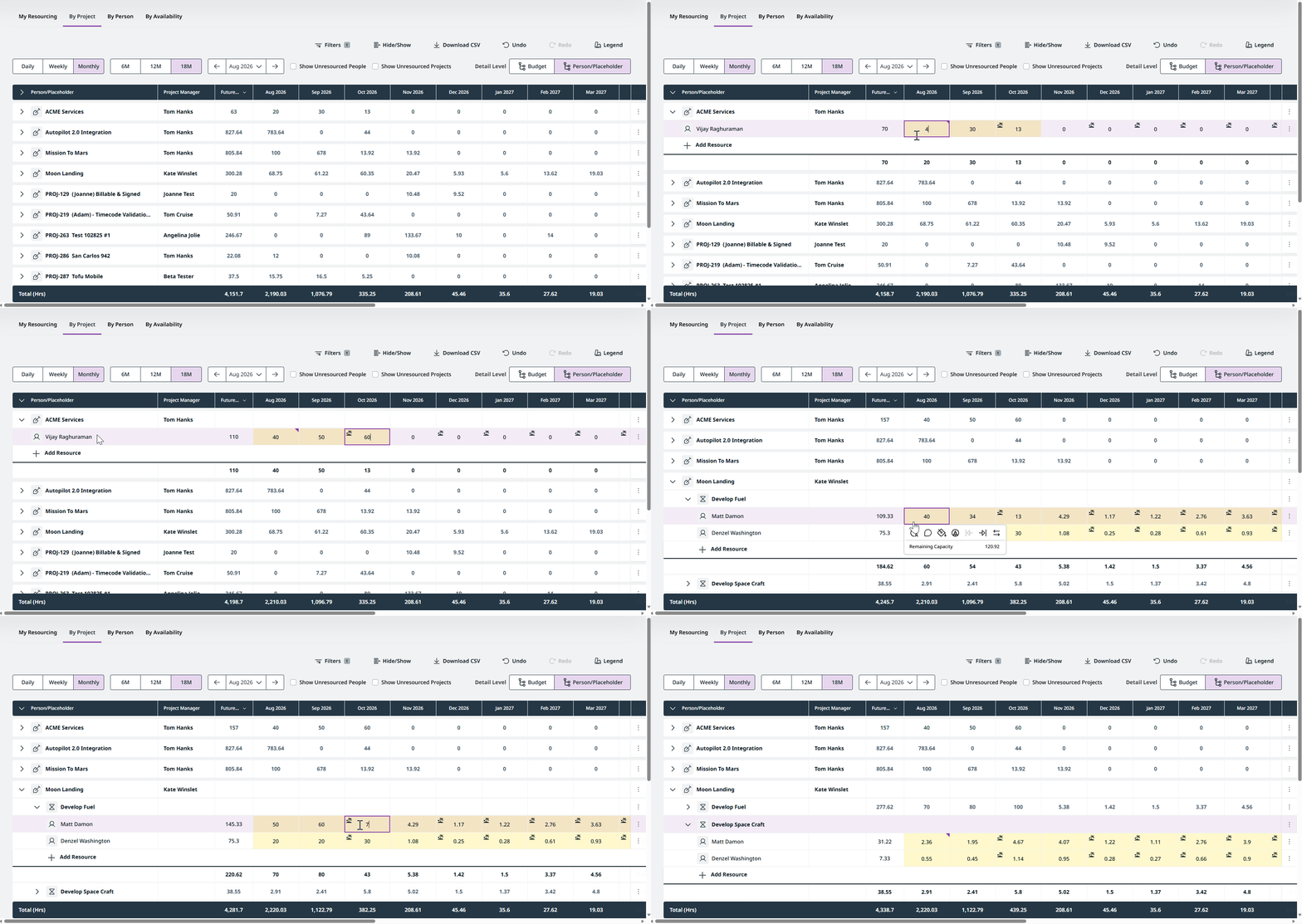
Manage Budget Level Resourced projects inline. Budget-level and project-level resourced projects can now be managed in the same way from the redesigned Resourcing by Project experience, without needing to open each individual project.
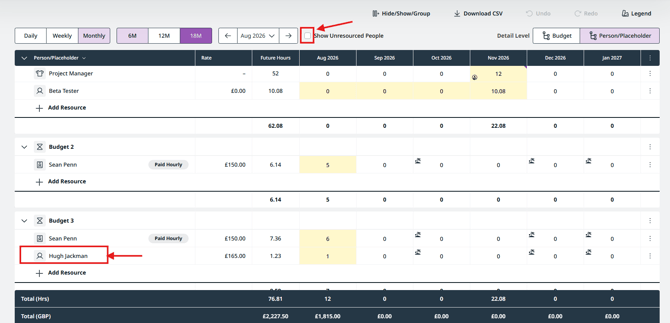
Cleaner Budget Level Resourcing views. People are shown only under the Budgets they're actually resourced to. This removes the additional noise of people appearing in a Budget simply because they're resourced elsewhere on the Project. Turn on Show Unresourced People whenever you want to see additional people available to the Project.
Undo and Redo. Quickly revert or reapply recent resourcing changes without leaving the grid. 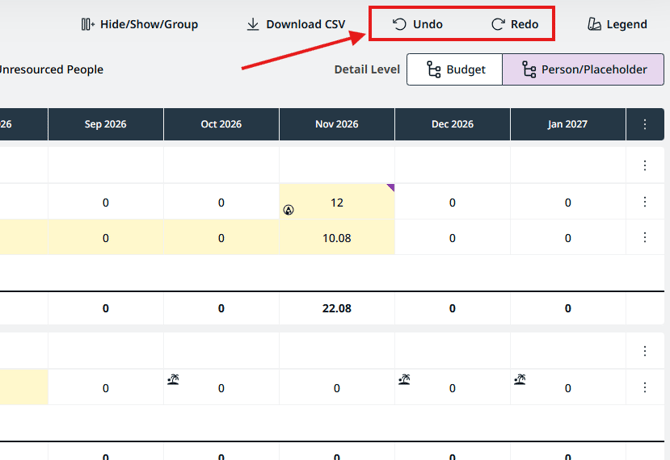
Comments on resourcing slots. Add notes directly to individual resourcing slots from the actions menu. Comments now support easier viewing and editing of longer notes, including comment length indicators and a resizable comment area. 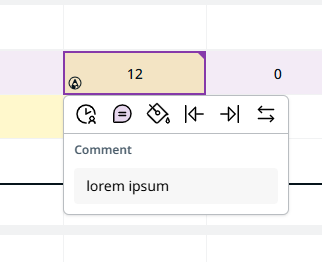
- Comments don't change hours. Adding or editing a comment leaves the cell's hours as they are. Previously, in Weekly and Monthly views, a comment could re-spread a week's hours evenly across the days.
- Comments stay on empty cells. You can comment on a cell with 0 hours, including for people who aren't resourced on the project, and the comment is kept.
- Undo removes a new comment. Undoing a comment you just added removes it.
- More actions in the change history. Shift, Pencil-In, Confirm (on a cell, a row or in bulk) and Match Timecode Allocations now add entries to a cell's change history, as they did in the previous experience. New and edited comments are recorded too. Removing a comment is not yet recorded.
Legend. The legend now sits in a strip above the resourcing table, replacing the Legend pop-up. Click "Legend" in the toolbar to show or hide the strip; Projectworks remembers your choice.
The strip has two groups:
- Cell fills: Over Capacity, Partially Booked, Fully Booked and Unavailable.
- Cell markers: Pencilled (dashed border), Time Off (calendar icon) and Comments (purple corner).

Hiding items: Click any item in the strip to hide it in the table, and click again to show it. For example, hide Partially Booked and Fully Booked to see only who is over capacity. The strip lists what's hidden, and the X next to that list shows everything again. Your hidden items are remembered.
Colorblind Assist: This switch adds patterns to the capacity colours so they can be told apart without relying on colour. It's on by default; turn it off for plain colours.
Update Future Hours: Person and placeholder rows now have "Update Future Hours" in their row menu. It opens the same Update Resourcing window as clicking a Future Hours value. It's not available on Time Off rows.
The row menus are now grouped as follows:
|
Row |
Menu options, in order |
|---|---|
|
Person |
Shift, Swap · Update Future Hours, Pencil-In All Hours, Confirm All Hours, Match Timecode Allocations · Delete Resourcing |
|
Placeholder |
Shift, Swap · Update Future Hours, Edit Placeholder · Delete Resourcing |
Order By (Budget Level Resourced projects only): You can choose whether budgets or people appear first under each Budget Level Resourced project. This replaces the previous budget grouping toggle.
- Open Hide/Show in Resourcing by Project or on a project's Resourcing tab.
- Under "Order By", drag "Budget" or "Person/Placeholder" into the order you want. With the keyboard, press Space to pick an item up, use the arrow keys to move it, and press Space again to drop it.
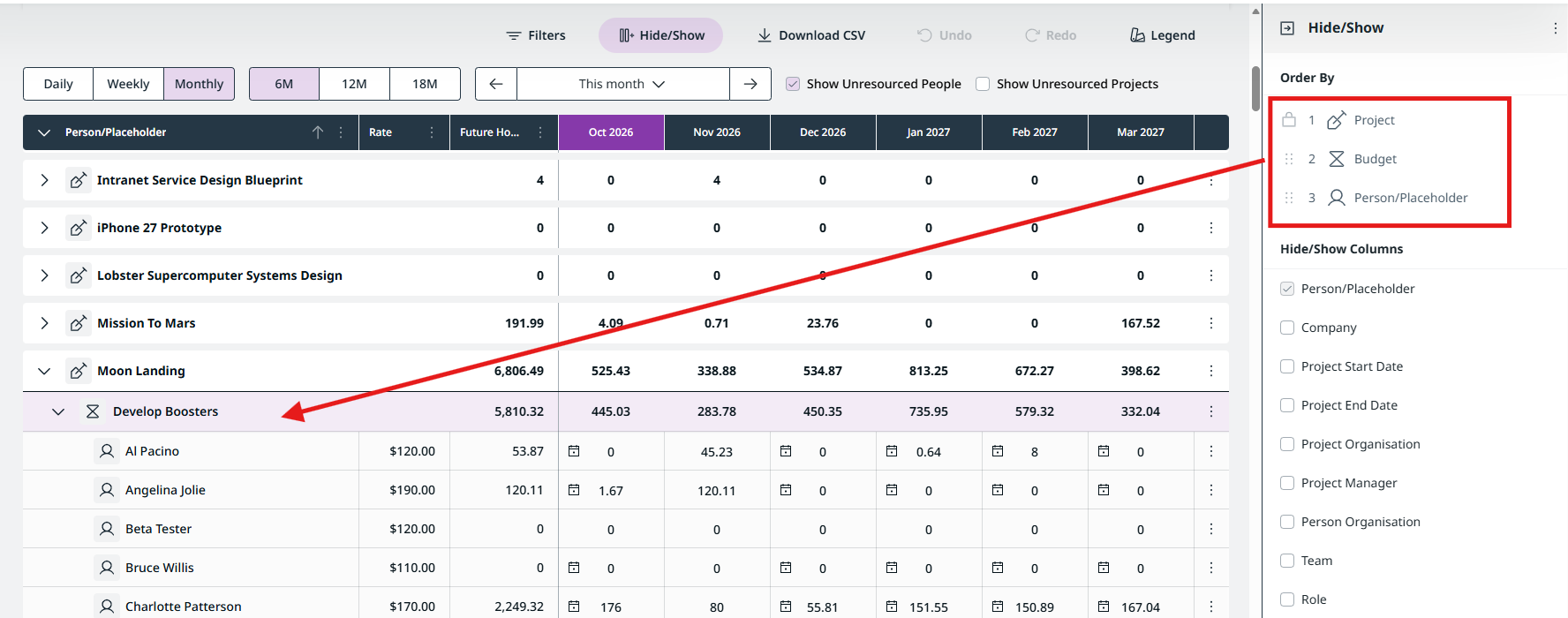
Project always stays at the top. Order By only shows when the list includes a Budget Level Resourced project, and it doesn't change Project Level Resourced projects.
Helpful Tips
-
Use a supported browser. The redesigned Resourcing experience relies on modern browser capabilities and may not work as expected on older browser versions. For the best experience, make sure you're using a supported browser and version.
-
Resourcing by Project supports up to 250 Projects in a single view. If your organization has more Projects than this, use filters to narrow the list.
- You can temporarily view the previous Resourcing experience by adding
beta=falseto the page URL. For example,/Projects/Resourcingbecomes/Projects/Resourcing?beta=false. This can be useful if you want to compare the redesigned and previous experiences. - Some actions still use the existing dialogs. Add Resource, Add Project, Edit Placeholder, Swap Person/Placeholder, Delete Resourcing, and Update Resourcing currently open the same dialogs used in the previous experience. This is expected.