.png?width=280&height=39&name=Projectworks-Logo-Black-280px%20(1).png)
- Invoicing basis vs Recognised revenue
- How to enable Revenue Recognition
- Setting up access
- How to enter recognised revenue
- My Revenue Recognition and All Revenue Recognition
- How to view margin on a recognised basis
- Revenue Journals
- Things to Note
- FAQ/Troubleshooting
Invoicing Basis vs Recognised Revenue
- Invoicing basis
Figures calculated from invoices and invoice forecasts, for example Projected Invoicing and Margin - Invoicing Basis. - Recognised revenue
The revenue you treat as earned for the work done, entered by Budget and month in the Revenue Recognition ledger.
Invoicing Basis Example
Month 1
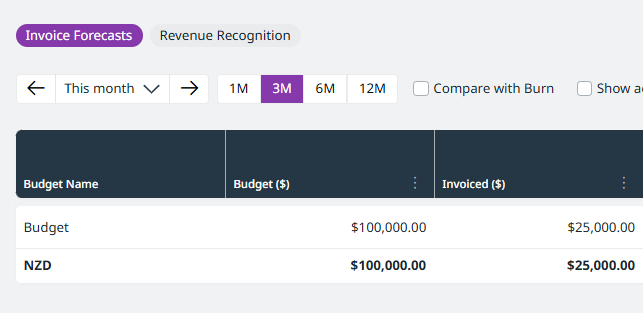
A $100,000 Budget is invoiced 25% upfront. That $25,000 is the revenue amount for this budget.

Revenue Recognition Example
September (Month 1)
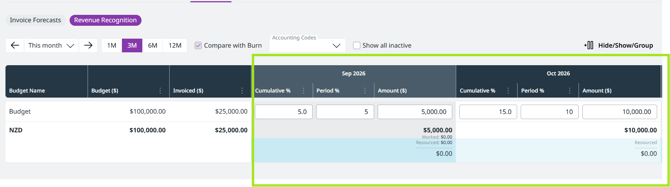
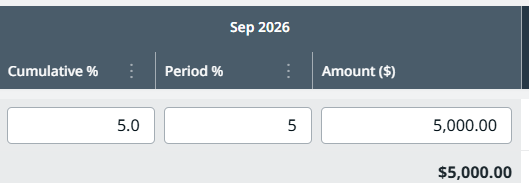
A $100,000 Budget is invoiced $25,000 upfront. After the first month, 5% of the work has been completed. This equates to $5,000 of Recognised Revenue.
October (Month 2)
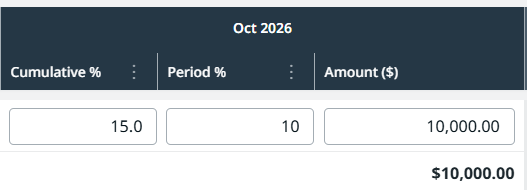
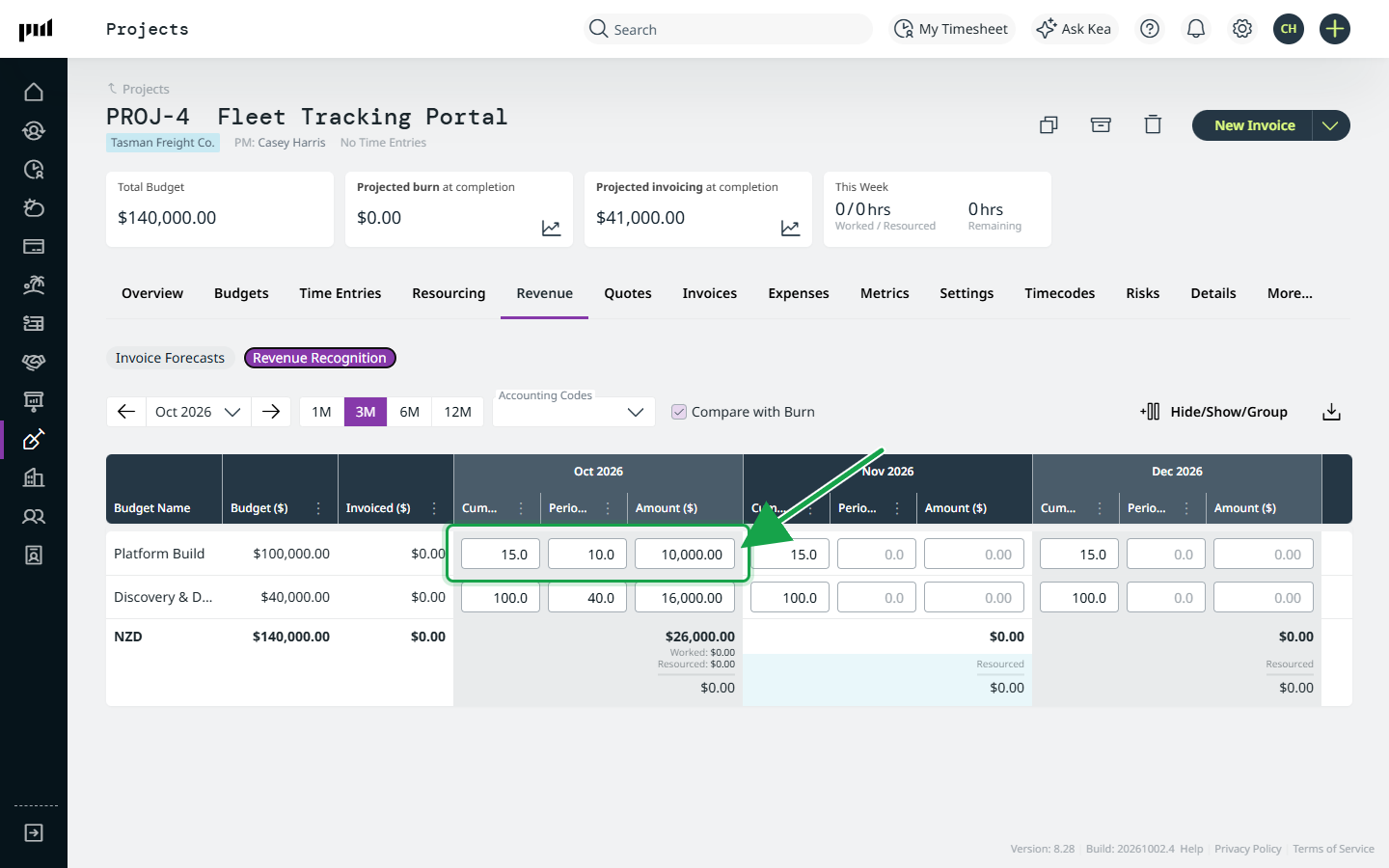
The next month, another 10% of the work has been completed, and nothing more is invoiced yet. Enter 10% in the Period % column. The Cumulative % column fills in automatically to show 15% completion overall.
This recognises $10,000 of revenue for October.
At the end of October, $15,000 has been recognised and $25,000 has been invoiced. The extra $10,000 invoiced is deferred revenue. See Revenue Journals for how to post this to your ledger.
How to enable Revenue Recognition
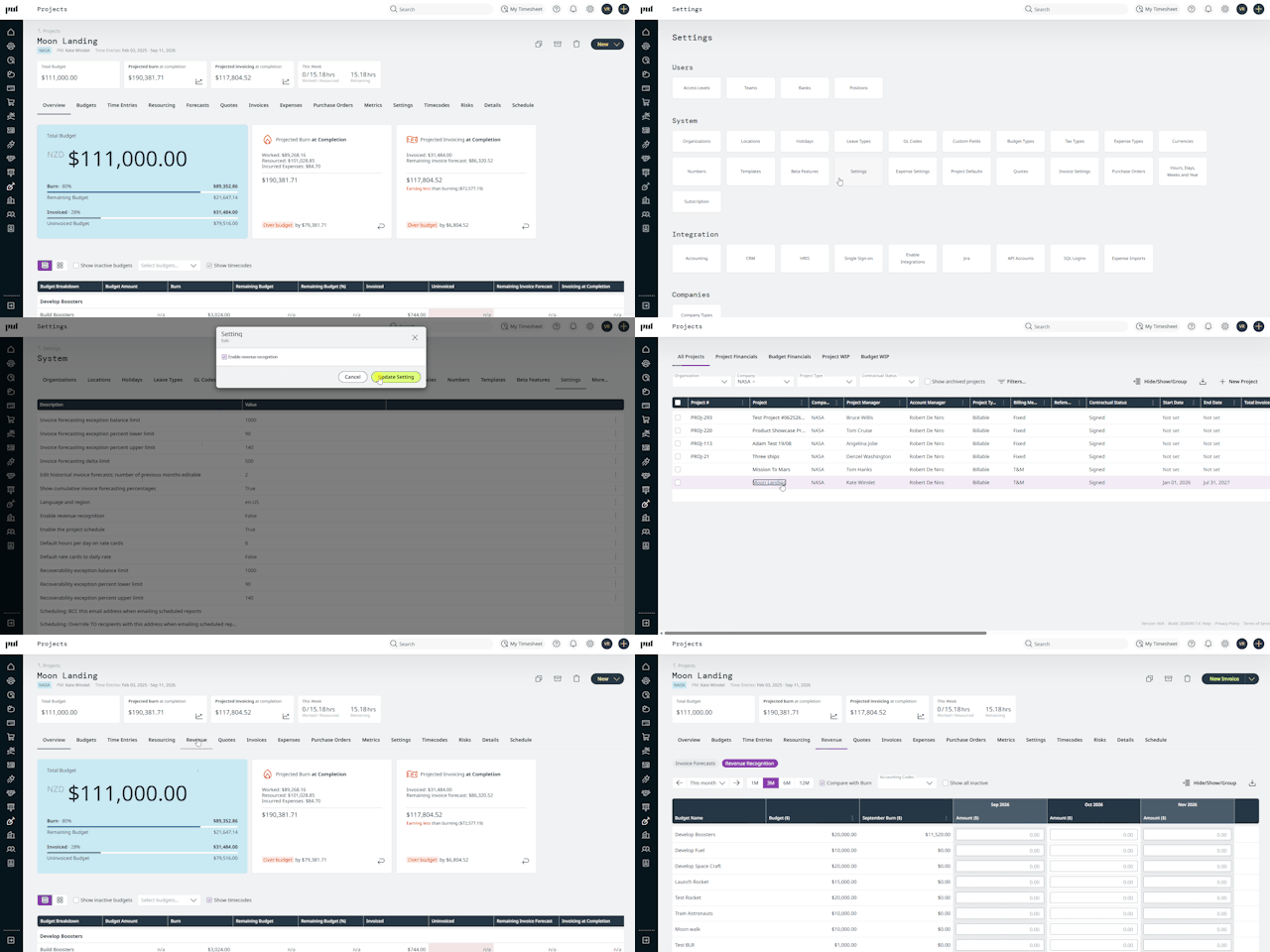
Once this setting is enabled, you’ll have the ability to toggle your Projects between Invoicing Basis and Revenue Recognition as required.
- Click the Settings cog in the top right corner.
- Click System > Settings.
- Click ⋮ on the Enable revenue recognition row, then Edit this setting.
- Check Enable revenue recognition and click Update Setting.
This setting applies to your whole organisation. Once it's on, people with access will see these changes:
- A Revenue tab is added to projects, replacing the Forecasts tab. Here you can switch to Revenue Recognition to see the ledger.
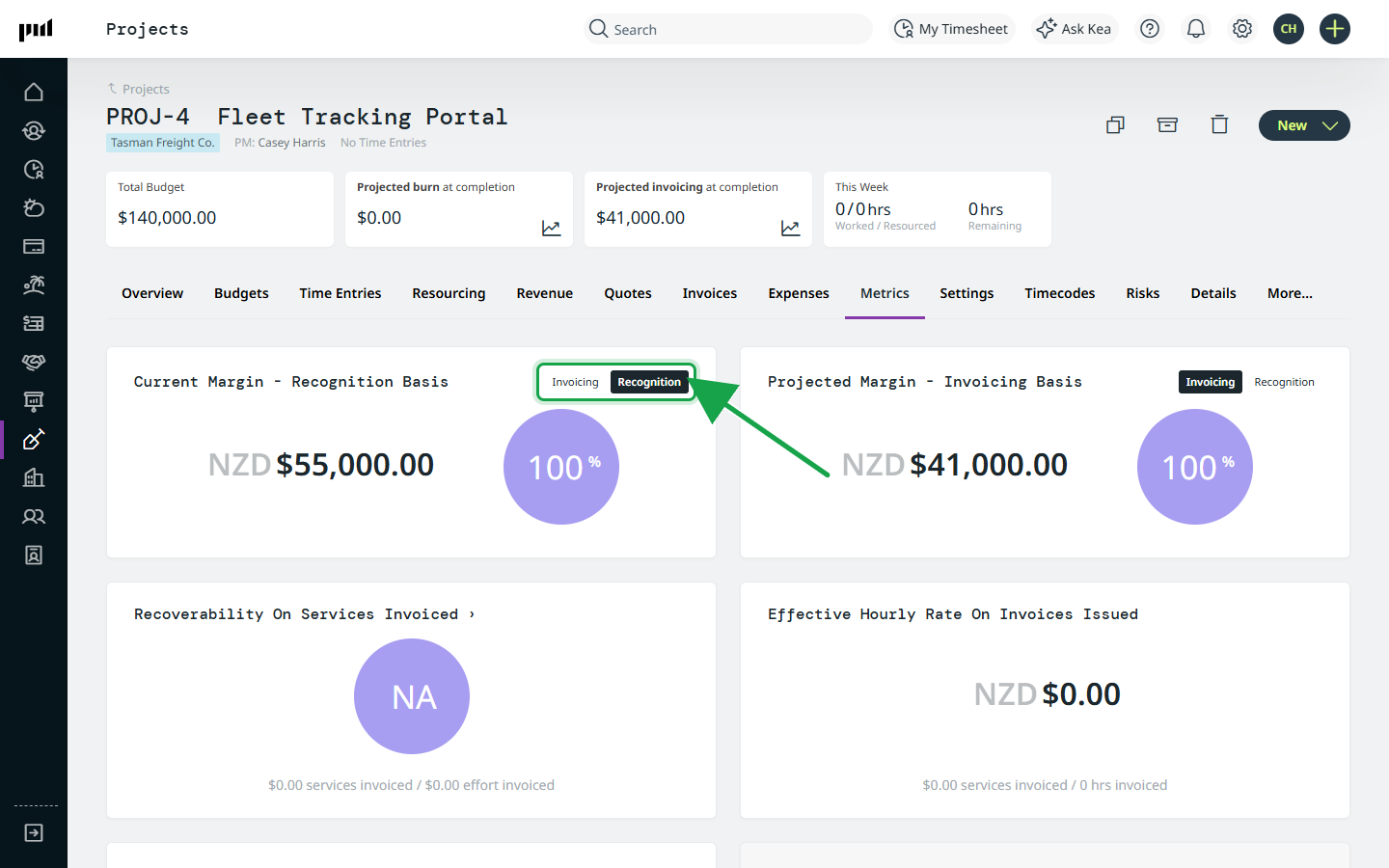
- The project Metrics tab shows an Invoicing / Recognition toggle.
- The Forecasts menu shows My Revenue Recognition, All Revenue Recognition and Revenue Journals, depending on your access.
Setting up access
Revenue Recognition has its own permissions, separate from Invoice Forecasts. You can give someone access to one without the other.
- Click the Settings cog, then go to Access Levels.
- Edit the access level you want to change.
- Make sure Can See Dollars is on. Revenue Recognition can't be turned on without it.
- Turn on Revenue Recognition, then choose the permissions for each access type (All, Organisation, Assigned, Project Manager).
- Save the access level.

| Permission | What it allows |
|---|---|
| Can view | See the Revenue Recognition ledger, My / All Revenue Recognition, and margin on a recognised basis. |
| Can maintain | Add and change recognised revenue and comments, within the editing window. |
| Can export revenue journals | Create, download and delete Revenue Journals. Only available for the All access type, because a journal covers a whole organisation. |
If someone has Revenue Recognition but not Invoice Forecasts, the project Revenue tab opens straight to Revenue Recognition.
How to enter recognised revenue
The Revenue Recognition ledger is a table with a row for each Budget and a set of columns for each month. Each month has three columns: Cumulative %, Period %, and Amount $.
- Open the project and go to the Revenue tab.
- Switch from Invoice Forecasts to Revenue Recognition.
- Click the cell for the Budget and month you want to update.
- Enter a value in Cumulative %, Period %, or Amount $. The system calculates the other two from the Budget value.
- If you can't see the column you want, turn it on with Hide/Show/Group.
- Changes save automatically.
Adding a comment and viewing history
- Hover over a cell and click the edit icon.
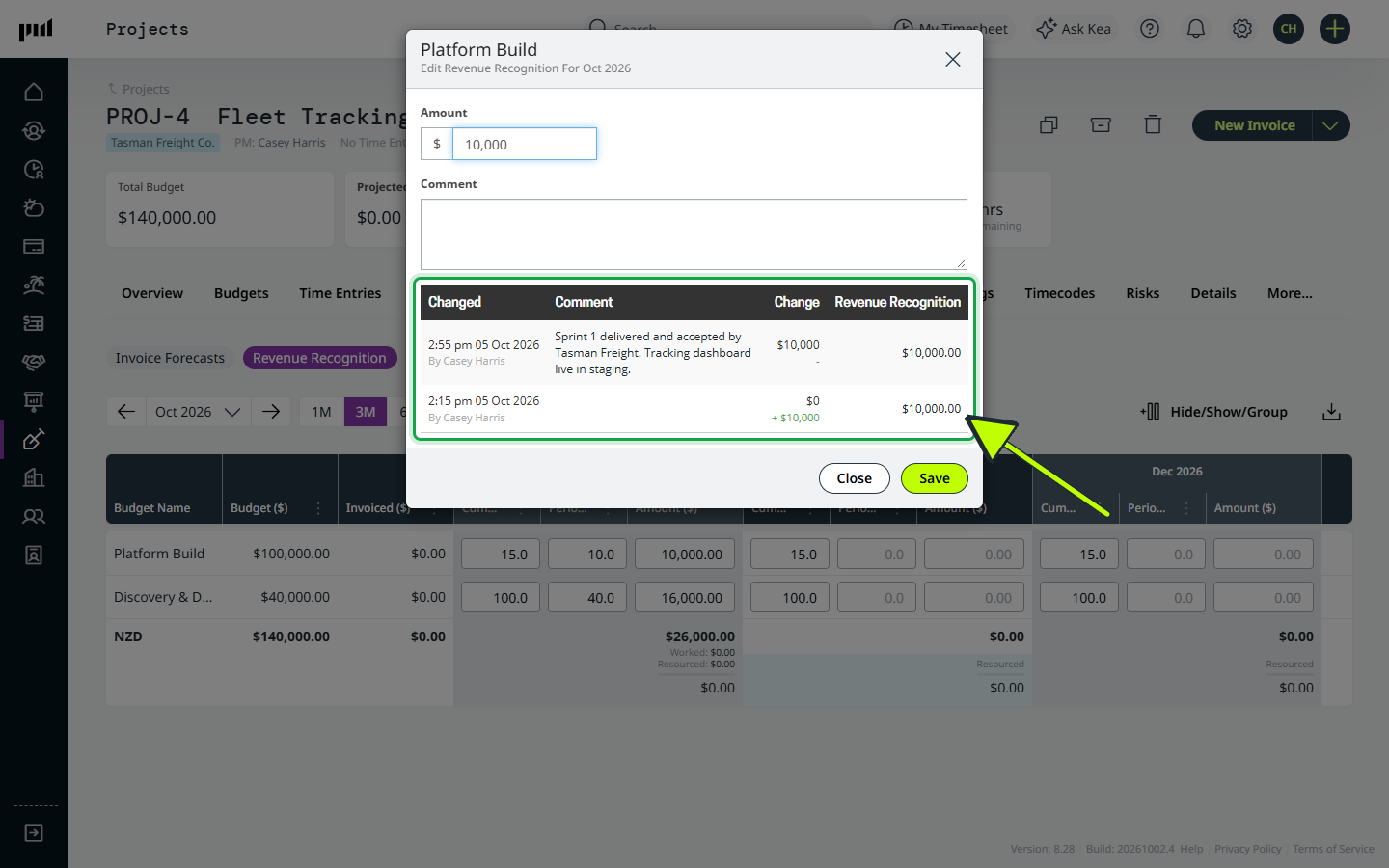
- The Edit Revenue Recognition For [Month] window opens. Enter or change the amount and add a comment explaining it.
- Click Save.
The window also shows the full history of the cell: when each change was made, who made it, their comment, and the amount it changed by. A marker on the cell shows how many comments it has.
You can still open a cell you can't edit, to see its amount, comments and history. The window explains why it's read-only: the month is outside the editing window, the budget line is inactive, or you don't have permission to edit.
My Revenue Recognition and All Revenue Recognition
To work across many projects at once, use the Forecasts menu:
- My Revenue Recognition shows the projects you manage.
- All Revenue Recognition shows every project you have access to.
They work the same way as My Forecasts and All Forecasts. You can enter recognised revenue directly in the table, and use these options:
- Filter by project status, accounting code, office, project manager and account manager (All Revenue Recognition only for the last three).
- Turn on Compare with Burn to see recognised revenue next to burn.
- Turn on Show all inactive budgets to include inactive budget lines.
- Use Hide/Show/Group to choose columns, such as Accounting Code, % Invoiced, % Uninvoiced, Cumulative % and Period %.
- Export the table.
How to view margin on a recognised basis
- Open the project and go to the Metrics tab.
- Switch between Invoicing and Recognition.
On a recognised basis, Current Margin - Recognition Basis is recognised revenue to date less actual cost to date.
Revenue Journals
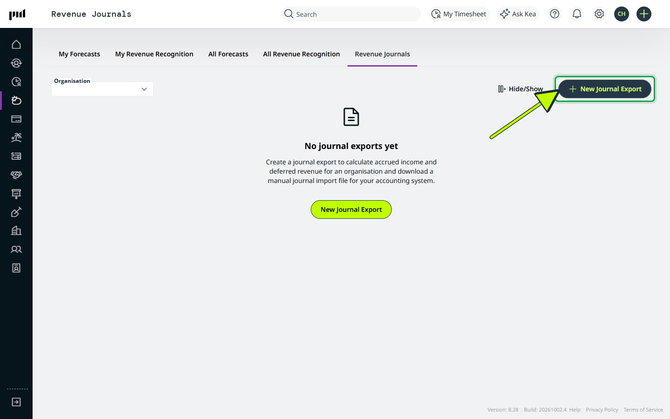
Revenue Journals creates a month-end journal for one organisation. The journal adjusts your ledger for the difference between recognised revenue and invoicing. It's downloaded as a CSV file that you import into your accounting system as a manual journal.
You need the Can export revenue journals permission. Go to Forecasts > Revenue Journals.
Before your first export
An admin sets up the account codes once:
- Click the Settings cog, then System > Settings.
- Set Revenue journal export: accrued income account code to your accrued income account. The default is 1300.
- Set Revenue journal export: deferred revenue account code to your deferred revenue account. The default is 2300.
Revenue lines use each budget's Accounting Code. If a budget doesn't have one, the organisation's default services accounting code is used.
The organisation also needs at least one tax rate, set up in Admin > System > Tax Rates.
How to create a journal export
- Click New journal export.
- Choose the Organisation, Currency and Tax rate.
- Choose the Month. Recognised revenue and approved invoicing are counted up to the end of this month.
- Check the Journal date. It defaults to the last day of the month. Changing it doesn't change what's included, but projects in another currency are converted at this date's exchange rate.
- Check the Reversal date. It defaults to the first day of the next month.
- Add Notes if you want, then click Create export.
- Click Download CSV.
If an export already covers the month you chose, you'll see a warning. Importing both would post duplicate adjustments unless you've reversed or deleted the earlier journal in your accounting system.
How the journal is calculated
For each budget, Projectworks compares recognised revenue to date with approved invoicing to date, as at the end of the month.
| Position at month end | Journal lines |
|---|---|
| Recognised more than invoiced (accrued income) | Debit accrued income, credit the budget's revenue account |
| Invoiced more than recognised (deferred revenue) | Debit the budget's revenue account, credit deferred revenue |
| Recognised and invoiced are equal | No lines |
- Each budget gets its own lines, with the project and budget named in the description.
- The file contains two journals: the closing journal on the journal date, and an exact reversal on the reversal date.
- Amounts exclude tax. Every line uses the tax rate you chose.
- Every amount is in the currency you chose. Projects in other currencies are converted at the exchange rate on the journal date.
- Completed and archived projects are included if they still have a balance.
- If every budget is balanced, the export is saved as No journal required and there's no CSV to download.
The journal posts the full closing position. It assumes the previous month's journal was reversed in your ledger, and that your accrued income, deferred revenue and revenue accounts are set up correctly. Projectworks calculates these figures from its own data and doesn't check your ledger.
Viewing, downloading and deleting exports
The Revenue Journals screen lists one row per export. It shows the organisation, month, journal and reversal dates, currency, tax rate, number of lines, closing accrued income, closing deferred revenue, who exported it and when. Click a row to see the calculation for each project and budget, and the journal lines.
An export doesn't change after it's created. Later changes to recognised revenue, invoices or exchange rates don't affect it. To replace an export, delete it and create a new one.
To download or delete an export, click its actions menu, then Download CSV or Delete. Deleting an export permanently removes its calculation and CSV.
Things to Note
- Negative entries
Negative entries are supported, for true-ups or reversals of a prior period. - Editing window
Revenue Recognition has its own editing window, separate from Invoice Forecasts. An admin sets it in System > Settings > Edit historical revenue recognition: number of previous months editable. The default is 1 month.
Months before the window are read-only. You can still open them to see the amount, comments and history. There's no lock, unlock or override for a single month. - History
Every change is recorded with who made it, when, the amount changed and any comment. Open a cell to see its history. - Access
Revenue Recognition access is set separately from Invoice Forecasts, in Access Levels. See Setting up access. Dollar amounts are hidden if you don't have Can See Dollars.
FAQ/Troubleshooting
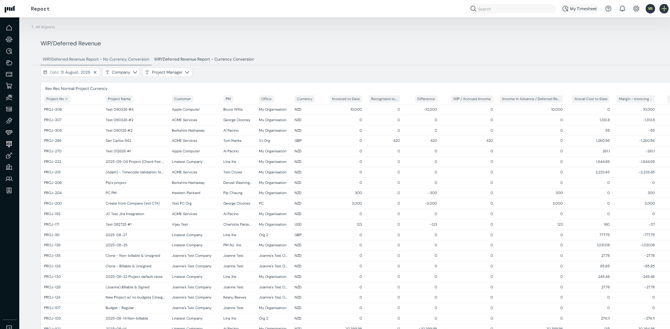
What reports are available for WIP and deferred revenue?
There are two reports in Custom Reports. To have them enabled for your organisation, contact our support team.
- Revenue WIP & Deferred Revenue (Project Currency)
Shows the revenue position as at a selected As of date. You can filter by Company or Project Manager. It includes:- Project details: Project #, Project Name, Customer, PM, Office, Currency
- Financials: Invoiced to date, Recognised revenue to date, Difference, WIP / Accrued income, Income in advance / Deferred revenue, Actual cost to date
- Margin: Margin - Invoicing Basis and Current Margin - Recognition Basis ($ and %)
- Revenue WIP & Deferred Revenue (Reporting Currency)
Includes the same fields as the Project Currency report, converted to your organisation's Reporting Currency.
I don't see an option to enable Revenue Recognition for our organisation.
Revenue Recognition may not be included as part of your current pricing plan - check out our plans or email our support team at [email protected].
I can't see Revenue Recognition on a project, or the Forecasts menu items.
Check your access level has Revenue Recognition turned on with Can view. It's set separately from Invoice Forecasts, and it needs Can See Dollars.
Why can't I edit last month?
The month is outside the editing window. An admin can increase the number of months in System > Settings > Edit historical revenue recognition: number of previous months editable.
I can't see Revenue Journals.
You need Can export revenue journals on the All access type in your access level.
Why was my journal export refused?
The message names what to fix. The most common reasons are:
- A project has approved invoice lines that aren't linked to a budget. Link them to a budget, then try again.
- There's no exchange rate between a project's currency and the export currency on the journal date.
- The accrued income or deferred revenue account code setting is blank.
- The organisation has no tax rates. Add one in Admin > System > Tax Rates.
My export says "No journal required".
Recognised revenue and invoicing are equal for every budget at the end of that month, so there's nothing to post. The calculation is still saved.