
- Before you begin
- How to register Projectworks with your provider
- How to connect and test sign-in
- How to choose the default login method
- Example
- Things to note
- Troubleshooting
Single sign-on (SSO) lets you sign in to Projectworks through your organisation’s identity provider, such as Okta, Auth0 or Keycloak.
OpenID Connect is the standard used to connect that provider to Projectworks. You register an application with your provider, then confirm the connection by signing in.
Before you begin
You need:
- A Projectworks administrator account with permission to manage sign-in options
- SSO available for setup in your Projectworks account. If you need access, contact support.
- Access to register and configure an application in your identity provider
- A provider accessible over the public internet using HTTPS, with OpenID Connect discovery available
- A provider account with a verified email address matching your Projectworks administrator email address
Your provider must return the person’s email address and confirm that it is verified. An email address without verification is not accepted.
Connecting a provider, saving the default login method or disabling SSO signs everyone out of your Projectworks account. Everyone needs to sign in again using their configured login method.
How to register Projectworks with your provider
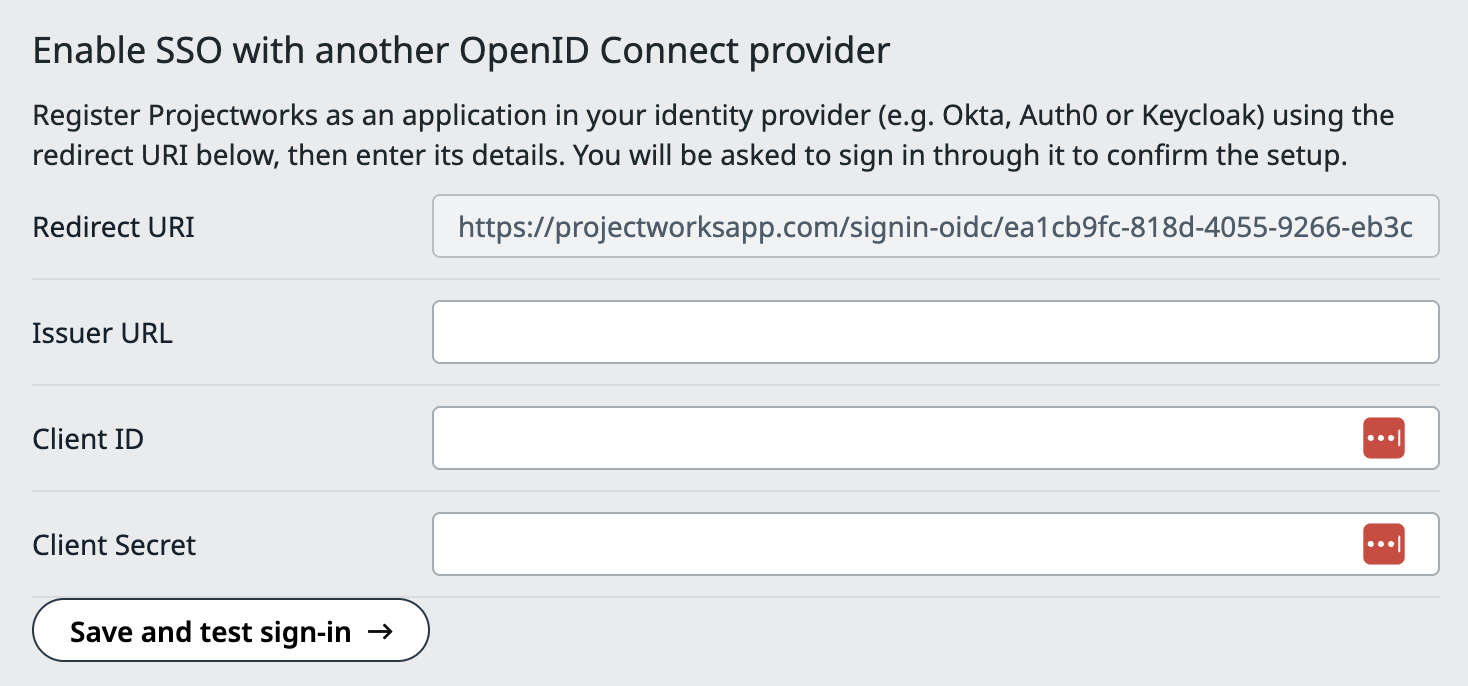
- Go to Settings → Integration → Single Sign-on
- Copy the Redirect URI under Enable SSO with another OpenID Connect provider.
- Register Projectworks as an OpenID Connect application in your identity provider.
- Add the copied address as the application’s redirect URI, exactly as shown in Projectworks.
- Configure the application to use the authorisation code flow with a client secret.
- Configure the application to return verified email addresses.
- Obtain the issuer URL, client ID and client secret from your provider.
You use these details to connect:
- Redirect URI: The address your provider sends you back to after sign-in. Projectworks supplies this read-only value for your account.
- Issuer URL: The address that identifies your OpenID Connect provider. Use the provider’s published issuer address, rather than its ordinary login page.
- Client ID: The identifier for the Projectworks application you registered with your provider.
- Client Secret: The credential Projectworks uses with that application. This is not your personal password.
How to connect and test sign-in
- Return to Enable SSO with another OpenID Connect provider in Projectworks.
- Enter the provider’s issuer address in Issuer URL.
- Enter the application identifier in Client ID.
- Enter the application credential in Client Secret.
- Click Save and test sign-in.
- Sign in through your provider using the account matching your Projectworks administrator email address.
Projectworks checks the provider’s details before sending you to sign in. The connection becomes active only after the test succeeds.
After a successful test, Projectworks returns you to the sign-in options page. The page shows OpenID Connect SSO Enabled and your connected issuer address.
If the test fails or you decline sign-in, the provider is not connected.
Connecting the provider does not change your Default Login Method. Review this setting to choose who uses SSO.
How to choose the default login method
- Go to Single Sign-on Settings on the sign-in options page.
- Select an option under Default Login Method.
- Click Save.
- Sign in again using your configured login method.
The options are:
- Set everyone to standard login by default (manually enable SSO per user): People use email and password unless individually set to use SSO.
- Set everyone to SSO login by default: People use SSO unless individually set to use standard login.
Individual login settings take priority over the default. Choosing SSO makes it the required login method for those people, not an additional password-login option.
SSO Enabled Users shows how many active users can sign in with SSO. Its link opens the people directory.
Example
Harbour Consulting has 20 active users. Eighteen follow the default login method, and two have individual standard-login settings.
After Maya selects Set everyone to SSO login by default and saves, 18 users use SSO. The other two retain standard login.
Everyone is signed out when Maya saves, including people whose login method stays unchanged.
Things to note
- SSO does not create Projectworks users. People need an active Projectworks account, access to your organisation and SSO enabled for their login.
- Use matching email addresses in Projectworks and your provider. Later sign-ins must remain consistent with the linked provider account.
- Private-network and localhost providers are not supported.
- Signing out of Projectworks does not sign you out of your identity provider.
- An existing provider must be disconnected before you connect a different one.
Disconnecting or replacing the provider
Disabling SSO removes the saved connection details, individual login settings and links to provider accounts. Reconnecting does not automatically restore these settings.
- Open the sign-in options page.
- Click Disable beneath the connected provider.
- Confirm that you want to disable SSO.
Projectworks resets the default to standard login and signs everyone out. To reconnect, repeat the setup and configure individual login settings again.
Troubleshooting
Projectworks cannot find the provider
We couldn't find an OpenID Connect provider at that issuer URL. Check all fields are filled in and the issuer matches your provider exactly.
This message appears when a required field is missing or Projectworks cannot validate the issuer.
- Check the issuer address matches your provider’s published issuer exactly, including any path.
- Check the provider and its OpenID Connect discovery information are publicly accessible over HTTPS.
- Enter the Client ID and Client Secret again.
- Click Save and test sign-in.
Read more about registering Projectworks with your provider →
My test sign-in fails
Check that:
- You sign in as the Projectworks administrator who started setup
- The provider email address matches your Projectworks email address
- The provider confirms that email address is verified
- The application uses the copied Redirect URI and the correct credentials
- You complete the provider’s sign-in process rather than declining it
Read more about testing the SSO connection →