
- Before you begin
- How to connect Google Workspace
- How to choose the default login method
- How to turn off Google Workspace SSO
- Example
- Things to note
- Troubleshooting
Single sign-on (SSO) lets people use their Google Workspace credentials to sign in to Projectworks instead of a Projectworks password.
You connect your organisation’s Google Workspace domain, then choose whether SSO is the default or enabled for individual people.
Before you begin
You need:
- A Projectworks administrator account with permission to manage sign-in options
- SSO made available for your organisation in Projectworks
- A Google Workspace account on your organisation’s domain, with an email address matching your Projectworks login email
A domain is your organisation’s Google Workspace domain, such as brightdesign.example. Personal Google accounts, including Gmail accounts, do not work for this connection.
If the sign-in options page asks you to contact support, contact Projectworks support to make SSO available before continuing.
Connecting Google Workspace, saving the default login method, or disabling SSO signs everyone out of Projectworks for your organisation. Let your team know before making these changes.
How to connect Google Workspace
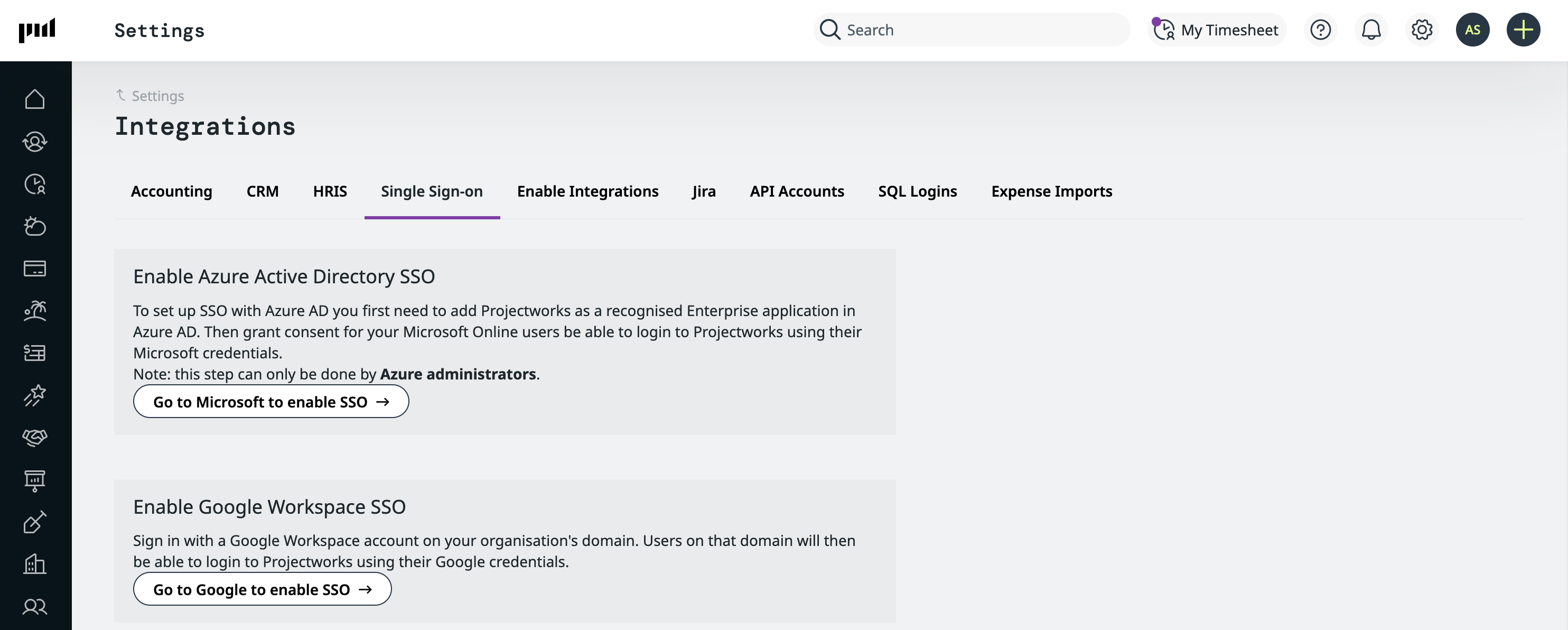
- Go to Settings → Integration → Single Sign-on.
- Click Go to Google to enable SSO under Enable Google Workspace SSO.
- Select your work Google Workspace account with the same email address as your Projectworks login.
- Complete the Google sign-in process.
- Sign back in to Projectworks if prompted.
- Check the Google Workspace SSO Enabled message on the sign-in options page.
Projectworks identifies your Google Workspace domain from the account you use during setup. The confirmation message shows the connected domain.
Complete setup using the same Projectworks administrator account that started the connection.
How to choose the default login method
After connecting Google Workspace, choose how people sign in by default.
- Find Default Login Method under Single Sign-on Settings.
- Select one of these options:
- Set everyone to standard login by default (manually enable SSO per user): Keep Projectworks email-and-password login as the default, then enable SSO for selected people
- Set everyone to SSO login by default: Make Google Workspace SSO the default login method
- Click Save.
- Confirm the change in the confirmation window.
- Sign back in using the login method that applies to you.
Individual login settings take priority over the default. Changing the default does not remove an existing setting for a particular person.
SSO Enabled Users shows how many active users are configured for SSO. The linked count opens the people directory.
How to turn off Google Workspace SSO
Disabling SSO disconnects Google Workspace for your organisation and returns the default to standard login.
- Open the sign-in options page.
- Click Disable in the Google Workspace SSO Enabled section.
- Confirm that you want to disable SSO.
Projectworks clears individual SSO login settings and saved Google account links. Everyone needs to sign in again using their Projectworks email address and password.
To reconnect, repeat the Google Workspace connection steps and choose your default login method again. Previous individual SSO settings are not restored.
Example
Bright Design has 12 active users with login access. All 12 use Google Workspace accounts on brightdesign.example and follow the default login method.
Maia starts setup in Projectworks and signs in to Google as [email protected], matching her Projectworks email.
Projectworks connects brightdesign.example. Maia selects Set everyone to SSO login by default and saves.
The 12 users now use Google Workspace SSO. A person explicitly set to standard login keeps that individual setting instead.
Things to note
- The Google Workspace account must belong to the connected domain. A personal Google account cannot be used instead.
- Google must confirm that the email address used during setup is verified.
- You must disable an existing SSO connection before connecting a different provider or domain.
- Signing out of Projectworks does not sign you out of Google.
Troubleshooting
Why does setup fail after I sign in to Google?
Check that you selected a Google Workspace account, not a personal Google account. Its verified email address must match your Projectworks login email.
Read more about connecting the correct Google Workspace account →
Why can’t someone sign in through Google?
Check that SSO is enabled for that person and their Google Workspace account belongs to the connected domain.
Why does Projectworks tell me to use SSO?
Your organisation requires you to log in with Single Sign-on.
Your login requires SSO rather than a Projectworks password. Sign in through Google using your work account.