.png?width=280&height=39&name=Projectworks-Logo-Black-280px%20(1).png)
What Actions are Audited?
Projectworks audit records provide a time-stamped log to answer key questions such as:
-
What changed?
-
Who made the change?
-
When was it changed?
-
What was the previous value?
We currently log audit events for the following entities when they are created, edited, or deleted:
- Access Levels;
- Access Level Assignments;
- Budgets;
- Expenses;
- Forecasts;
- Forecast Comments;
- Integrations;
- Invoices;
- Leave;
- Month Locking;
- People (Users);
- Projects;
- Resourcing;
- Timecodes;
- Timecode Assignments;
- Time Entries; and
- Timesheets.
How can I access these audit logs?
Build your own report in Power BI
If you have connected to Projectworks from Microsoft Power BI, you can build your own audit report in Power BI.
Read more about how to connect Power BI to Projectworks →
Forecast comment audit records are not available in Power BI, so cannot be accessed via the BI views.
Projectworks reports
We have created some Projectworks managed reports containing the audit logs for some entities.
|
Entity |
Projectworks managed report name |
|---|---|
|
Integrations |
Integration Audit Report |
|
Month Lock |
Month Locking Audit Report |
|
Timesheets |
Timesheet Audit Report |
|
Time Entries |
Time Entry Audit Report |
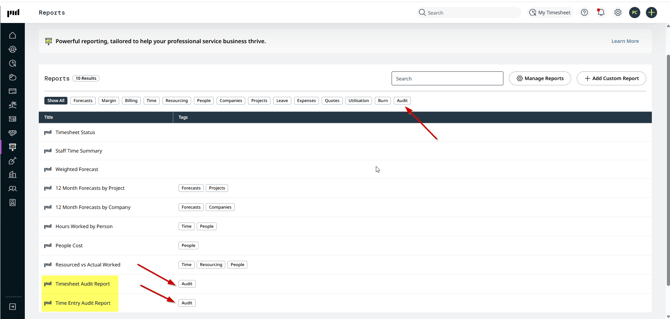
Like all Projectworks Managed Reports, if you have access to Custom Reporting, and “Can Edit” reports, you can duplicate the audit reports and edit them to meet your requirements.
Read more about customizing Projectworks managed reports →
As there are a number of values that belong to some entities (e.g. time entries), there may be multiple rows for a single action. e.g If someone adds a time entry, the following “Look Up Values” will be saved and each value will be represented as a row in the audit report (unless you have filtered by one of these “Look Up Values”):
-
User
-
Task (the timecode ID for the time entry)
-
TaskDate (the date the time entry was logged for)
-
Comment
-
Minutes
-
IsReviewed
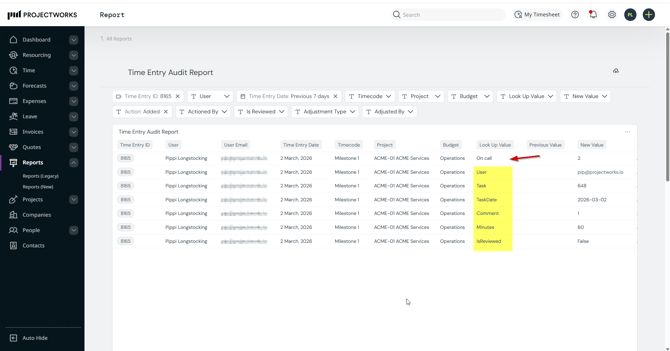
In the example, “On call” is a time entry custom field and, so is included as another row for that audit action.
Create your own custom report
If you have access to Custom Reporting, and “Can Manage” reports, you can “Add Custom Report” and build a custom audit report.
Read more about building a custom report using Metabase →
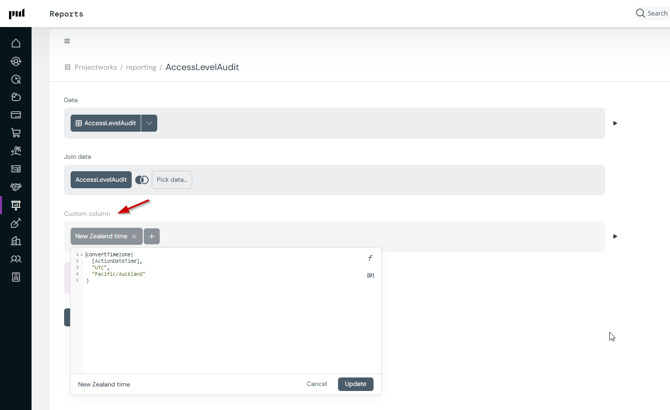
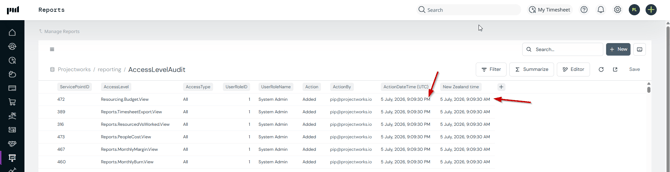
The audit ActionDateTime is displayed in UTC. You can convert the ActionTimeDate to your local timezone by adding a custom field to your report, e.g. add this expression to convert the ActionDateTime to New Zealand Time:
- convertTimezone([ActionDateTime], "UTC", "Pacific/Auckland")
Starting (or Join) data to build a custom audit report
|
Entity |
Starting (or Join) data |
Default filter |
|---|---|---|
|
Access Levels |
AccessLevelAudit |
|
|
Access Level Assignments |
UserAccessLevelAudit |
|
|
Budgets |
BudgetAudit |
|
|
Expenses |
ExpenseClaimAudit |
|
|
Forecasts |
ForecastAudit |
|
|
Forecast Comment |
ForecastCommentAudit |
|
|
Integration |
IntegrationAudit |
|
|
Invoices |
InvoiceAudit |
|
|
Leave |
LeaveAudit |
|
|
LeaveLineAudit |
|
|
|
Month Locking |
MonthLockingAudit |
|
|
Person (User) Details |
UserAudit |
|
|
Projects |
ProjectAudit |
|
|
Resourcing |
ResourceAudit |
|
|
ResourceCommentAudit |
|
|
|
Time Entries |
TimeEntryAudit
|
The first time you access the report, the Time Entry Date filter will be set to = Previous 7 days If no time entries have been added for the previous 7 days, the report will be empty. |
|
Timecodes |
TimecodeAudit |
|
|
Timecode Assignments |
TimecodeAssignmentAudit |
|
|
Timesheets |
TimesheetAudit |
The first time you access the report, the Timesheets filter will be set to = Previous 1 month If no timesheets have been added for the previous month, the report will be empty. |
Troubleshooting
There are a number of rows for a single action
Entities contain a lot of data that can be added and changed. Each of these data values (e.g. Look Up Values), are represented by a row in the audit report, so each action may be made up of multiple rows in the report.
If possible, use filters to reduce the number of rows returned in the report, based on the action that you are trying to audit.