.png?width=280&height=39&name=Projectworks-Logo-Black-280px%20(1).png)
This is a beta feature. Follow this link to request more information
Bid Faster and Win More Work with AI-Powered Proposals →
- How to start creating a proposal
- How to use the proposal editor
- How to create your own templates
- How to use variables
- How to use the Content Library
- How to edit your proposal with AI
- How the edit the settings of your proposal
How to start creating a proposal
There are several ways to start a proposal, all from the Proposals tab.
- Click “Proposals” in the left hand navigation bar.
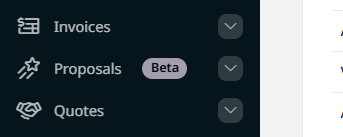
- Open the “Proposals” tab across the top.
- Click “+ New Proposal”
- Choose how you want to start building your proposal:
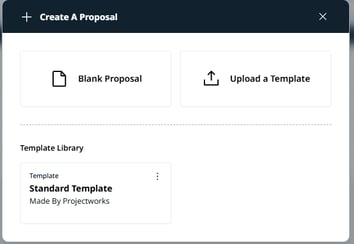
- Blank Proposal
Start from an empty canvas and write from scratch (or pull in content blocks as you go). - Upload a template
Import an existing proposal from a .docx or .pdf file to work from. - Use an existing template from your Template Library
Start from a ready-made template, such as the Standard Template provided by Projectworks.
- Blank Proposal
- You’ll land in the proposal editor, ready to start creating.
- Continue to How to use the proposal editor →
A note on uploads:
Importing a .docx or .pdf is not a 1:1 conversion. Formatting, layout, and complex elements from the original file may not carry across exactly. It's well suited to bringing in a previous proposal or document (a handy way to create content blocks from past proposals, or to tidy up and build new templates inside the tool) rather than producing an identical copy. Only .docx and .pdf files are supported for now. If you're experiencing extremely poor imports, please feel free to click here to email us an example →.
How to use the proposal editor
Craft your proposals by hand by copy/pasting or typing your content directly into the document, or use the AI-powered content functions. Save your progress as you go and share with your client when it’s ready.
When you open the proposal editor - you’ll see:
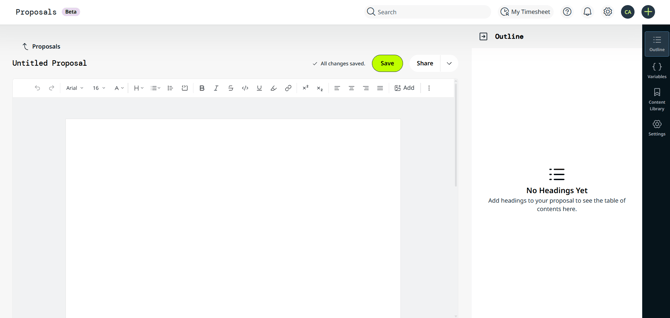
- A blank document, or your template
Depending on what you selected to start from. - The proposal title
(e.g. “Untitled Proposal”) which you can click to rename. - The formatting toolbar
Across the top for standard document-editing functions (e.g., fonts, colours and headers.)
Learn more about How to manage formatting and layout settings of your proposal → - Save
Button to save your progress and see Save status. - Share
Publish the proposal as a secure web link or export it as a Word document.
See How to share and export a proposal →
You’ll also see along the right-hand side the intelligent content functions. Use these features to help craft your proposal. Click them to expand or collapse from view as needed.

- Outline
A live table of contents, built automatically from the headings in your proposal as you create them. It's fully navigable, click any heading to jump straight to that section. If you're using a template with existing headings (e.g., Standard Template) they will appear here automatically. - Variables
Smart placeholders that pull in real information automatically, so your proposal content stays accurate without manual updates. Set a value once and it fills in everywhere that variable appears.
See How to use Variables → - Content Library
Contains your Content Blocks - reusable pieces of proposal content you can drop into any proposal.
See How to use the Content Library → - Pricing Sources
Manage the pricing information that will inform Pricing Tables in this proposal - link to a deal budget so the numbers stay in step with the deal or create the pricing in-proposal only.
See How to use Pricing Sources → - Document Settings
Control the page setup and other design aspects of your proposal.
See How to design your proposal → - Settings
Manage things like owner, linked deal and status.
See How to edit the settings of your proposal→
How to create your own templates
Any proposal can become a reusable template.
-
Click into the Proposals tab to see a list of your proposals.
-
Click the ⋮ menu at the end of a proposal’s row.
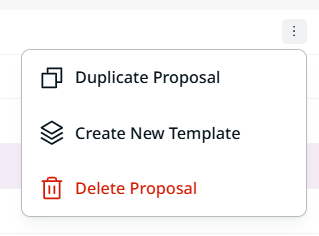
- Click "Create New Template" to save the proposal as a template.
- Duplicate Proposal makes a copy of the proposal you can edit independently.
- Delete Proposal removes the Proposal.
How to use variables
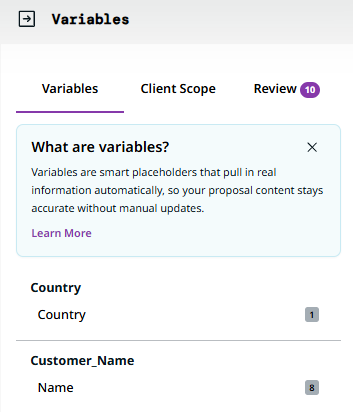
- Click "Variables" on the right-hand side of the Proposal editor.
- You’ll see three tabs
- Variables
Look here to see every Variable in your proposal, each showing a count of how many times it's used in that proposal.- If you’re using a template, there may be variables pre-loaded.
- If you’re starting from blank, it will be empty until you create your first variable. See How to create a variable →
- Client Scope
Use this to describe the client and let Projectworks recommend variables for you. See Client Scope: AI - suggested variables → - Review
Where you check and accept the values Projectworks has pulled together. The badge shows how many variables still need attention.
- Variables
How to create a variable
- Highlight any text in your proposal
For example, the name of the company you are preparing the proposal for. - Right click the highlighted text and choose Create Variable from the pop-up menu to turn it into a reusable placeholder.
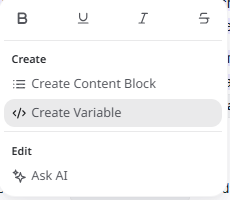
- Choose a name for your variable
For example, client_name. - Click “Create”
- Highlight that variable to copy/paste it as needed throughout your document.
- Now you can make updates to this variable across your proposal as needed.
See How to use Variables to make updates to your proposal →
How to rename a Variable
-
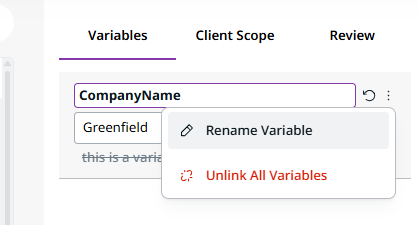
Click into Variables on the right hand side
- Click the Variable you want to rename
- Click the ⋮
- Click Rename Variable.
- Type in the new name for your variable.
- It will save automatically.
How to use Variables to make updates to your proposal
When you have variables in your proposal, it’s easy to make updates to all relevant places at the same time.
For example, if you’ve created a Variable for the date that work will commence, and you need to update it across your proposal.
- Click into Variables on the right hand side
- Click on the Variable you want to update
- Edit the text in the variable.
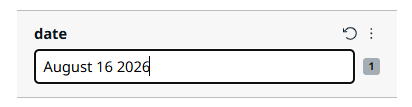
- This will update the text for all instances of that variable across your proposal.
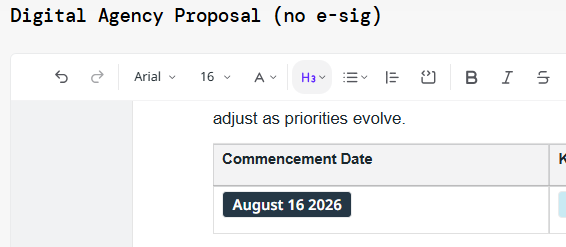
Navigating every occurrence
When you select a variable, a navigation bar appears along the bottom of the editor. Use the arrows to step through every occurrence of that variable in the document, so you can see each place it's used. You can also Unlink Variable from here.

Client Scope - AI-suggested Variables
What is Client Scope?
Client Scope allows you to describe the context and details (scope) of your proposal, and the Projectworks AI looks at your uploaded template and its variables, suggesting what should should be populated into those variables based on what you’ve described.
For example, if you have a template for your proposals with variables for things like Project Name, Delivery Lead, Challenge etc. You will provide in plain-language the context for the proposal and the AI will look for information relevant to populating those variables.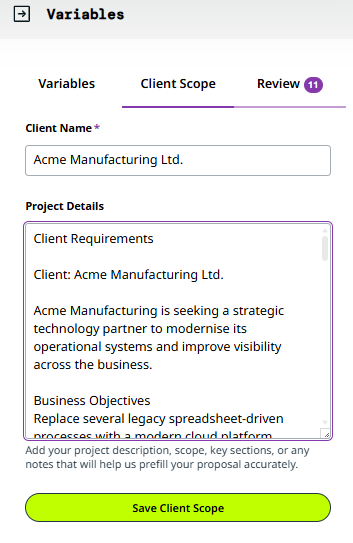
How to use Client Scope
- Begin a new proposal by uploading a template.
- Click “Variables” in the right hand toolbar.
- Click the “Client Scope” tab
- Enter the Client Name for the proposal.
- Write or Paste in the details into the Project Details
Add your project description, scope, key sections, or any notes that will help us prefill your proposal accurately. - Click “Save Client Scope”
Projectworks AI then maps your variables from the client scope, recommending values and suggesting any new variables it identifies. This takes a minute or two, and note that it will override existing values.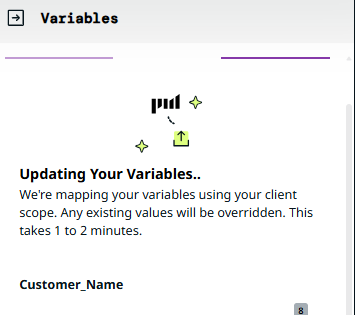
- Review the suggestions
When mapping finishes, the Review tab shows what Projectworks pulled from your client context. Check each value, edit anything that's missing or off, and fill in any blanks. The counter (e.g. "3 of 11 filled") tracks your progress.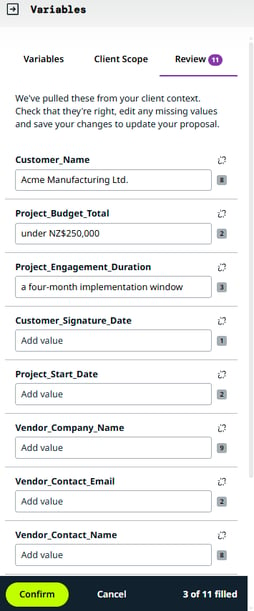
- For each suggestion - click Confirm to apply, or Cancel to discard.
Accept the values you're happy with and discard any you don't want, then click Confirm to apply them to your proposal (or Cancel to back out). Your proposal updates everywhere those variables appear.
How to use the Content Library
Your Content Library contains your
- Saved Content Blocks
- Smart Blocks
What are Content Blocks?
Content blocks are reusable pieces of proposal content you can drop into any proposal. Content blocks make it quicker and easier for you to build proposals by clicking and dragging pre-built blocks to assemble your proposal.
How to create a Content Block
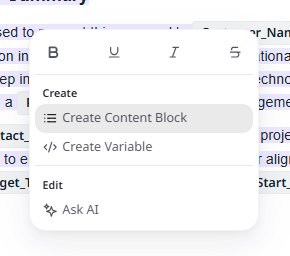
- In the proposal editor, highlight the text you want to create into a Content Block.
- Right click the highlighted text
- Choose “Create Content Block” from the pop-up menu.
- Give your new content block a Title (e.g., Executive Summary).
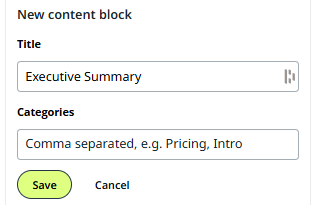
- Add any Categories as comma-separated tags e.g. Pricing, Intro. (Optional).
- Click “Save”.
You can also create Content Blocks in Proposals > Content Library by clicking Create Content Block on the top-right hand corner.
How to add a saved Content Block to your proposal
- Open your proposal in the proposal editor.
- Click “Content Library” in the right hand toolbar.
- Open the “Saved” tab.
- Find the Content Block you need.
You can filter by tag or search by title. - Drag and drop the Content Block from the panel straight into the editor.
How to edit saved Content Blocks
To change the saved text of a Content Block:
- Click on Proposals in the left-hand navigation bar
- Open the Content Library tab.
- Find the Content Block you want to edit in the list.
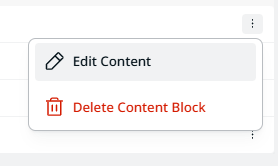
- Click the ⋮ at the end of its row.
- Click "Edit Content"
- Type in the required edits.
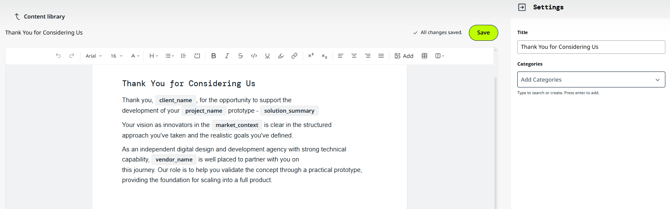
- Click Save.
What are System Blocks?
System Blocks are a type of Content Block which are built from dynamic information, rather than static text.
Learn about all System Blocks currently available in How to use System Blocks in your proposal →
e.g., Pricing Table
The Pricing Table calculates a pricing table for you, it’s an example of a Smart Block. Add it from the Smart Blocks tab of the Content Library.
How to add a Pricing Table to your proposal
- In the proposal editor, click Content Library.
- Click "System Blocks".
-
Look for the Pricing Table Smart Block - click the Smart Block to filter or search for it in the search bar.
- Click and drag the Pricing Table into your proposal.
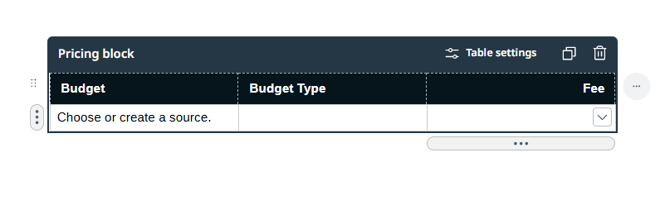
-
The Pricing Table will be blank until you choose a Pricing Source - click Table Settings across the top of the pricing table to either
-
Link Deal Budget to choose a budget from the deal linked to this proposal
or -
New Source to build new pricing for this proposal only.
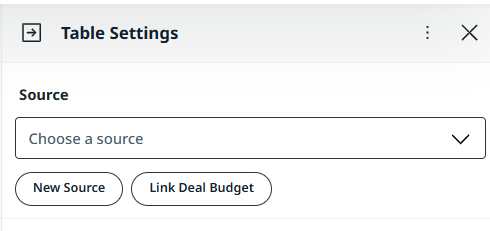
-
How to use Pricing Sources
A Pricing Source holds the lines and amounts that a pricing table shows.
Link a deal budget
Use this to keep the proposal in step with a budget on the deal linked to the proposal.
You can link a deal budget when you create the Pricing Table, or you can set it up in the Pricing Sources tab of the proposal.
- Select Pricing Sources, then Link Deal Budget.
- Choose a budget, then select Link Budget.
The proposal and the deal must be linked to pull through the deal budget. If they're not yet linked - go to the Settings tab of your proposal and choose a deal from the drop-down the link.
The deal must also have at least one deal budget set up. You can learn more about deal budgets and how to build them here →
- Lines are read-only in the proposal. To change them, select Edit in Deal.
- Changes on the deal don’t flow in automatically. When the deal budget changes, the source shows Out of Sync. Select Sync Now to update the proposal.
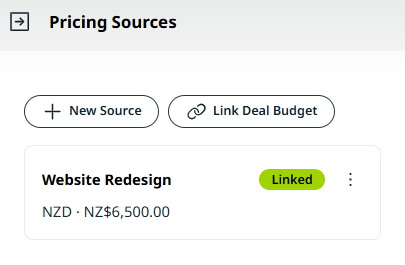
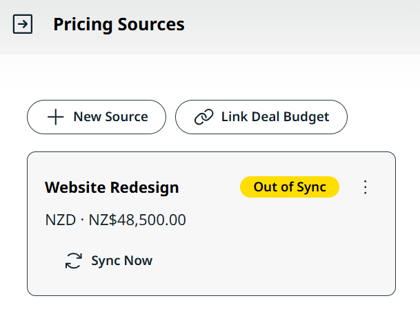
How to Create a new source
Use this for pricing that belongs only to this proposal.
- Select Pricing Sources, then New Source.
- Enter a
- Name
- Currency
- add your Line items, Time or Expense based with GL codes and Fees
- select Create Source.
- To add it to the deal later, select Create deal budget from the source’s menu. You then edit its lines on the deal, and the proposal syncs from there.
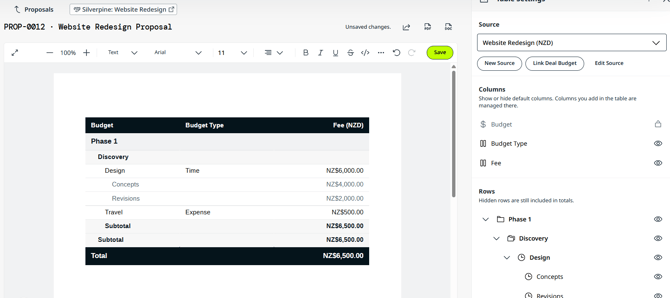
Choose what your client sees
In Table settings, use the eye icons to show or hide Columns and Rows. Hidden rows and columns don’t appear on the share link or in exports, but hidden rows are still included in the totals.
How to edit your proposal with AI
The proposal editor has built-in Ask AI editing to help refine your writing.
- Highlight any text in your proposal.
- Right click the highlighted text.
- Click Ask AI.
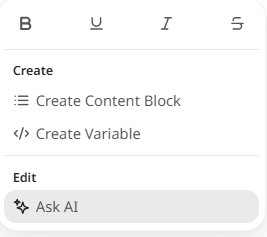
- Choose from Edit and Write options
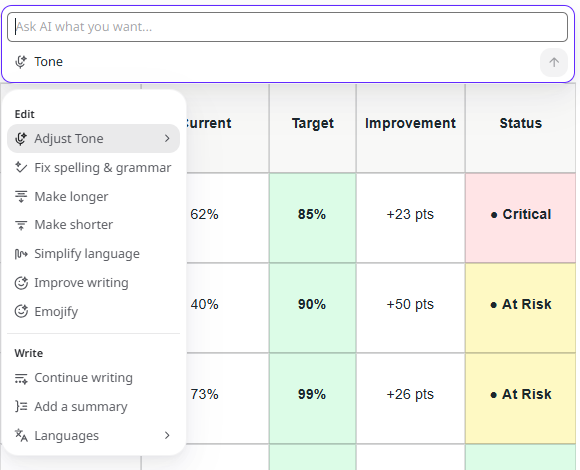
- Options include adjusting tone, fixing spelling and grammar, making text longer or shorter, simplifying language, improving writing, adding emoji, continuing writing, adding a summary, and translating into other languages.
- Ask AI will generate a suggested edit based on what you select
- Review the suggestion and decide if you want to
- Discard
It will revert back to your original text. - Try Again
A new option will be generated for your review - Apply
Your text will be overwritten with the suggested edit.
- Discard
How to edit the settings of your proposal
To manage settings of the proposal itself:
- In the Proposal Editor, click “Settings” in the right hand side.
- Edit the settings as need
- Owner
The person responsible for the proposal. - Proposal status
Tracks where the proposal is in its lifecycle. The default statuses are Draft, In Review, Approved, Sent, Accepted, Rejected, and Archived. - Deal
Link the proposal to an existing deal. This is how you attach a proposal that was created unlinked to a deal after the fact, so it joins the deal → proposal → project chain. - Client
Assign the proposal to a client. - External Reference
A free-text field for your own notes or a reference from another system.
- Owner
- Click “Save Settings” when you’re done.