.png?width=280&height=39&name=Projectworks-Logo-Black-280px%20(1).png)
- Before you start
- Mandatory fields
- Formatting
- People & People Cost
- Companies
- Billing contacts
- Projects
- Budgets
- Timesheets
- Expenses
- Invoices
- Custom Fields
- A final check before you submit
Before you start
Read the guide tabs first. Each sheet in the template has guidelines at the top explaining what goes in each column, what formats are accepted, and which fields are mandatory. Reading these thoroughly and understanding them will give you the smoothest V1 experience possible.
Make sure the right person in your business is completing the template. This is not something to hand to someone unfamiliar with your projects, billing, and financials. The person doing the data prep needs to understand how your business structures its work, because they will be making decisions about how it maps into Projectworks. If you get stuck on anything, ask your Customer Success Manager (CSM) rather than pushing through. A quick question upfront saves a round trip after the load.
Also make sure you understand how Projectworks structures data before you start mapping yours across. If you have not already, read our article on how Projectworks structures your data.
Trying to fill in the template without that context is one of the most common reasons migrations need to go back for fixes.
Mandatory fields
Blue columns are mandatory. If a mandatory field is left blank, the load will fail. Every mandatory field needs real data before you submit.

The most important rule: consistency across every tab
The template is a relational database. Every tab connects to the others, and those connections depend entirely on names matching exactly. This is the single biggest source of errors in template migrations.
If a company is called "Smith Engineering Ltd" on the Companies tab, it must appear as exactly "Smith Engineering Ltd" everywhere else it is referenced. One extra space, different capitalisation, or a shortened version will cause the load to treat it as a different record entirely. The same applies to project names, budget names, and people names across every tab they appear on. Before you submit, do a final check that names are consistent throughout.
Formatting
Hours must be entered as decimal hours, not hours and minutes. One hour and thirty minutes is 1.5, not 1:30.
Dates must be formatted consistently throughout. Your CSM will confirm the expected format. Do not mix formats in the same column.
Numbers must not contain currency symbols, percentage signs, or thousand separators. Enter 1500, not $1,500.
Check for leading or trailing spaces in text fields. These are invisible but will cause name mismatches. If you are copying data from another system, run a trim across text columns before submitting.
People & People Cost
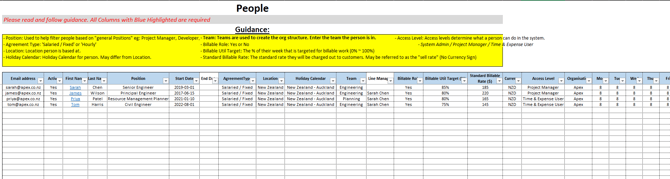
You only need to provide active staff. You do not need to include people who have left the business. Anyone who has time entries in your data but is not on the people list will be created automatically as an inactive record in Projectworks, so their historical time will still be there.
People data is loaded separately before the full dataset and cannot be re-uploaded without manual fixes, so take care to get this right first time.
Common errors include:
-
Blank availability fields
-
Access level set incorrectly
-
A person being listed as their own line manager.
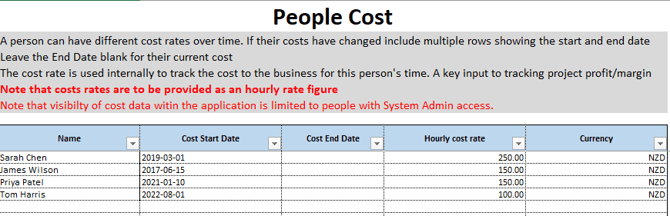
For cost rates, use the People Cost tab. A person can have different cost rates over time - if their costs have changed, include multiple rows with a start and end date for each rate. Leave the end date blank for their current cost rate.
A few things to note on cost rates: they need to be provided as an hourly rate figure, not an annual salary. They are used internally to track the cost to the business for each person's time and are a key input to project profit and margin reporting. Visibility of cost data within the application is limited to people with System Admin access, so this information is not visible to the wider team.
Companies
Provide the list of unique clients or companies. If any company names already exist in your Projectworks environment, they will not be duplicated - the system will simply skip them on upload.

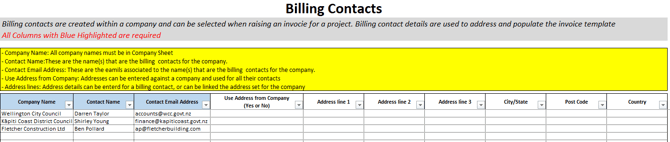
Billing contacts
Billing contacts can be added after the main load if you do not have them readily available. They will not hold up the process.
Projects
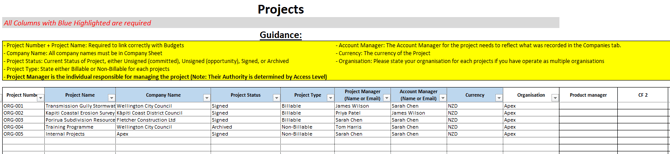
Make sure you include the currency for each project. This drives all the numbers associated with that project - budgets, invoice values, and billable rates are all treated as being in the project currency. If your business operates in multiple currencies, it is important to get this right upfront.
If your projects have numbers, use them. Project numbers are unique identifiers and give the load a reliable anchor point for linking time entries, budgets, and invoices to the right place.
Budgets
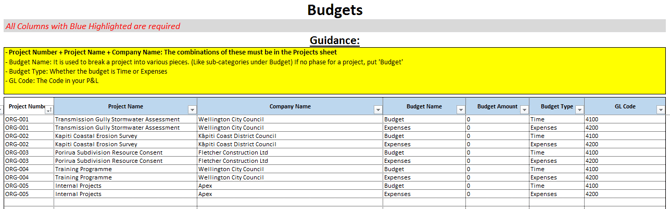
Note whether each budget is a time budget or an expense budget. These are separate in Projectworks and cannot be mixed.
If your projects do not have a clear breakdown below the budget level, it is absolutely fine to have the budget name and the timecode be the same. You need a timecode, but it does not need to be a further subdivision if your data does not have one.
Timesheets
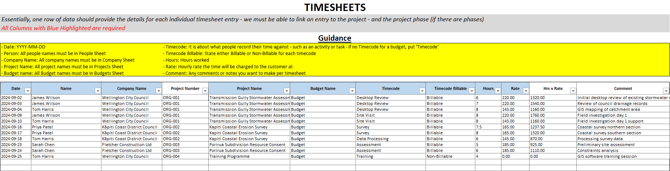
Time entries need to be associated with a specific time budget. The combination of project number, project name, company name, and budget name on every timesheet row must match exactly what is on the Budgets tab. The same applies to people names, which must match exactly what is on the People tab, and company names, which must match the Companies tab. If any of these do not match, the time entry will not load correctly.
-
Dates must be entered in YYYY-MM-DD format.
-
Hours must be entered as decimal hours, not hours and minutes. One hour and thirty minutes is 1.5, not 1:30.
-
The rate field is the hourly rate the time will be charged to the customer at, not the internal cost rate.
-
For timecodes, if your data does not have a further breakdown of time within a budget, put "Timecode" in that column. You need a value on every row but it does not need to be a further subdivision if your data does not have one. For timecode billable, state either Billable or Non-Billable for each entry.
-
If you have comments or notes against individual time entries, include these in the comment column.
Expenses
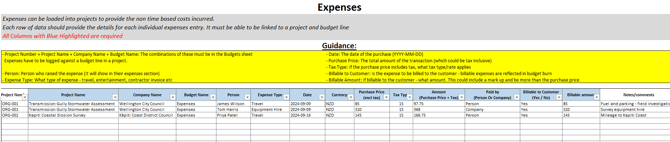
Expenses need to be associated with a budget name. If your expenses do not map neatly to a specific budget, create a budget called "Expenses" and assign them all there.
If you have no expense data to load, leave the Expenses tab empty. Do not manufacture placeholder data.
Invoices
If an invoice has multiple line items, give each line item its own row but use the same invoice number across all of them. The system uses the invoice number to group rows into a single invoice.
Invoice amounts should be entered before tax. You also need to specify the tax rate to apply on top. Currency does not need to be specified on the invoice - it is inherited from the project the invoice is linked to. Invoice status is either paid or unpaid.

Custom fields
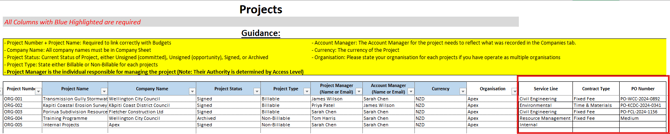
If you have custom fields to bring across, add them as additional columns on the Projects tab. Be selective about what you include at this stage. Only bring across fields that are essential right now - additional custom fields can always be added later. Getting too many custom fields in at once can create complexity that is hard to unpick.
A final check before you submit
Work through the tabs in order: Companies, then Projects, then Budgets, then Timecodes, then Timesheets, Expenses, and Invoices. For each tab, check that every entity referenced exists on the tab above it. If a project references a company, that company must be on the Companies tab. If a budget references a project, that project must be on the Projects tab. And so on.
If something does not look right or you are not sure how to fill in a field, ask your CSM before submitting.