.png?width=280&height=39&name=Projectworks-Logo-Black-280px%20(1).png)
Learn about:
If integration has been enabled, any active user can connect Projectworks to their Outlook or Google calendar.
Read more about connecting to your calendar →
Viewing calendar events in Projectworks
Once connected to your Outlook or Google calendar, you will be able to see your calendar events in your Projectworks timesheet.
Only you will be able to see your calendar events in your timesheet. Nobody else will be able to see your events, however the event title will be automatically added as a comment to any time entries updated with a calendar event.
Like all time entries, you can update an unlocked time entry’s duration and comment as required.
If you only use your calendar events to create some of your time entries, you can minimise your calendar events, so that they are not always displayed. Simply select the “up” icon next to the events, so that they are hidden. Once hidden, you can click on the “down” icon to show the events again. Your selection will be remembered.
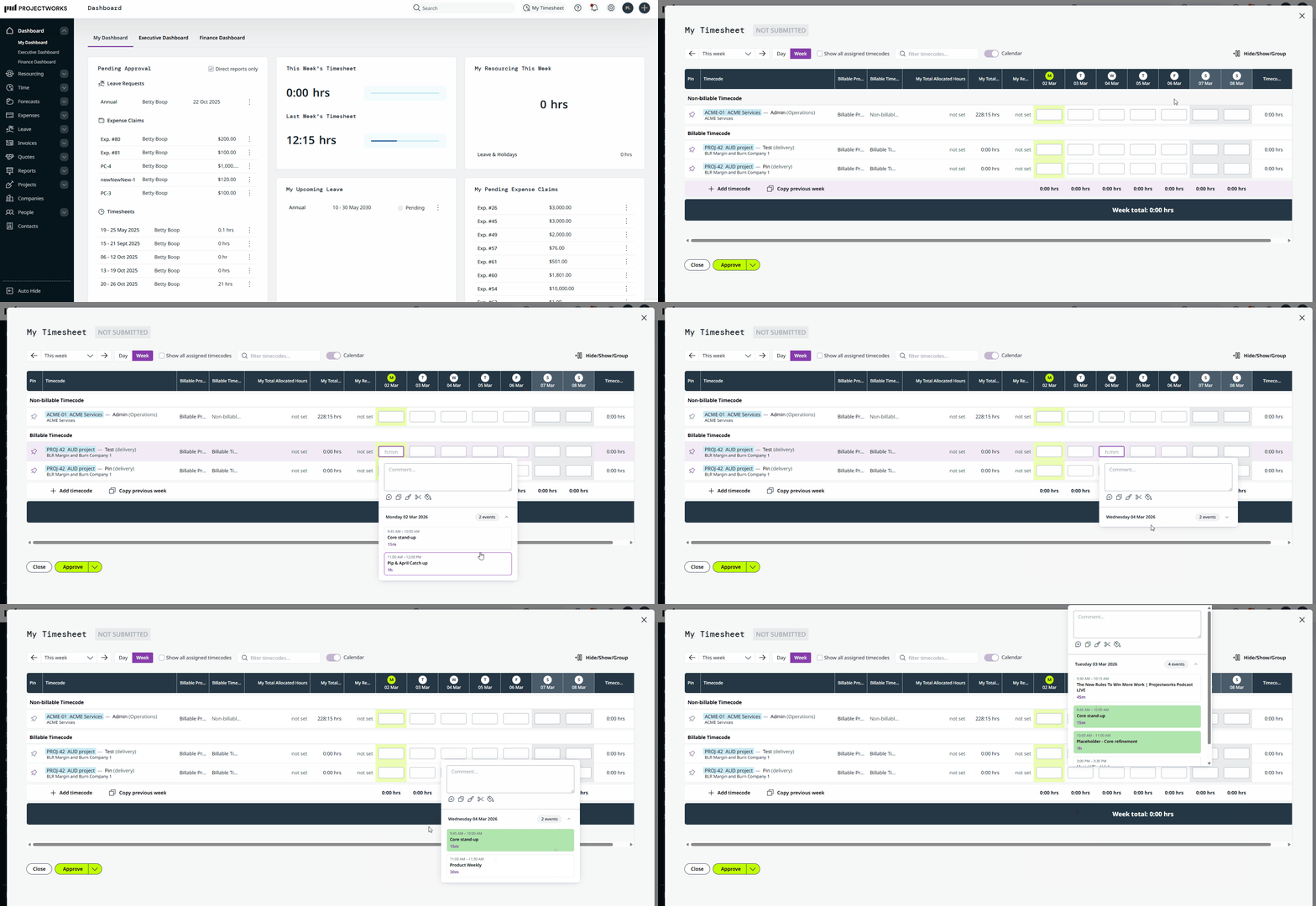
Alternatively, you can “turn off” the display of your calendar events, by switching the “Calendar” toggle off. This means the calendar events will not be displayed every time you click in to a time entry field (which may make entering manual time entries more efficient for you).
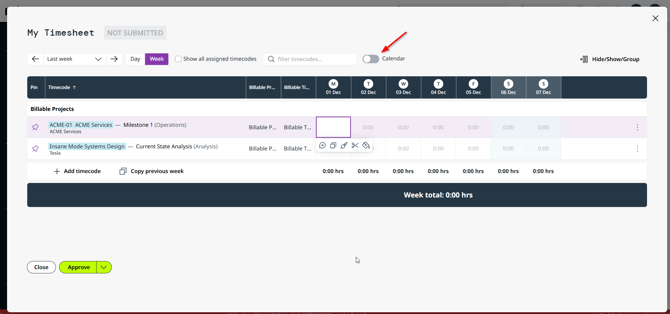
The Calendar toggle allows you to remain connected to your calendar(s), you can just toggle the “Calendar” on to view your events when required.
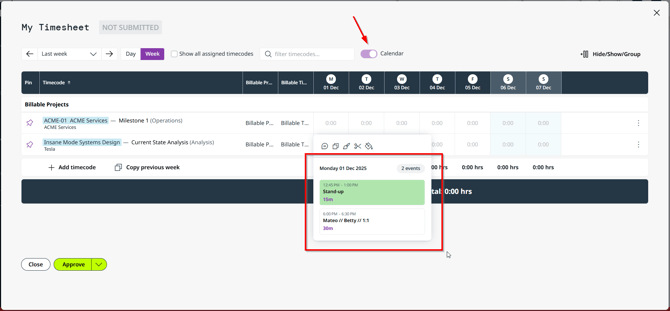
If you no longer wish to be connected to your calendar you can disconnect your Outlook or Google calendar from your timesheet settings.
Read more about disconnecting your calendar →
Calendar events are not available when logging time via your mobile phone.
If the calendar toggle is enabled on your timesheet, calendar events will be displayed for unlocked time entry cells for a given day.
Calendar event categories
If you categorise your calendar events in your Outlook or Google calendar to identify what you are working on, the category colours will be pulled through to Projectworks.
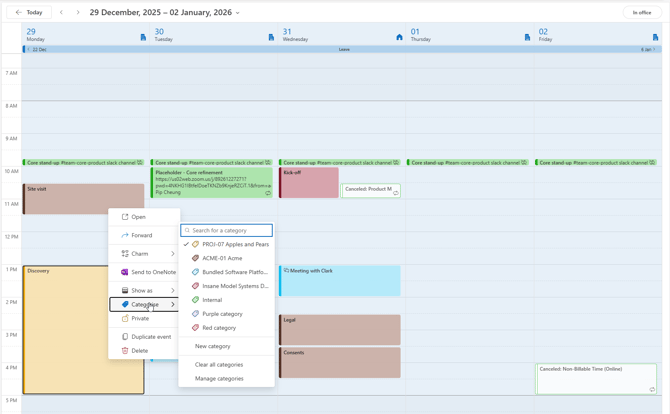
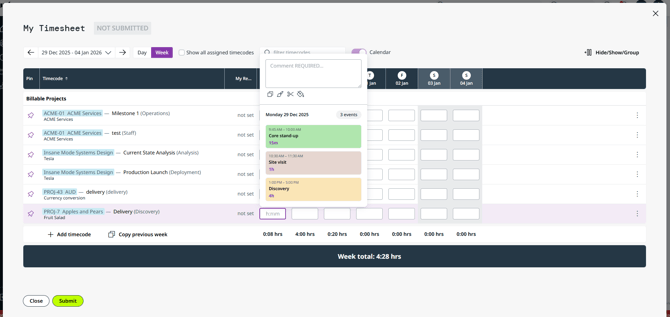
Calendar events that have been added to a time entry
If your event has been added to a time entry, it will be displayed with a “timecode” icon against the event.
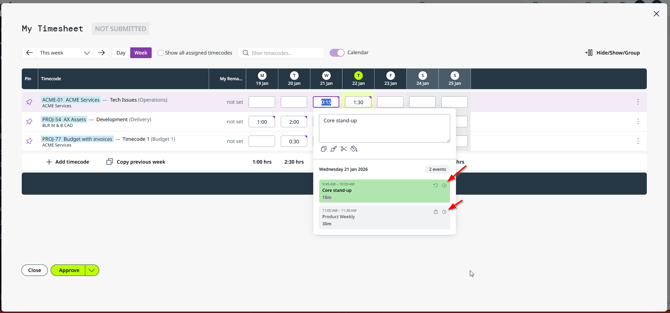
If the event is included in the time entry you are viewing (and the time entry or timesheet is not locked) an “undo” icon will be displayed against the event. This icon indicates you can remove the event from the time entry. Read more about removing an event from your time entry →
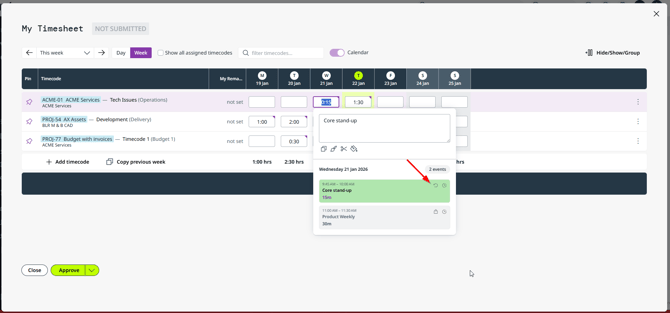
The event will appear greyed out and a “lock” icon will be displayed on an event if either:
-
The event is linked to an alternate time entry; OR
-
The time entry, or timesheet is locked.
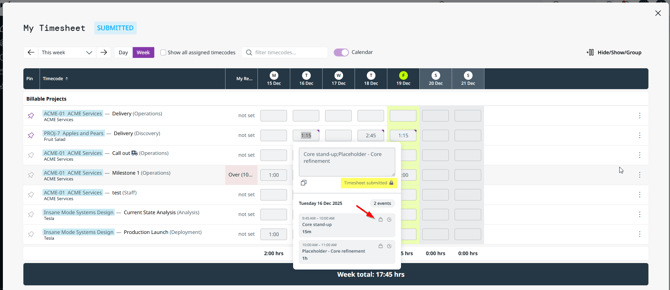
If your time entry or timesheet is locked, you will only see the events assigned to that time entry (i.e. no other events will be displayed).
Logging time via your calendar event
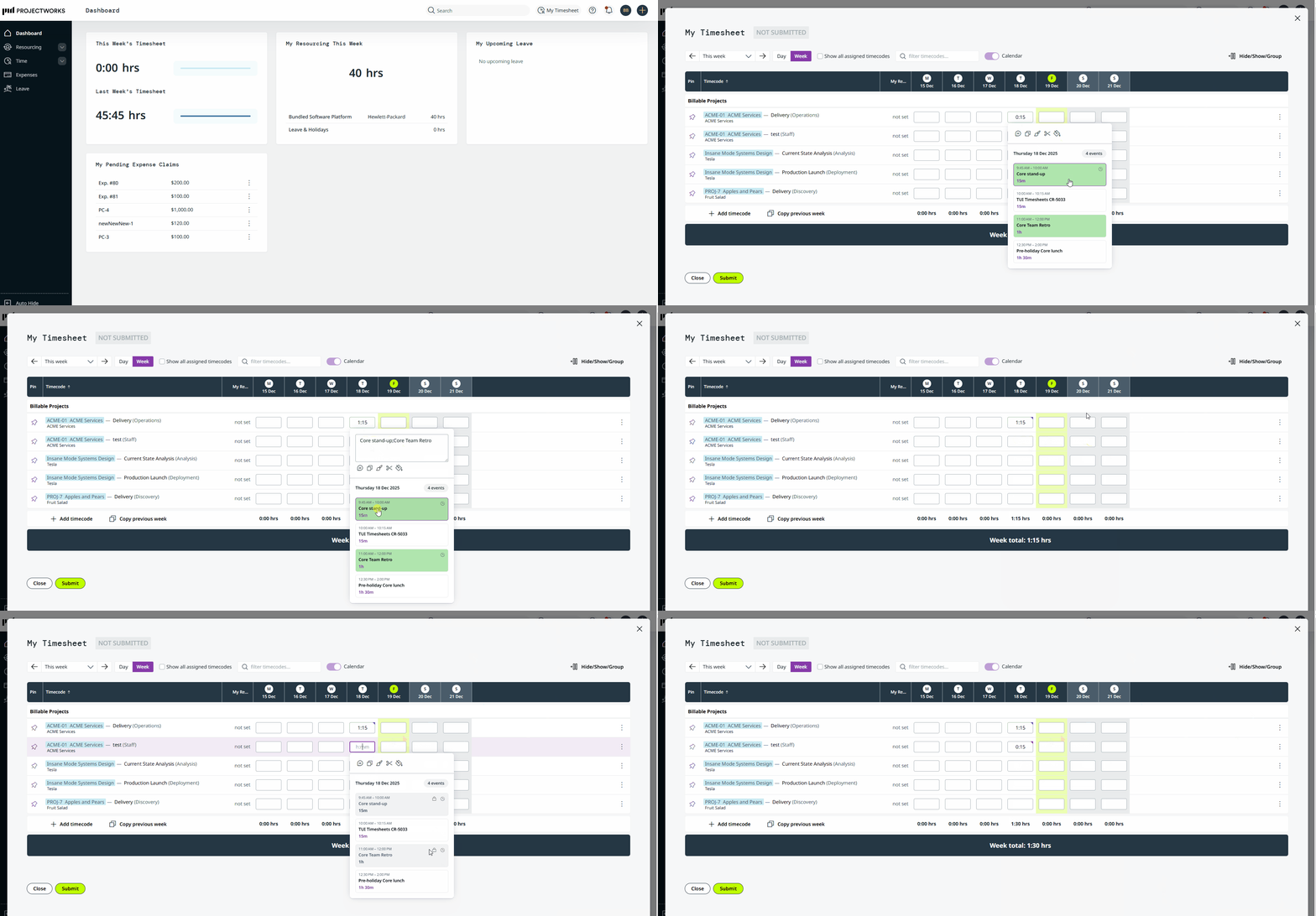
If a time entry is unlocked, you can simply click on the time entry cell and your calendar events for the day will be displayed. If the calendar event has not been added to a time entry, click on the event to add it to the timecode as a time entry:
-
The event duration will automatically be added to the time entry; and
-
The event title will automatically be added to the time entry comment.
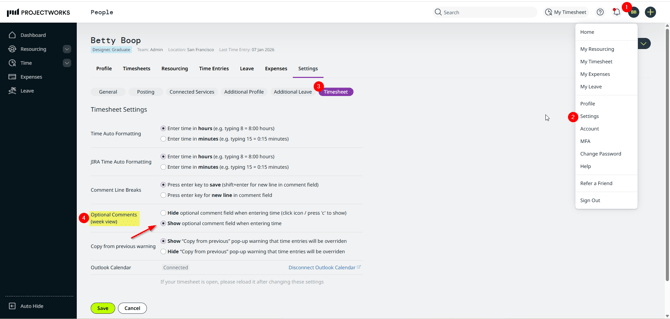
If you want to review your comments prior to saving them, we recommend that your Optional Comments timesheet setting is set to “Show optional comment field when entering time”. This will ensure that even if you log time for a timecode that does not require comments, the comment field will be displayed.
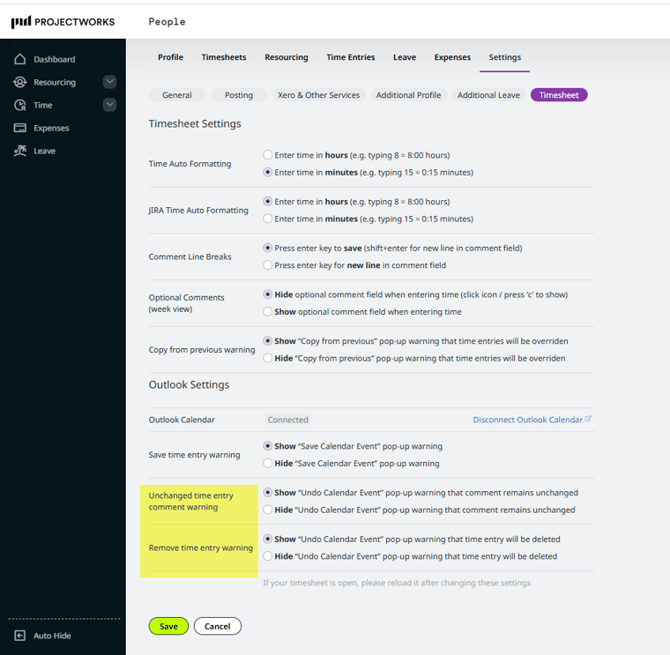
The first time you add an event as a time entry, a warning will be displayed to advise you that the time entry duration and comment will be autopopulated with the calendar event details. 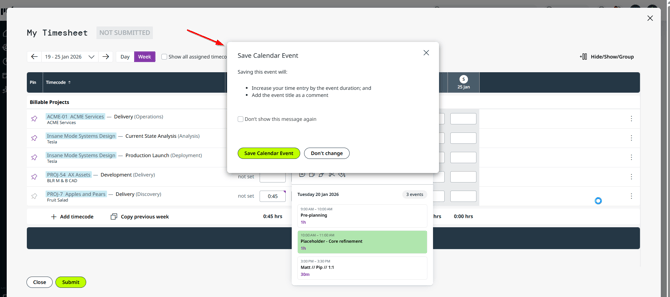
You can select “Don’t show this message again”, so that the warning is dismissed after the initial instance. You can edit the setting in your timesheet settings if you decide you want to show these warning messages in the future. 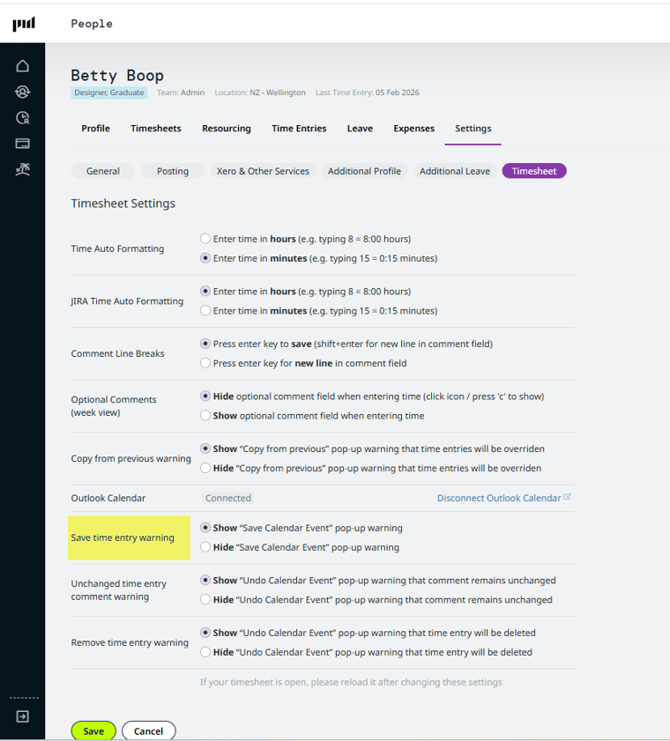
You can update the time entry’s duration and comment, and also remove the Outlook calendar event from the time entry if required.
Read more about removing calendar events from time entries →
If there is already a time entry saved against the time entry cell, the event duration and title will be added to the existing time entry duration and comment.
Once a calendar event has been saved to a time entry, it will not be able to be saved to an alternate time entry. If you saved the event to the incorrect time entry or timecode, you will need to:
-
Change the timecode for the time entry via your time entry screen (read more about moving time entries →); or
-
Remove the calendar event from the time entry in your timesheet.
Updating time and comments
If you have added a calendar event as a time entry to your timesheet, you can update the time entry duration and comments that have been saved to the time entry. The events will remain saved to the time entry, however if you want to revert back to the event duration, and original comment, you will need to manage this manually.
Removing calendar events from a time entry in your timesheet
If a time entry containing a calendar event is deleted, the calendar event will be available to add to another time entry. A time entry can be deleted by:
-
Removing all the saved values from a time entry;
-
“Cutting” a time entry;
-
Reducing a time entry to capacity, where the other time entries for the given day are equal or more than your capacity for the day;
-
Removing a timecode containing the time entry from your timesheet.
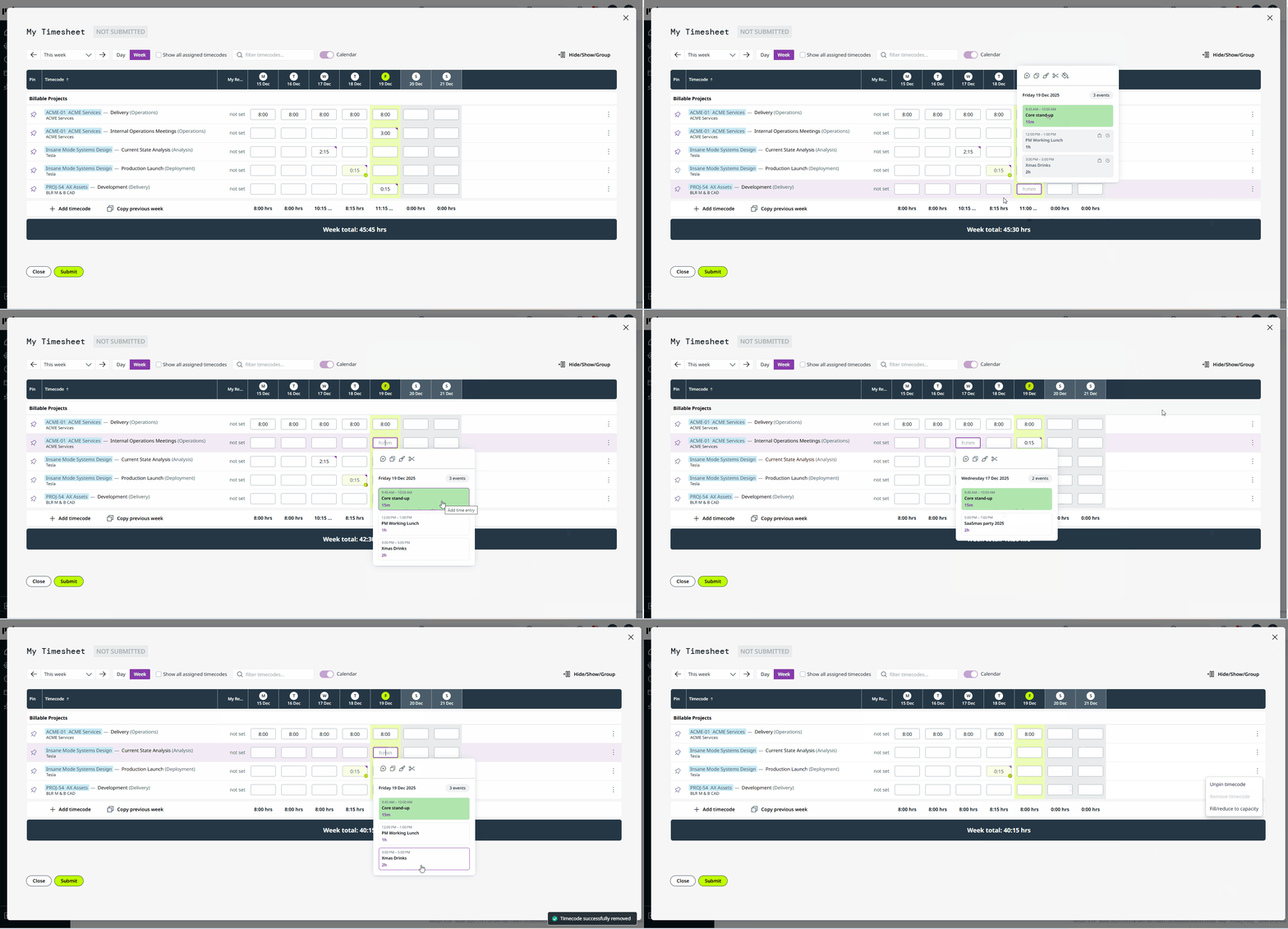
If someone else has access to edit or log your time, they may inadvertently remove the calendar event from your time entry by deleting time entries with one or more calendar events linked to them.
If a calendar event is linked to an unlocked time entry, and the “undo” icon is displayed on the event, you can opt to remove the event from the time entry by clicking the event.
-
If the time entry duration is equal to or less than the calendar event, the time entry will be deleted. Once deleted, any calendar event included in the time entry will be available to add to another time entry;
-
If the time entry duration is greater than the calendar event, the duration will automatically be reduced by the event duration.
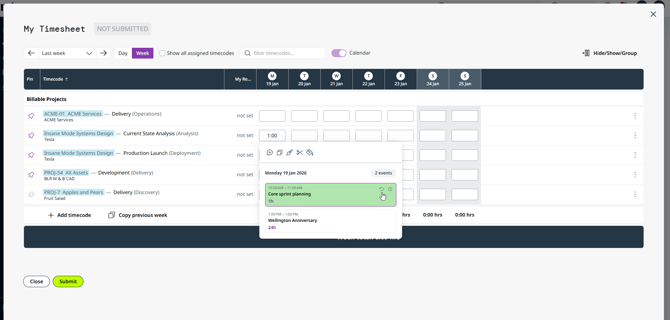
If the time entry duration is reduced when you remove the event, the comment (and any time entry custom fields) for the time entry will remain unchanged, unless updated separately.
If you “undo” an event for a time entry, a warning will be displayed to advise you that:
-
The time entry will be deleted; or
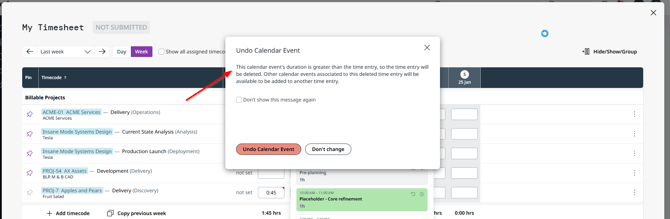
-
The time entry duration will be reduced by the length of the event.
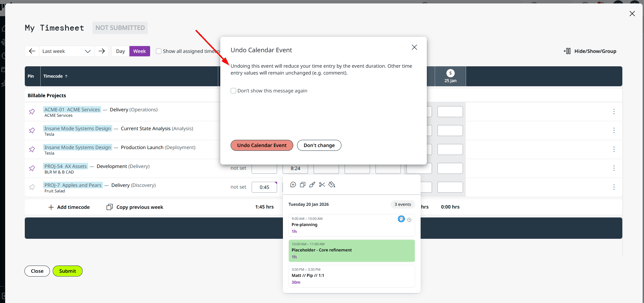
You can select “Don’t show this message again”, so that the warning is dismissed after the initial instance. You can edit these settings in your timesheet settings if you want to show these warning messages in the future.
Troubleshooting
I can’t see all of my events for the day
There are a few reasons why you might not be able to see your calendar events for a given day:
-
Your “calendar” toggle is off.
-
Events marked as “private” can’t currently be viewed in your Projectworks timesheet;
-
Calendar events that across multiple days will only show on the day that the event commenced;
-
If your time entry, or timesheet, is locked you will only be able to see calendar events that are saved to the locked time entry;
-
If you are viewing your timesheet on your mobile, your calendar events are not visible.
If you have clicked on a number of your time entry cells and there are no events displayed for any of the days where you have calendar events, access to your calendar may have changed. Disconnecting and reconnecting from your calendar can resolve this issue. 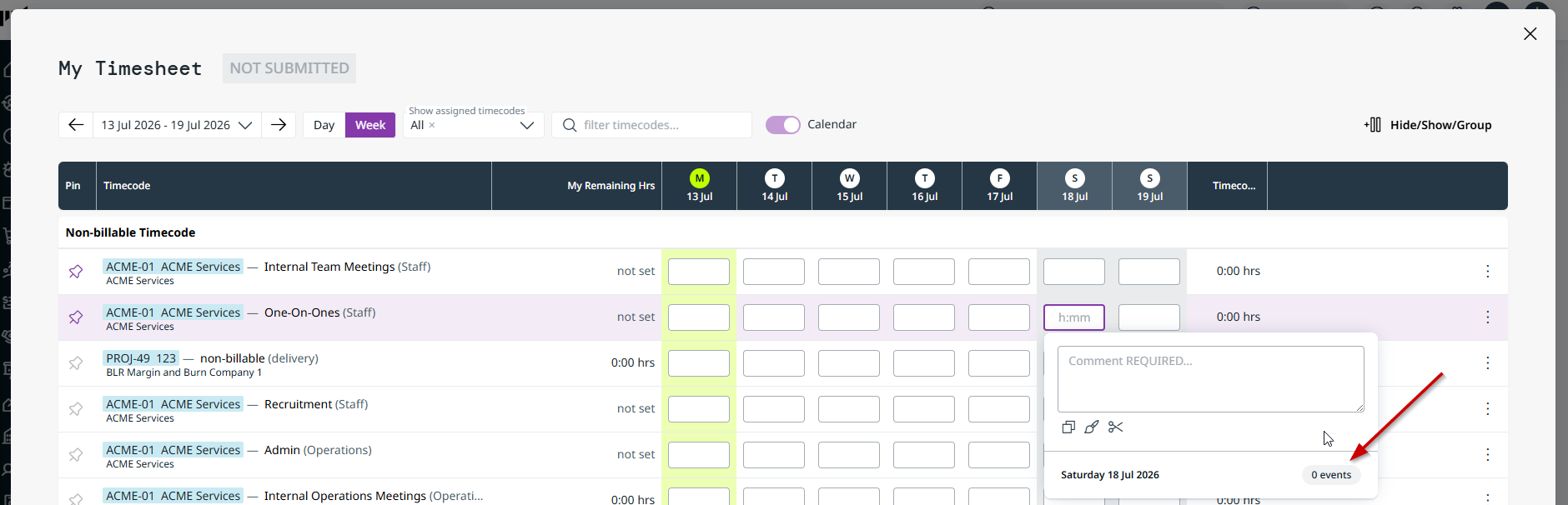
My Time Entry hours differ from the total of the calendar events saved to it
There are a couple of reasons why the duration of the time entry will differ from your calendar event:
-
If your timesheet entries are restricted to allocated hours, and you save a calendar event to a timecode that has less time remaining than the event duration the time entry duration will be reduced to the remaining hours.
-
In the event where you have 0 remaining hours for the timecode, the event will not be saved to the time entry.
-
-
Adding events to a time entry does not restrict the time entry duration from being updated. If the duration is updated, the calendar event will remain saved to the time entry (even though the duration differs from the total of the calendar events saved to it).
I have copied (or cut) and pasted a time entry, but the event hasn’t been associated to the new time entry
Calendar events can only be associated to a single time entry, so the event will not be copied to a new time entry.
If you wish to move the time entry (including the calendar event) to another timecode, you will need to change the timecode for the time entry via your time entry screen (read more about moving time entries →).
I can’t tell what time entry my calendar event is associated to
If your time entry or timesheet is locked, you will only be able to see the calendar events assigned to the time entry against it, otherwise you will be able to see all of the calendar events.
My Time Entry hours have been reduced to 24 hours
If you have a multi-day event that exceeds 24 hours, and you add it as a time entry, it will only be added for the day the event commenced, and the time entry will be reduced to 24 hours.
To add the event details as a time entry to another day, you can copy and paste the time entry.
If the time entry should not exceed your daily capacity, you can reduce the time entry to capacity. 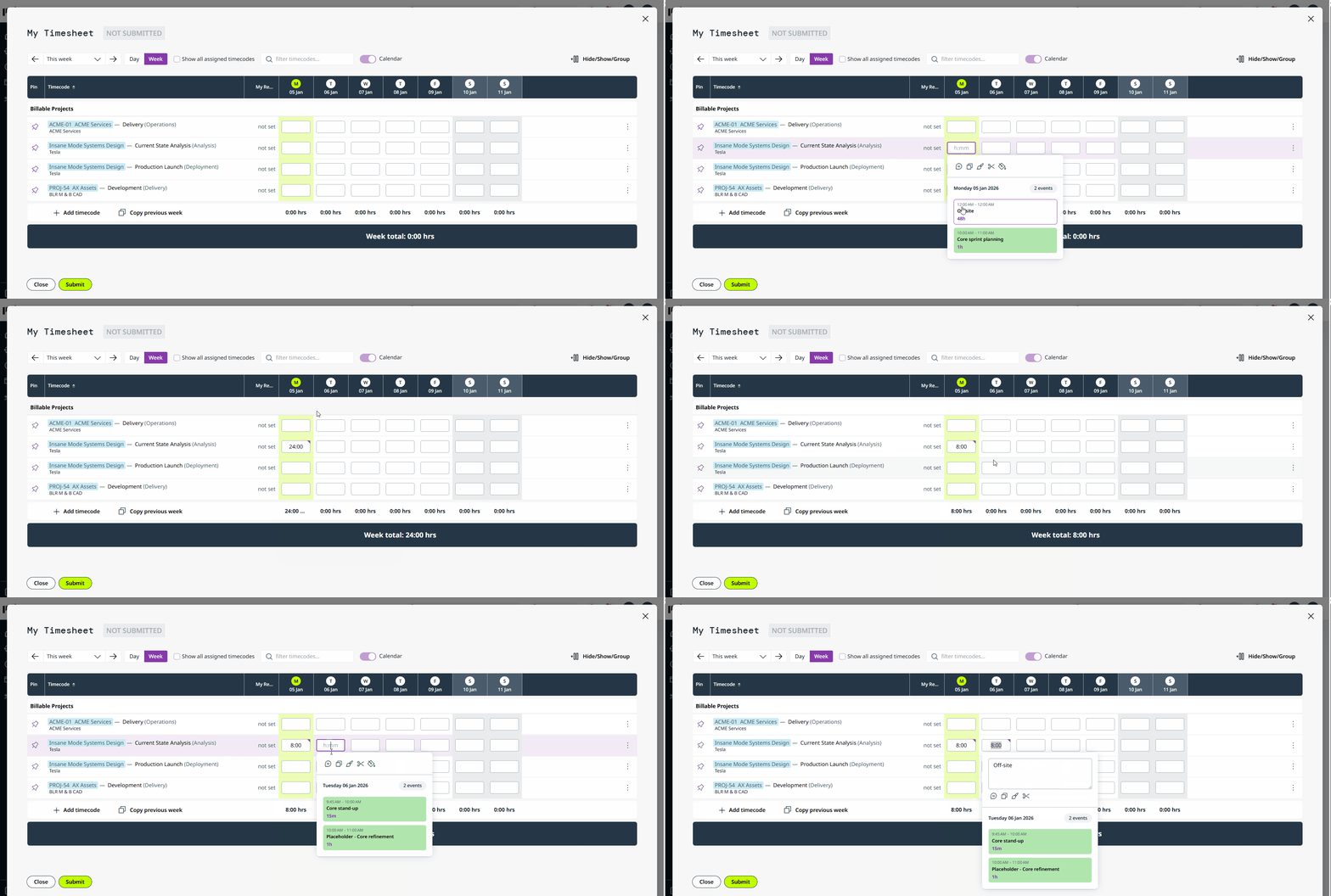
I can’t see somebody else’s calendar events in their timesheet
You can only see your calendar events in your own timesheet. If you have access to view another person’s timesheet, you won’t be able to see or pull through events from their Outlook or Google calendar.
Events from Outlook or Google have different start and end times in Projectworks
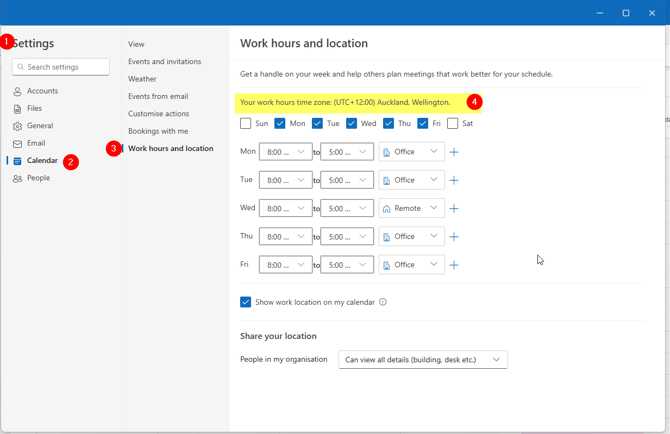
If your “Location” time zone in Projectworks differs from your Outlook or Google time zone, the start and end times in Projectworks will appear differently than the event in your connected calendar.
To view your Outlook time zone:
-
Go to Outlook settings;
-
Select “Calendar”;
-
Select “Work hours and location”;
-
Your work hours time zone should be displayed.
-
If your time zone is incorrect in Outlook, you can update this:
-
Select “View” in your Outlook Calendar Settings;
-
Select the “Display my calendar in time zone:” dropdown and select the correct location.
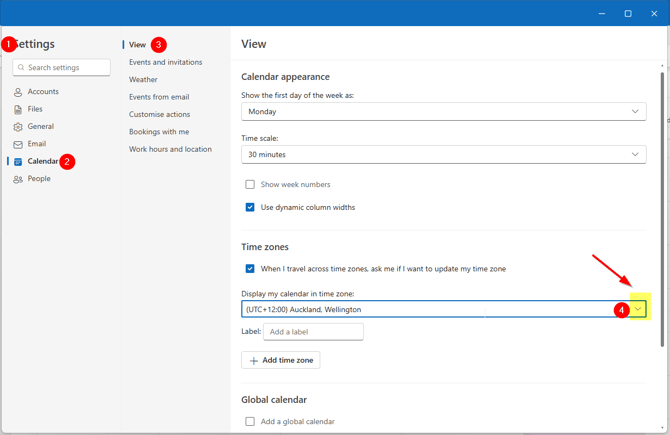
-
To view your Google time zone:
- Go to Google Calendar settings and select “Settings”;
- Select “Time zone”;
- Your primary time zone should be displayed.
- If your time zone is incorrect in Google, you can update this:
- Click “Primary time zone”;
- Type to search for city or country, and select the correct location.
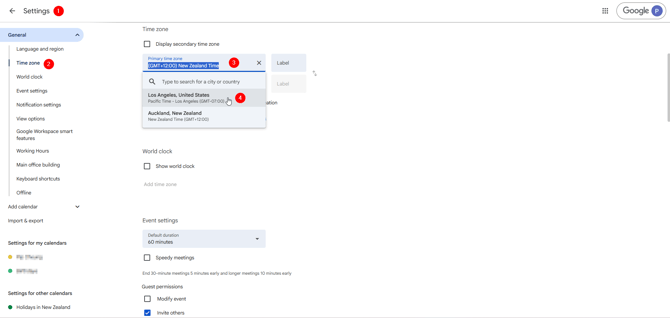
If your calendar location is correct, check your Projectworks location is correct, by viewing your profile:
-
Select your initials in the top right hand corner
-
Select “Profile”
-
Your location will be displayed below your name
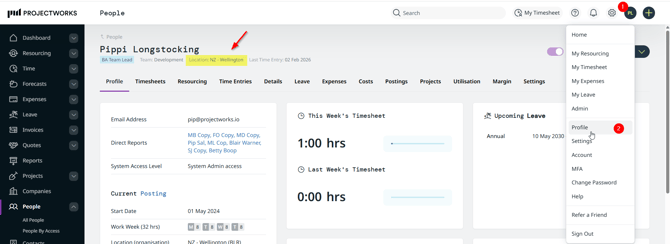
If your location is incorrect, contact your Projectworks administrator to get this updated.
Projectworks administrators: to update a person’s location, edit their existing posting, or create a new posting. Read more about editing a person’s posting →
In the event that your Projectworks location and calendar location are the same, it is likely the time zone is incorrectly set up in the “location” settings. Contact your Projectworks administrator to update the location time zone.
Projectworks administrators: if time zones are incorrect, update the location to the correct time zone. Read more about setting up locations →