.png?width=280&height=39&name=Projectworks-Logo-Black-280px%20(1).png)
- How it works
- What you need to export from Harvest
- Before we start
- How Harvest maps to Projectworks
- A known issue: budgets set in hours
- What to check during validation
- If something does not look right
How it works
For Harvest migrations, you extract your own data from Harvest as a series of CSV files and send them to us. Our data team then transforms those files into the right format for Projectworks. Your Customer Success Manager (CSM) will walk you through exactly what to export and where to upload it.
What you need to export from Harvest
You will need to provide the following files:
-
Clients and contacts
Export from the Import/Export menu in Manage > Clients. Export both files in CSV format. -
Projects
Export from Projects > Export. Export your active projects first, then your archived projects, in CSV format. -
Time entries
Export the Detailed time report from Reports > Detailed time. Select all time and all projects and export in CSV format. -
Expenses
Export the Detailed expense report from Reports > Detailed expense. Select all time and all projects and export in CSV format.
That is five files in total for the main data. Invoice data is provided separately - your CSM will send you a task for that.
Note: Harvest will either export the file immediately or email you when it is ready, depending on the size of the export.
Before we start
Your CSM will send you a decisions form before we run the load. The key things to confirm are:
-
How far back do you want to bring your data?
There is no limit, but some businesses choose a start date to keep things simple. -
How do you want to structure your budgets?
In Harvest, tasks sit under projects. In Projectworks, budgets sit between projects and timecodes and drive invoicing. The default approach is to create one budget per Harvest task, which preserves your existing structure and keeps your invoicing history intact. If you would prefer a simpler setup, we can discuss other options upfront. -
How do you want to handle work in progress?
For Harvest migrations, your source data tells us which time entries have already been invoiced and which have not. Invoiced time entries are placed on $0 invoices in Projectworks, because Harvest does not give us a way to link time entries back to specific invoices. Uninvoiced time entries stay as uninvoiced in Projectworks. -
Do you have any pre-billed invoices?
If you invoice clients before work is done, we need to know so those are handled correctly.
How Harvest maps to Projectworks
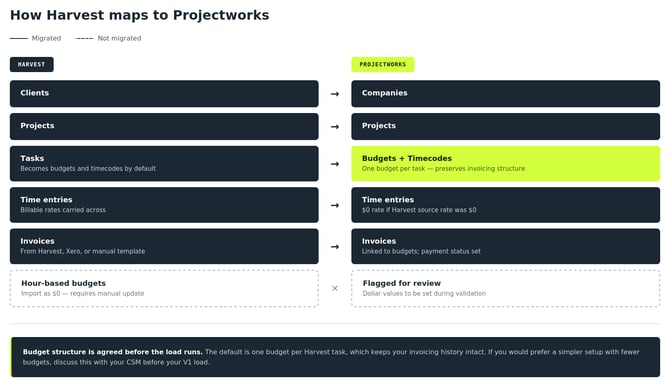
In Harvest you have clients, projects, and tasks. In Projectworks the hierarchy is Companies, then Projects, then Budgets, then Timecodes. Your Harvest clients become companies, your projects become projects, and your tasks generally become timecodes sitting under budgets.
The key new layer is budgets, which drive how invoicing works in Projectworks. If you have not already, read our article How Projectworks structures your data and the guide on setting up project pricing before your validation.
A known issue: budgets set in hours
Harvest allows project budgets to be set in hours rather than dollars. When this is the case, those budget values import into Projectworks as $0, because Projectworks budgets are monetary. This is a known limitation of the Harvest data structure.
If you have projects set up this way, we will flag them during the load and work through them with you. It is worth checking in Harvest before your migration whether any active projects are using hour-based budgets.
What to check during validation
Once your data has been loaded, here is what to focus on.
-
Check your project and budget structure.
Does each project have the right budgets underneath it? Does the structure reflect the approach we agreed on upfront? -
Check billable rates on a sample of time entries across different staff members and project types.
If you see time entries showing $0 on their billable rate, this usually means those rates were set to $0 in Harvest itself rather than being a migration error. Check the source data in Harvest if anything looks off. -
Check for unmatched people records.
If a person in your Harvest data could not be matched to a Projectworks user, they will appear as an inactive placeholder record. Let your CSM know and we can sort those out. -
Check leave entries.
Leave time logged in Harvest will come across as leave requests in Projectworks. Check that these look correct for a sample of staff. -
Check project numbers.
Check they are unique and correctly assigned across your projects. -
Check your WIP position
Check on a few active projects and confirm uninvoiced time is sitting correctly against the right budgets. -
Check a sample of historical invoices
Confirm amounts, dates, and project associations match your Harvest records.
If something does not look right
Raise it with your CSM. Our data team can make bulk corrections during validation, so most things can be fixed without you having to touch anything manually.
For general validation guidance that applies to all migration types, see How to validate your migrated data.